Zoom
This app is currently available in Brazilian Portuguese (pt-BR) only. Portuguese documentation: Zoom (pt-BR).
The Zoom integration allows connecting the mentor's account to Mentorfy to create Zoom events directly in meetings and make access available in the student area. After setup, mentors and participants enter a 100% Zoom experience, also optimized for mobile devices.
Integration video tutorial
Watch the step-by-step video to configure your Zoom integration with Mentorfy:
Overview
The complete flow involves five main steps:
- Connect the Zoom account — OAuth authorization in the Integrations tab.
- Create a meeting — in the Meetings area, with the Zoom Event type.
- Share the links — guest link for participants and moderator link for the mentor.
- Join the meeting — access the room with Zoom's native interface.
- Watch the replay — after the session, the cloud recording is imported automatically and attendance is synced.
- Active Mentorfy account with access permission to Integrations and Meetings.
- Valid Zoom account (the same one that will be used to host events).
1. Access the platform
Go to app.mentorfy.io and log in with your email and password or use Google login.
2. Connect the Zoom account
In the sidebar menu, go to Integrations and select the Zoom tab — or open mentorfy.io/mentor/integracoes?tab=zoom directly.
The page displays the connection status. While the account is not linked, the card will show "Zoom not connected".
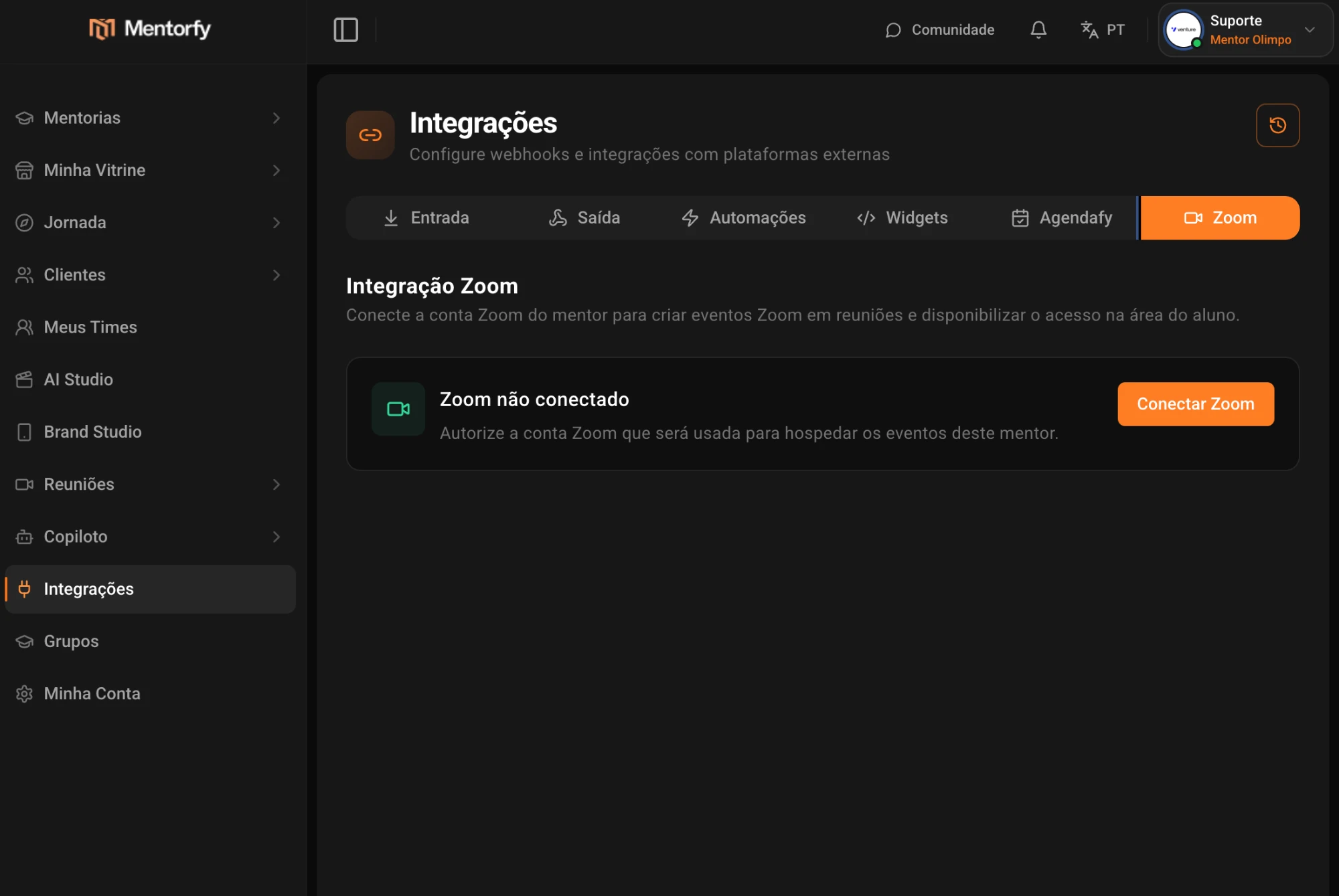
Click Connect Zoom. You will be redirected to the Zoom authorization page — log in to your Zoom account (if not already authenticated) and confirm access.
After authorizing, return to Mentorfy. The integration will be active and ready to create Zoom events.
3. Create a Zoom meeting
In the sidebar menu, go to Meetings > My Meetings (mentorfy.io/mentor/reunioes/geral) and click + New Meeting.
In the creation modal, select the Zoom Event type and fill in the basic information:
| Field | Description |
|---|---|
| Meeting name | Title displayed to participants. |
| Schedule date and time | Optional. Enable to set a scheduled start time. |
| Duration in minutes | Expected event duration (default: 60 min). |
| Require Mentorfy login | Restricts access to users authenticated on the platform. |
| Waiting room | Participants wait for moderator approval before joining. |
| Join before host | Allows participants to join before the mentor. |
| Mute on entry | Participants' microphones start muted. |
| Record to cloud | Records the session to Zoom's cloud; after the meeting, the replay is imported automatically into your Mentorfy library. |
Proceed through the Invite and Config steps as needed and finalize the creation.
4. Share the links
After creating the meeting, Mentorfy displays two distinct links:
| Link | Use |
|---|---|
| Guest link | Share with students and participants. |
| Moderator link | Use only yourself (mentor) to start and conduct the meeting. |
Copy the appropriate link using the button next to each field or click Join meeting to access directly as moderator.
Send the guest link to participants. The moderator link grants full control of the room — do not share it publicly.
5. Join the meeting
When accessing the link (as moderator or guest), you may be prompted to log in to Mentorfy or Zoom, depending on the settings defined during creation.
Next, the Zoom pre-entry screen is displayed. There you can check the display name, configure microphone and camera, and choose a virtual background if desired.
Click Join to enter the room. From that point on, the experience is 100% Zoom — with all the platform's native features, including a layout adapted for mobile.
6. Cloud recording and attendance
Session replay
Enable Record to cloud when creating the meeting (or start a cloud recording manually from Zoom's Record menu while hosting). After the meeting ends and Zoom finishes processing the recording, Mentorfy imports it automatically:
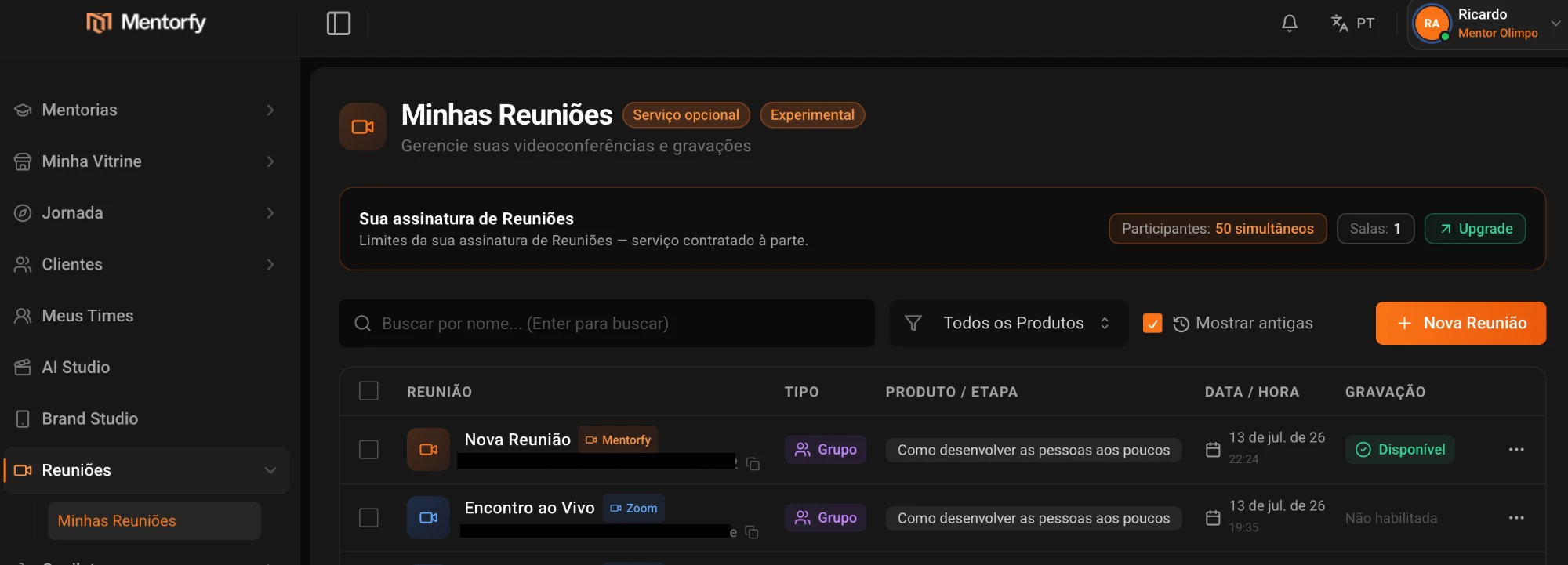
- The meeting shows a View Recording button as soon as the replay is ready — usually a few minutes after the session ends.
- The replay is stored in your private Mentorfy media library, and students with access to the meeting can watch it in the member area.
- If you end and restart the same meeting, the recordings of every instance are located and imported.
- The original recording remains untouched in your Zoom account — Mentorfy never modifies or deletes it.
In Meetings > My Meetings (mentorfy.io/mentor/reunioes/geral), the Recording column shows the replay status of each session — Available when the replay is ready to watch.
Attendance
After the session ends, Mentorfy syncs the participant list from Zoom (display name, email, and join/leave times) so you can review attendance on the meeting page.
Recording import and attendance sync use new read permissions (cloud recordings and participants). If you connected Zoom before this update, open Integrations > Zoom and reauthorize the app (disconnect and connect again) so the new permissions are granted. Meetings keep working either way — but replays are only imported after reauthorizing.
Conclusion
With the Zoom integration configured, you can create live events through Mentorfy, share access links with students, conduct meetings with Zoom's infrastructure and quality, and let students watch the replay in the member area.
If you have any questions, contact support via in-platform chat or email at contato@mentorfy.io. English support: mentorfy.io/support.