Hubla
Follow this step-by-step guide to integrate your sales flow with the Mentorfy delivery flow using Hubla.
Before configuring the webhook, create an Entry URL in Mentorfy. This URL defines which products, categories, or classes will be unlocked when Hubla confirms a purchase.
-
In Mentorfy, go to Integrations > Entry and click + New URL.
-
Fill in the URL with a descriptive name, select Hubla as the payment gateway, and choose the products and/or categories to be unlocked. Then click Create and copy the generated URL.
See the full step-by-step in How to create an Entry URL.
Configuring the Hubla platform
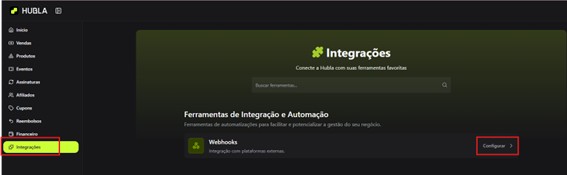
Access your account on the Hubla platform and, in the side menu, click Integrations.
Scroll down to the Automations section and click Webhook.
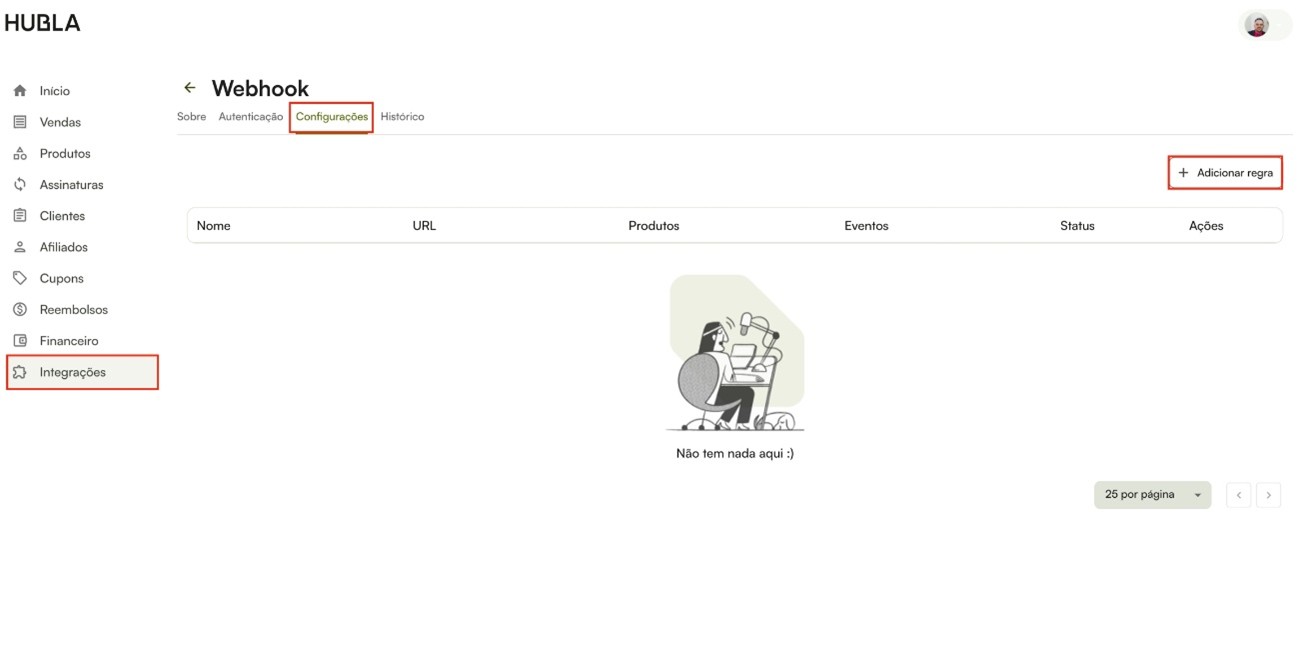
On the Webhook Integration page, select the Settings tab;
Click the Add rule button located in the upper-right corner of the page.
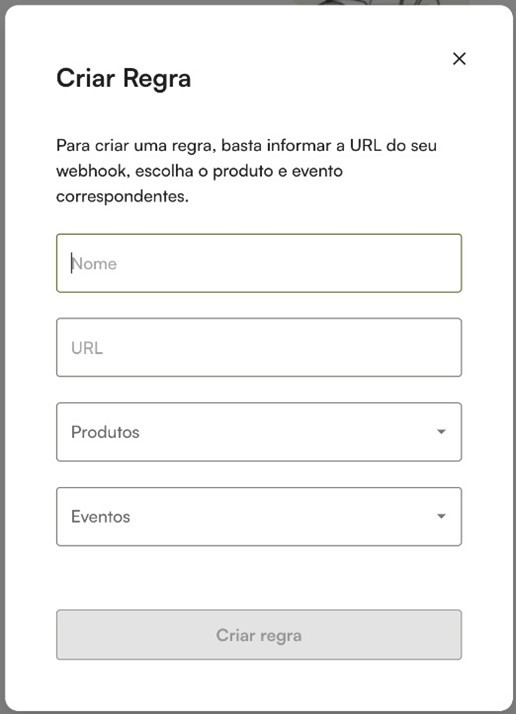
In the form:
- Enter a meaningful name to identify your new rule.
- Enter the Entry URL you copied from Mentorfy;
- Select the specific products you want to associate with this rule.
- Check the desired events that will trigger the webhook:
- Invoice payment completed
- Subscription deactivated
- Subscription cancelled
If different products unlock different accesses in Mentorfy, create one Entry URL and one rule in Hubla for each case.
After following these steps, your new rule will be configured and ready to automatically send the data from the selected events to the URL you specified during the webhook configuration process.
Testing the integration
After configuring the webhook in Hubla:
- Make a test sale in Hubla for the configured product.
- Verify that the event is received correctly in Mentorfy.
- Confirm that the customer appears in the journey and in the Mentorfy customer list.
Conclusion
Once you complete these steps, the integration will be complete and you will be able to see your customers in the journey and in your customer list in Mentorfy.
If you have any questions, contact our support via the chat on the platform or by email: contato@mentorfy.io