Stripe
Video integration tutorial
Watch the step-by-step video to configure your Stripe integration with Mentorfy:
Follow this step-by-step guide to integrate your sales flow with Mentorfy's delivery flow using Stripe. Stripe does not filter to send events for specific products, so if you want to sell different products and grant different accesses, an additional configuration will be required for Mentorfy to identify the different offers.
- Access the Integrations page in Mentorfy:
Go to Integrations > Entry and click + New URL.
- Create an Entry URL, filling in the basic information:
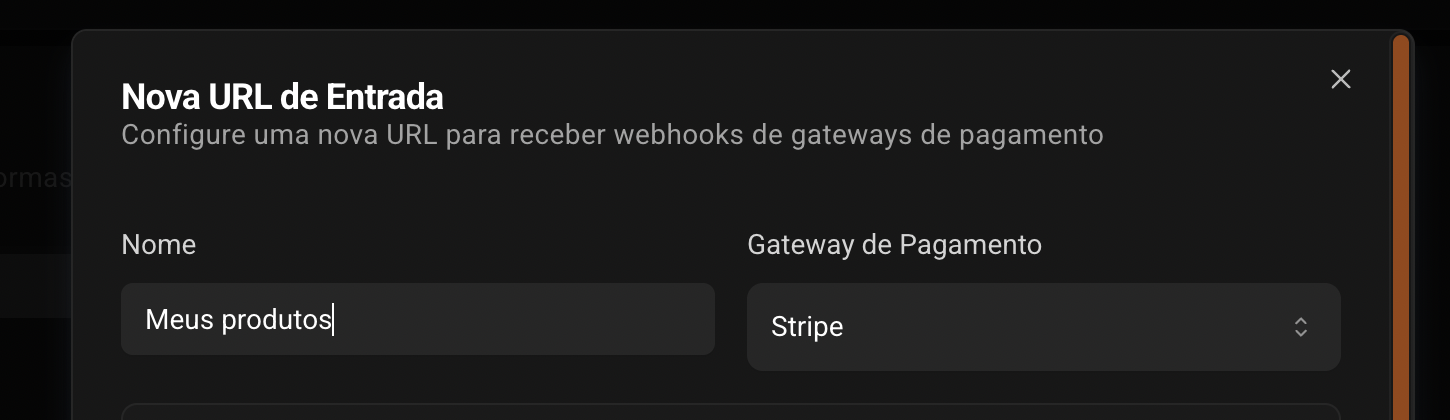
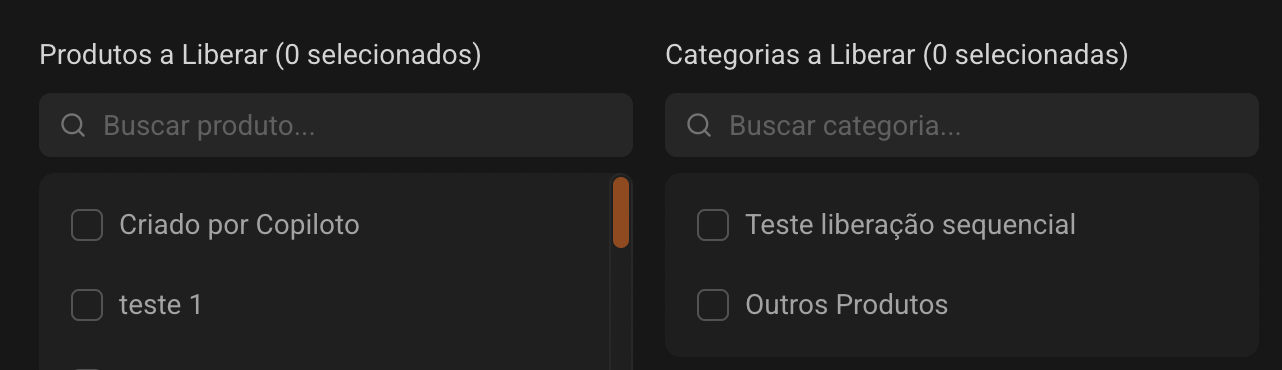
You will need to fill in Name, Gateway (Stripe) and products to unlock; the remaining fields are optional.
If you want to sell multiple products that grant different accesses in Mentorfy, you will need to add the Stripe Price IDs (price_id). That is, if you are only ever unlocking the same products, this is not necessary.
2.1 Optional in case of different product releases with different offers
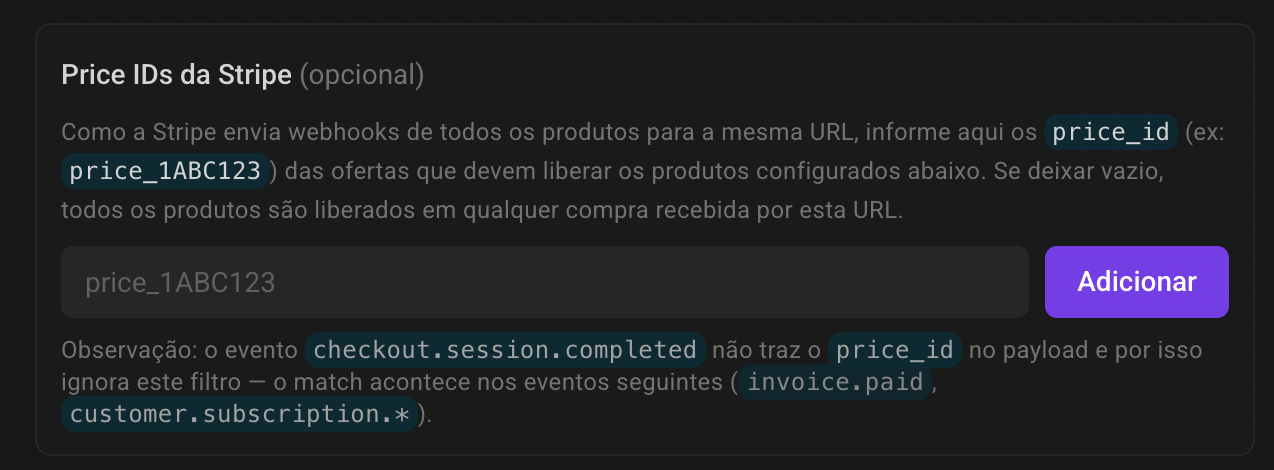
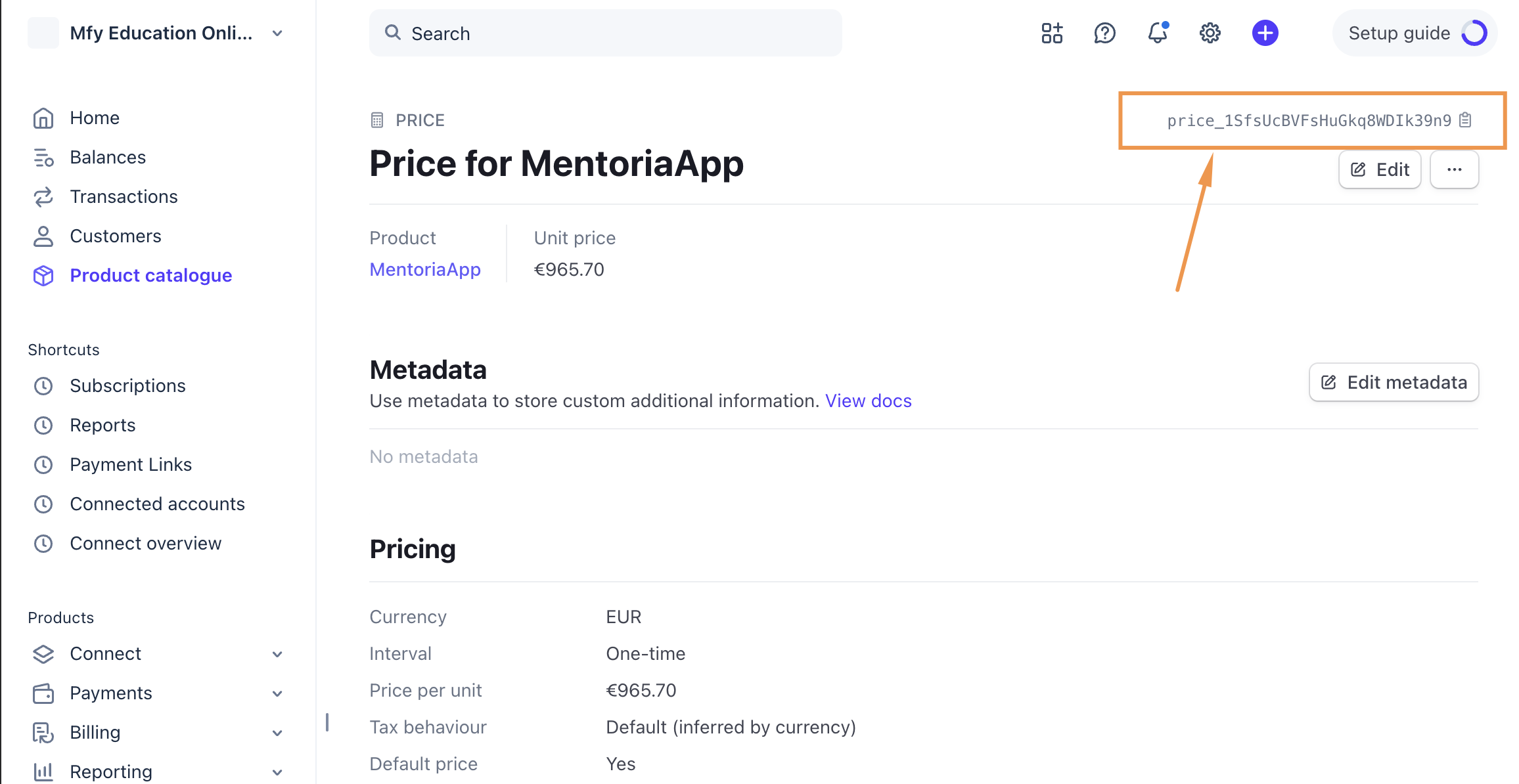
To get the price_id you need to access your product in Stripe, click on the price and copy the price_id.
This way, when a sale occurs, we can associate it with the Mentorfy products that will be unlocked.
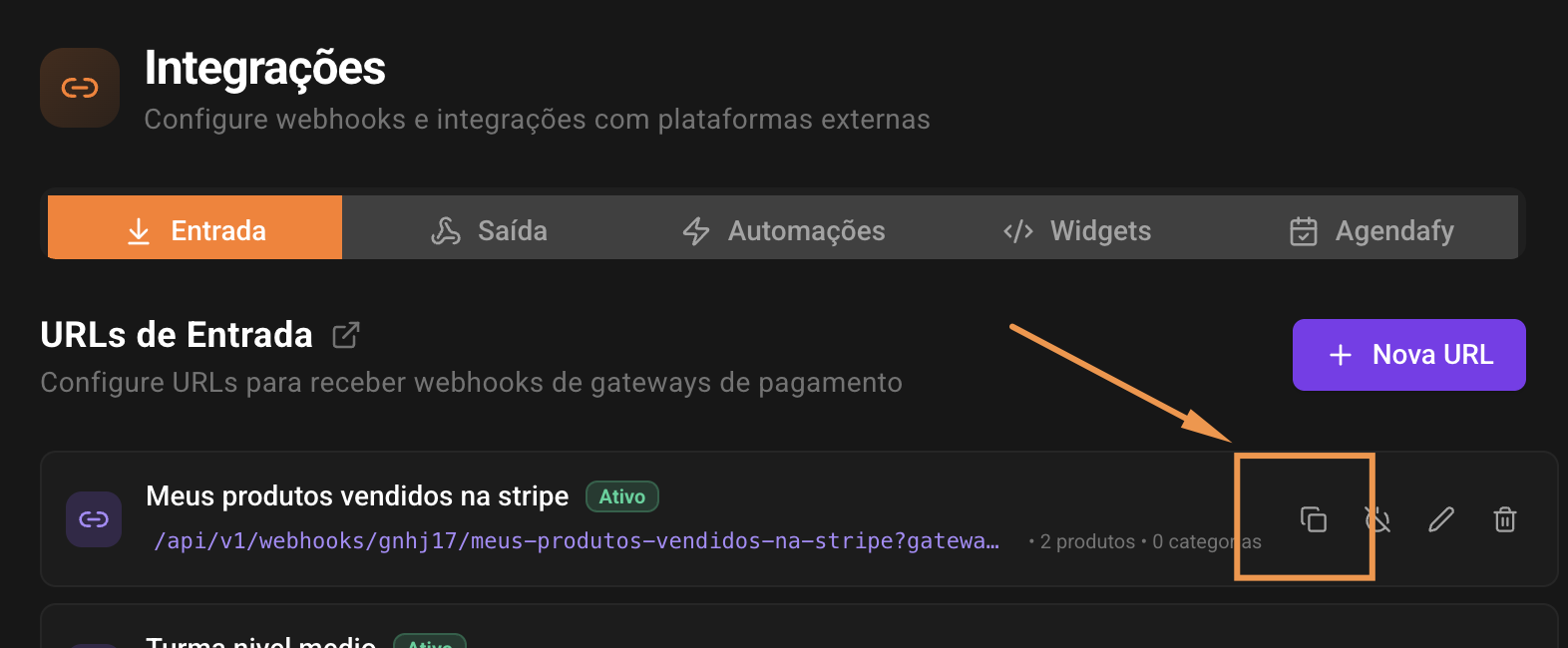
2.2 Copy the created Entry URL, we will use it in Stripe now.
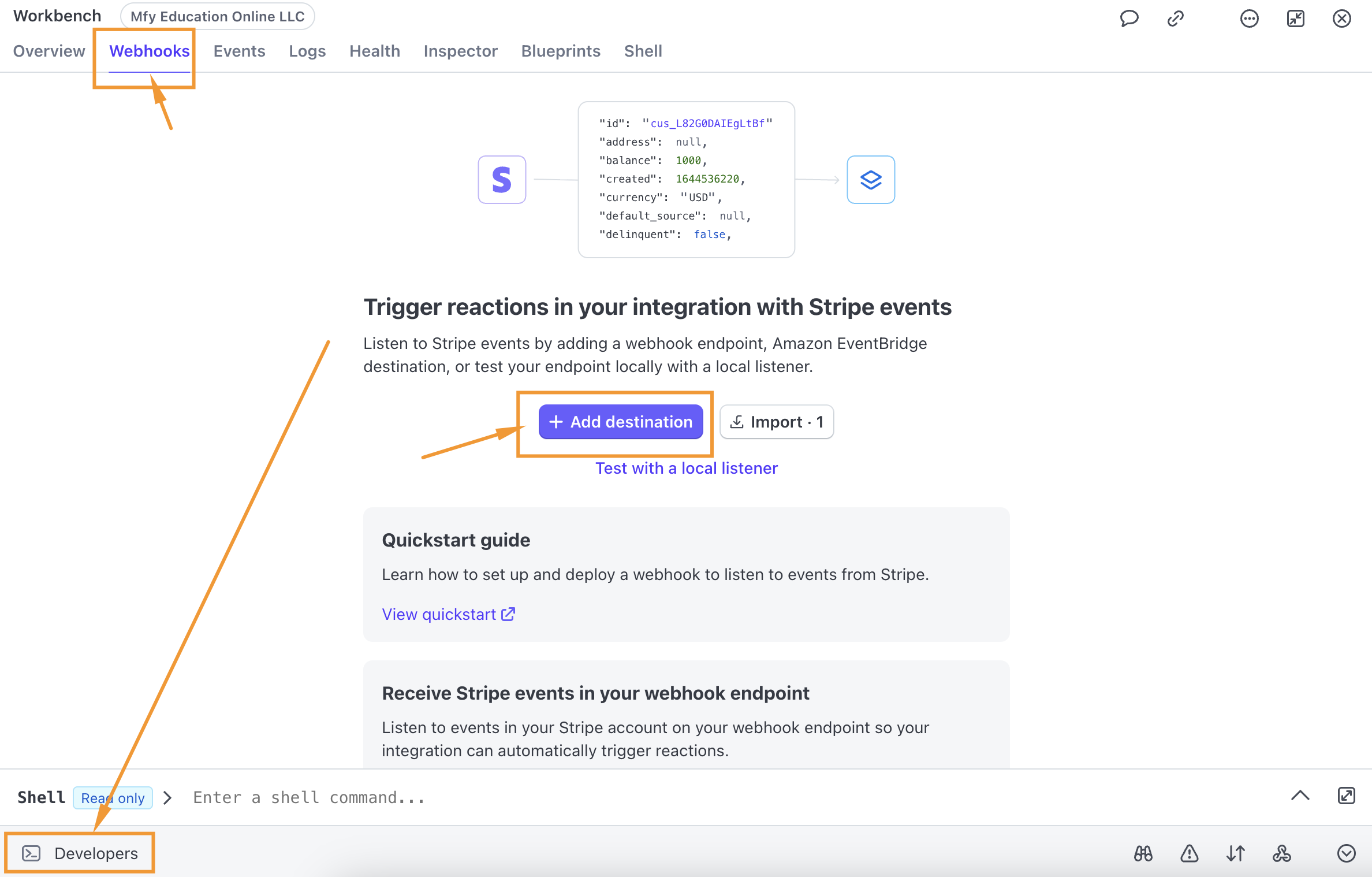
- Access the Stripe dashboard and navigate to Developers > Webhooks.
-
Click Add endpoint.
-
In the Endpoint URL field, paste the Entry URL you copied from Mentorfy.
-
In Select events to listen to, add the following events:
invoice.payment_succeededcustomer.subscription.updatedcustomer.subscription.deleted
-
Click Add endpoint to save.
-
Done, your integration is complete.
Testing the integration
After configuring the webhook in Stripe and Mentorfy:
- Make a test sale in Stripe (you can use Stripe's test mode).
- Check that the event is received correctly in Mentorfy.
- Confirm whether the customer appears in the journey and in Mentorfy's customer list.
Conclusion
Once you complete these steps, the integration will be complete and you will be able to see your customers in the journey and in your customer list in Mentorfy.
If you have any questions, contact our support via the chat on the platform or by email at contato@mentorfy.io