Asaas
Follow this step-by-step guide to integrate your sales flow with the Mentorfy delivery flow using Asaas.
Before configuring the webhook, create an Entry URL in Mentorfy. This URL defines which products, categories, or classes will be unlocked when Asaas confirms a charge.
-
In Mentorfy, go to Integrations > Entry and click + New URL.
-
Fill in the URL with a descriptive name, select Asaas as the payment gateway, and choose the products and/or categories to be unlocked. Then click Create and copy the generated URL.
See the full step-by-step in How to create an Entry URL.
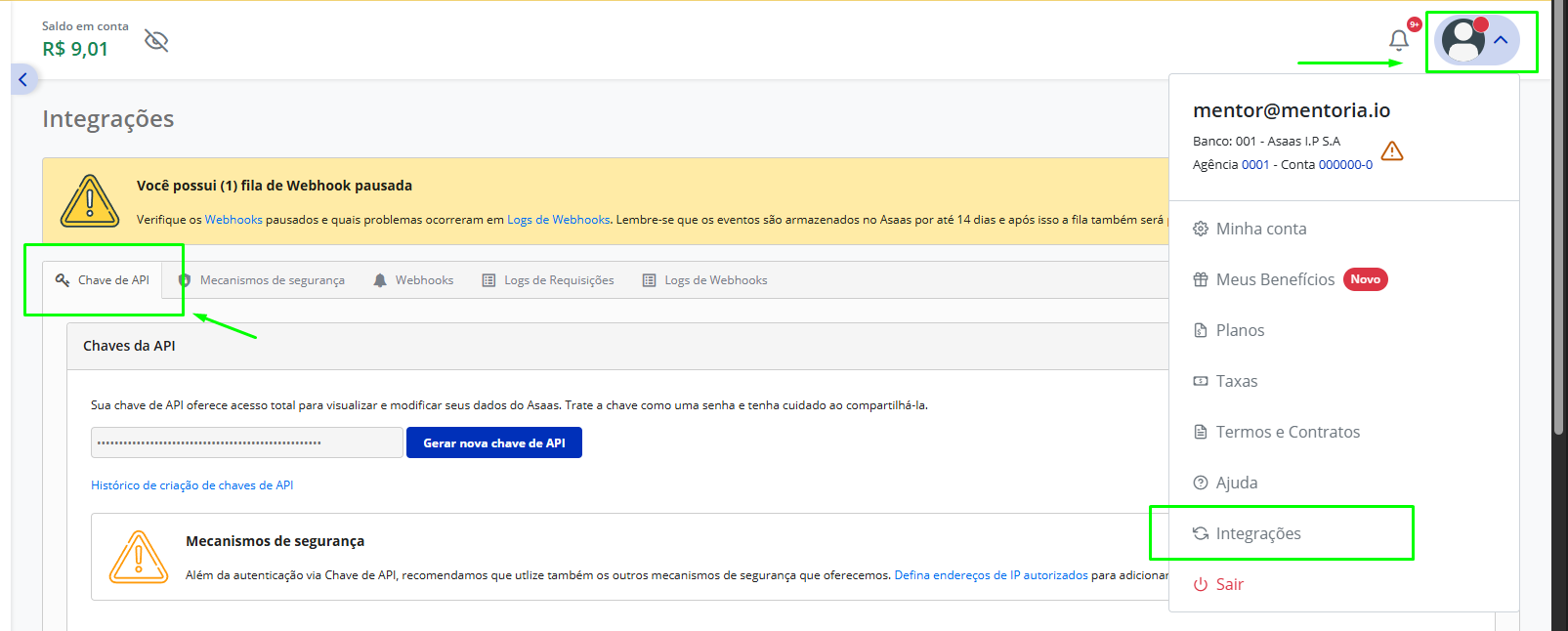
- Log in to your Asaas account and access the user menu
Navigate to Integrations > API Key
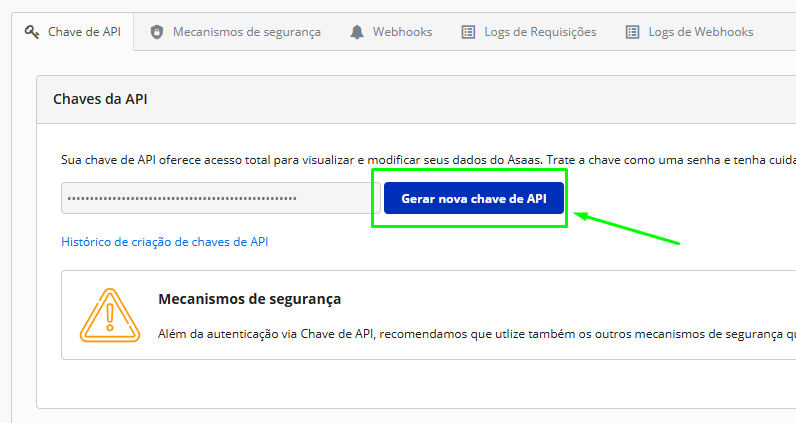
- Click Generate new API key; after verification it will allow you to copy your key — copy that generated key.
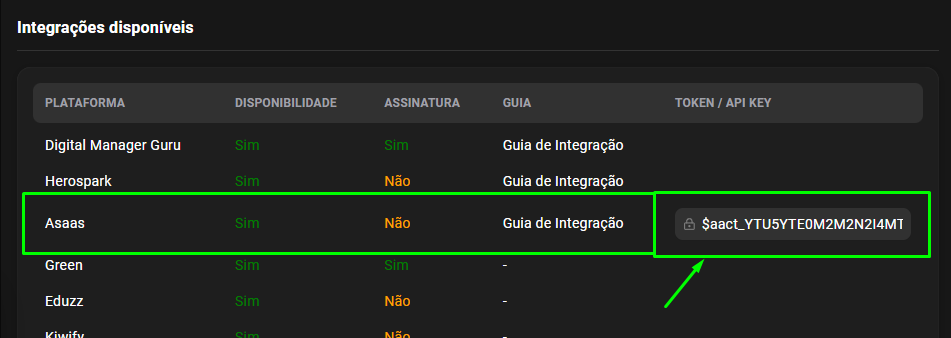
- Go back to Mentorfy, open Integrations > Keys, and register the generated key for the Asaas platform.
- Save the settings.
Configuring the Webhook in Asaas
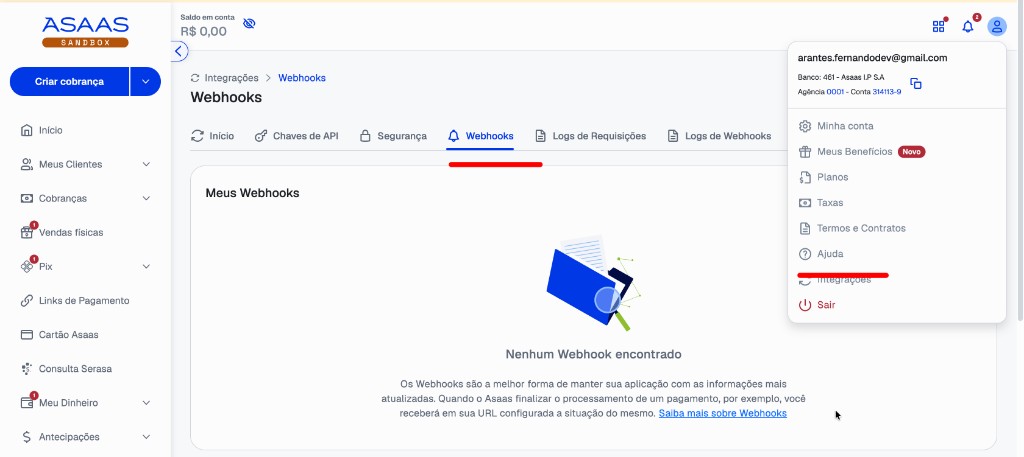
- Access the user menu in Asaas.
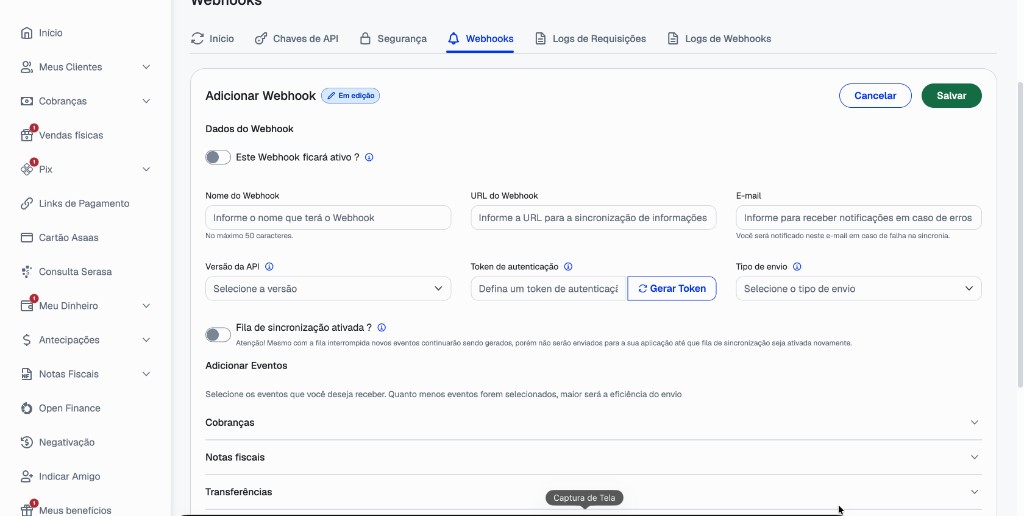
Navigate to Integrations > Webhooks
- On your first visit, you will see a button to create your first Webhook. Click "Create Webhook".
- Fill in the form with the following information:
- Webhook must be marked as active
- Name for the webhook
- URL that will receive event information: paste the Entry URL you copied from Mentorfy
- Email for notifications in case of communication errors
- API version V3
- Authentication token (the API key you copied from Asaas)
- Enable the synchronization queue
- Sequential sending type
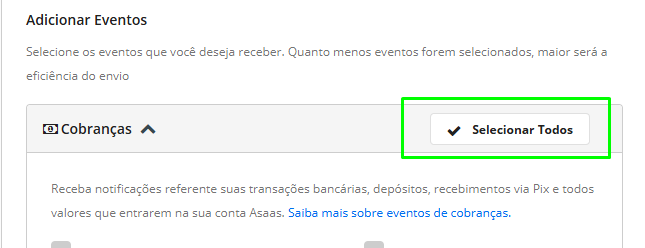
- Select all Charge events. You can check the full list of events in the Asaas documentation.
- Save the settings.
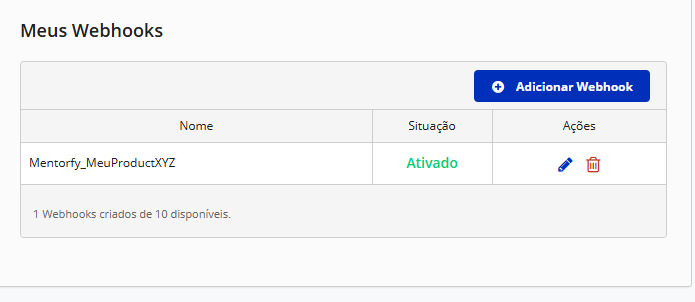
You can have up to 10 Webhooks configured per account, with no address restrictions. You can also edit or delete created Webhooks.
Testing the integration
After configuring the webhook in Asaas and Mentorfy:
- Make a test sale in Asaas.
- Verify that the event is received correctly in Mentorfy.
- Confirm that the customer appears in the journey and in the Mentorfy customer list.
Conclusion
Once you complete these steps, the integration will be complete and you will be able to see your customers in the journey and in your customer list in Mentorfy.
If you have any questions, contact our support via the chat on the platform or by email at contato@mentorfy.io
For more information about webhooks in Asaas, see the official documentation.