Reply in one click and let AI help
Two helpers so your team repeats itself less: quick replies, which go into the conversation in one click, and Quick Assist, where AI answers the common questions before your team does.
Step by step
In Support settings, open Quick replies and click New reply.
Give it a Title and a Shortcut, and write the text. Click Save.
Write
{nome}where the student's name should go and{mentor}for yours.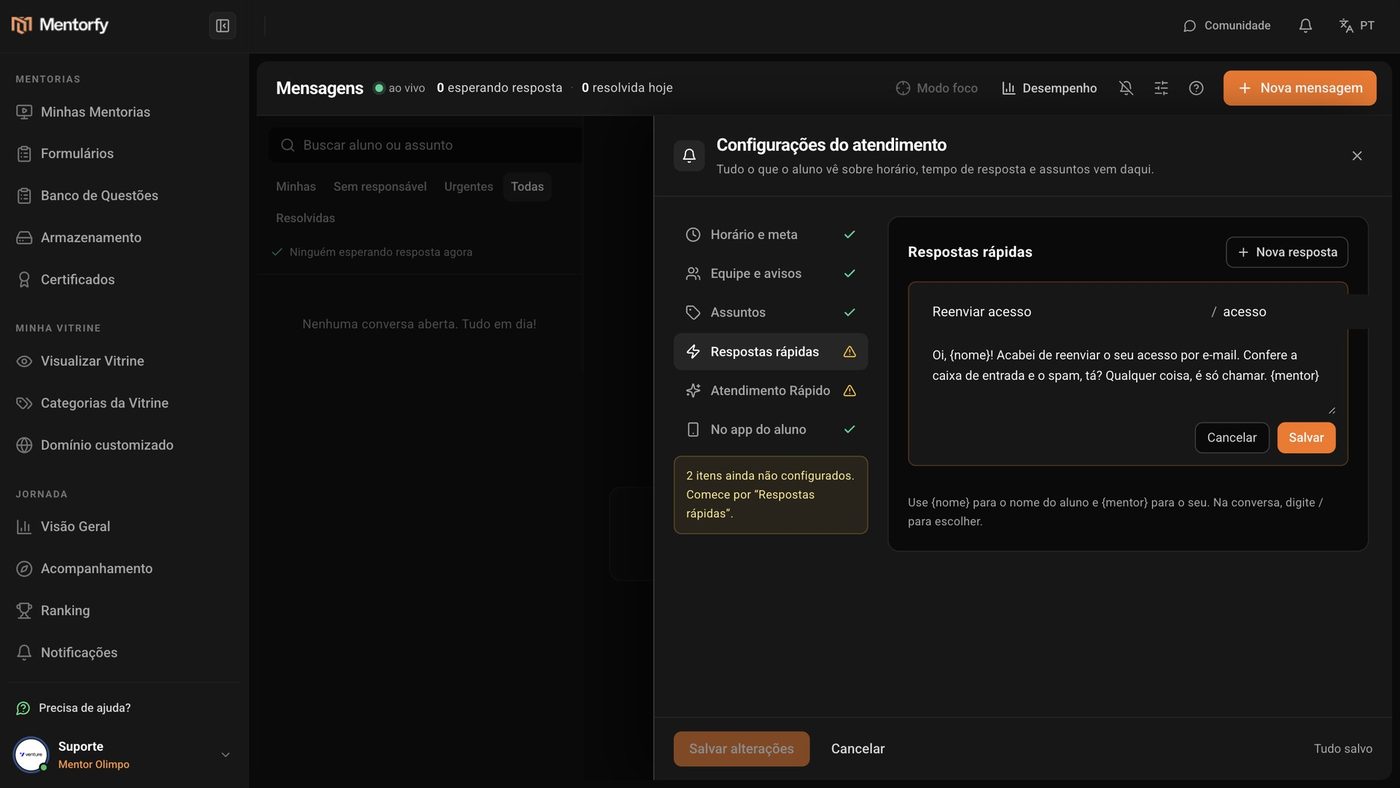
In the conversation, type / and pick the reply.
It goes in ready, with the student's name filled in.
In Quick Assist, click New question and add the questions you get most often.
For each one, write the Question and the Answer and click Save. Have a ready-made list? Use Import.
Turn on Quick Assist and pick the Tries before calling the team.
It only turns on after you add at least one question.
Click Save changes.
From then on, AI tries to solve it. If it can't, it hands the conversation to your team.
Good to know
Each AI answer uses 0.35 AI credit from your account. With no credits, the conversation goes straight to your team. See your credits in Plan and credits.
It uses your questions and answers and doesn't make up deadlines, prices, links, or passwords. Money, cancellations, complaints, or an upset student always go to your team.
Reference
| Setting | Default | Limit |
|---|---|---|
| Quick Assist | Off | Needs at least 1 question |
| Tries before calling the team | 3 | From 1 to 5 |
| Frequently asked questions | None | Up to 50 |
| Also use the copilot material | Off | Also searches the Student Copilot material |
Common questions
AI is answering and I want to take over. How?
In the conversation, click Take over. Quick Assist stops there, and the conversation is yours.
Can the student ask to talk to a person?
Yes. When they ask, AI hands the conversation to your team and lets the student know.
How do I import many questions at once?
In Quick Assist, click Import. Paste the list (one question per line, with the answer next to it) or attach a .csv or .xlsx spreadsheet with the "pergunta" (question) and "resposta" (answer) columns. You check everything before saving.