Set your support hours, target, and team
In Support settings, you decide when your team is available, how fast you promise to reply, and who looks after conversations. Everything the student sees about hours and reply time comes from here.
On the Mentorfy screen, a student shows up as a client, in the Clients menu.
Step by step
In Messages, click the Support settings icon in the top corner.
It's the settings icon, next to the question mark.
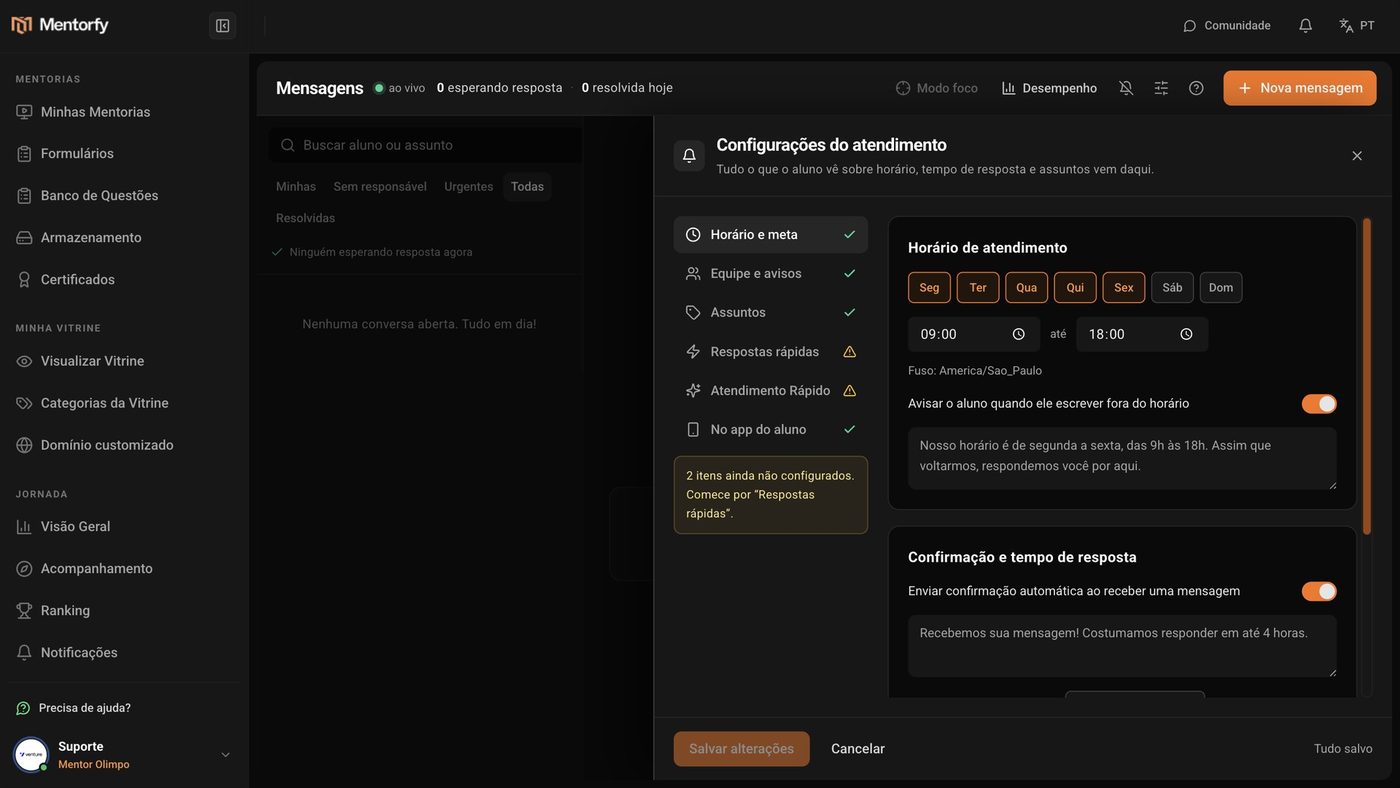
In Hours and target, check your support days and hours.
Outside those hours, the student gets an automatic notice. You can change the text of that notice.
Pick the First response target.
The student sees this promise ("we reply within 4 hours"). In the queue, the conversation turns yellow near the limit and red after it.
In Team and alerts, turn on who on your team answers and decide when to alert them.
In Alert the assignee when a conversation waits more than, pick the waiting time that triggers the alert.
In Topics, give High priority to what's urgent.
For example, "Access and password". Priority decides who shows up first in the queue.
Click Save changes.
Good to know
The conversation goes to the person in charge of the student in My Clients. If the student has no one in charge, it goes into the Unassigned queue.
Changing a topic's priority affects upcoming conversations. For the ones already open, change them one by one, inside the conversation.
Reference
How support comes out of the box, before you change anything:
| Setting | Default | Options |
|---|---|---|
| Days and hours | Monday to Friday, 9 a.m. to 6 p.m. (Brasília time) | Any day and time |
| First response target | 4 hours | 30 minutes, 1, 2, 4, or 8 hours, 1 or 2 days |
| Alert the assignee when a conversation waits more than | 30 minutes | 15 or 30 minutes, 1, 2, or 4 hours |
| Topics | Lesson question, Access and password, Billing, Scheduling, Other topic | Up to 20 topics |
| Out-of-hours notice and automatic confirmation | On | Turn on or off, and change the text |
| Students can start conversations | On | When off, only your team starts conversations |
| Ask for a rating when a conversation is resolved | On | Turn on or off |
Common questions
My students don't see the Messages button in the app.
In the In the student app section, turn on Show "Messages" in the student area menu. It's the same setting as in Brand Studio. If your student area hasn't been published in Brand Studio yet, publish it first.
I want only my team to start conversations.
In In the student app, turn off Students can start conversations. Students can still reply to conversations your team opens with the New message button.
I closed it without saving. Did I lose my changes?
Yes. Changes only take effect after Save changes. At the bottom, Unsaved changes tells you when something still needs saving; All saved confirms it.