Support your students from the Messages inbox
In Messages, students ask for help and your team answers in a queue. Each conversation has an owner, so nobody answers twice. You can also message a student first.
On the Mentorfy screen, a student shows up as a client, in the Clients menu.
Step by step
In the menu, open Clients › Messages.
Conversations sit in the Mine, Unassigned, Urgent, All, and Resolved queues. Whoever has waited the longest comes first.
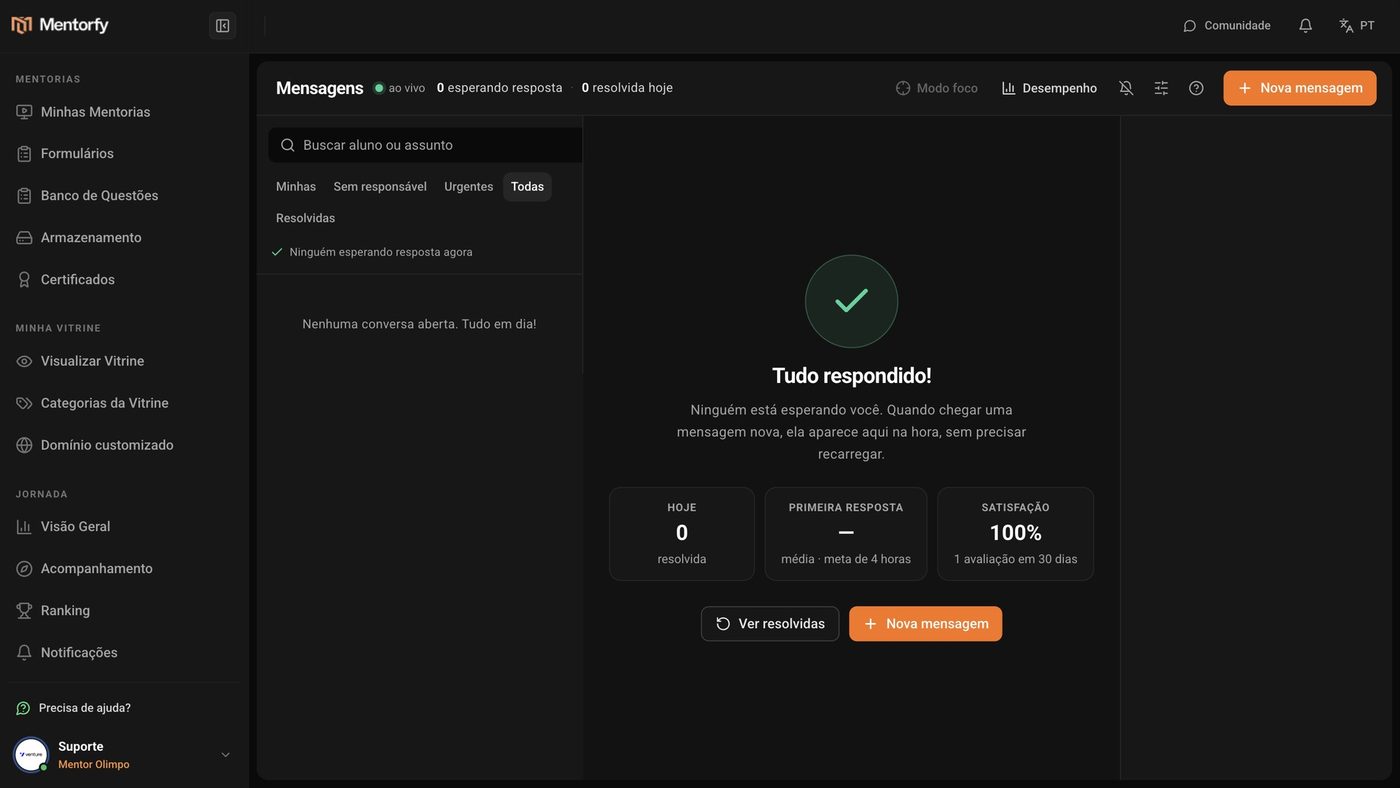
To reach out to a student, click New message and search by name or email.
Write the subject and the message and click Send.
The subject is optional. You become the owner of the conversation.
In the conversation, see everything about the student on the right.
About the student shows their products, group, and past conversations.
To leave a note for your team, open the Internal note tab and click Save note.
The student doesn't see the note.
When you're done, click Resolve.
The conversation leaves the queue and goes to Resolved.
Good to know
In the Unassigned queue, click Take it to make the conversation yours. That way the rest of the team knows someone is already on it.
If the student doesn't have the app open, they get an email notice when you reply.
Common questions
My students can't find where to send a message.
The button only shows up for them when Messages is turned on in the student app. Turn it on in Support settings › In the student app › Show "Messages" in the student area menu. See Set up your support.
What's the difference between Send and Send and resolve?
Send sends the reply and the conversation waits for the student. Send and resolve sends it, closes the conversation, and asks the student to rate the support.
The student replied to a resolved conversation. What now?
The conversation reopens on its own and goes back to the queue. You can also reopen a conversation with Reopen.
Can I send files?
Yes, with the Attach button. You can send up to 10 files per message.