Register a student
Use this when someone joined outside your sales platforms (a Pix payment, a free spot, a guest). The student gets an email with their access and finds the mentorship waiting in their area.
On the Mentorfy screen, a student shows up as a client, in the Clients menu.
Step by step
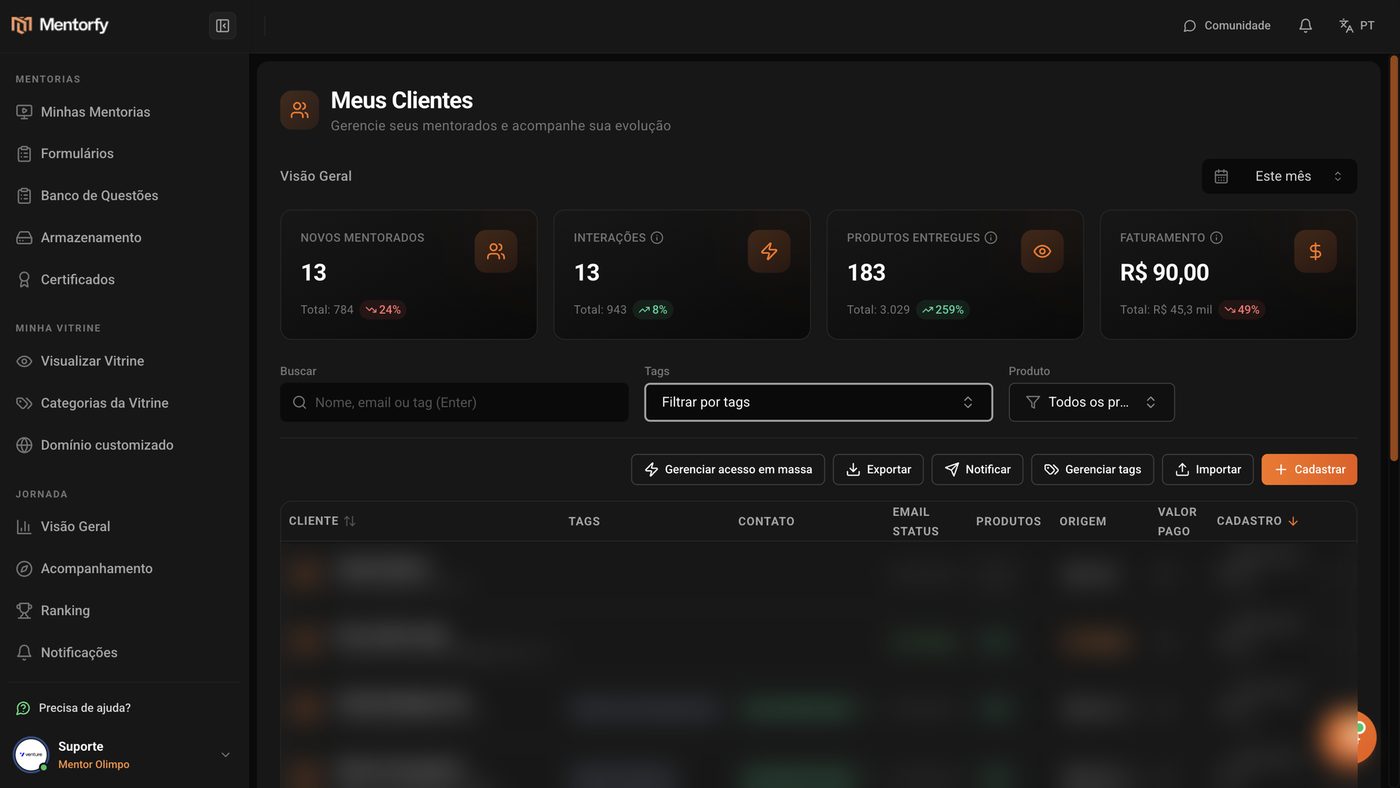
In the menu, open Clients › My Clients and click Register.
It's the orange button at the end of the row of buttons, above the list.
Fill in Email and Name.
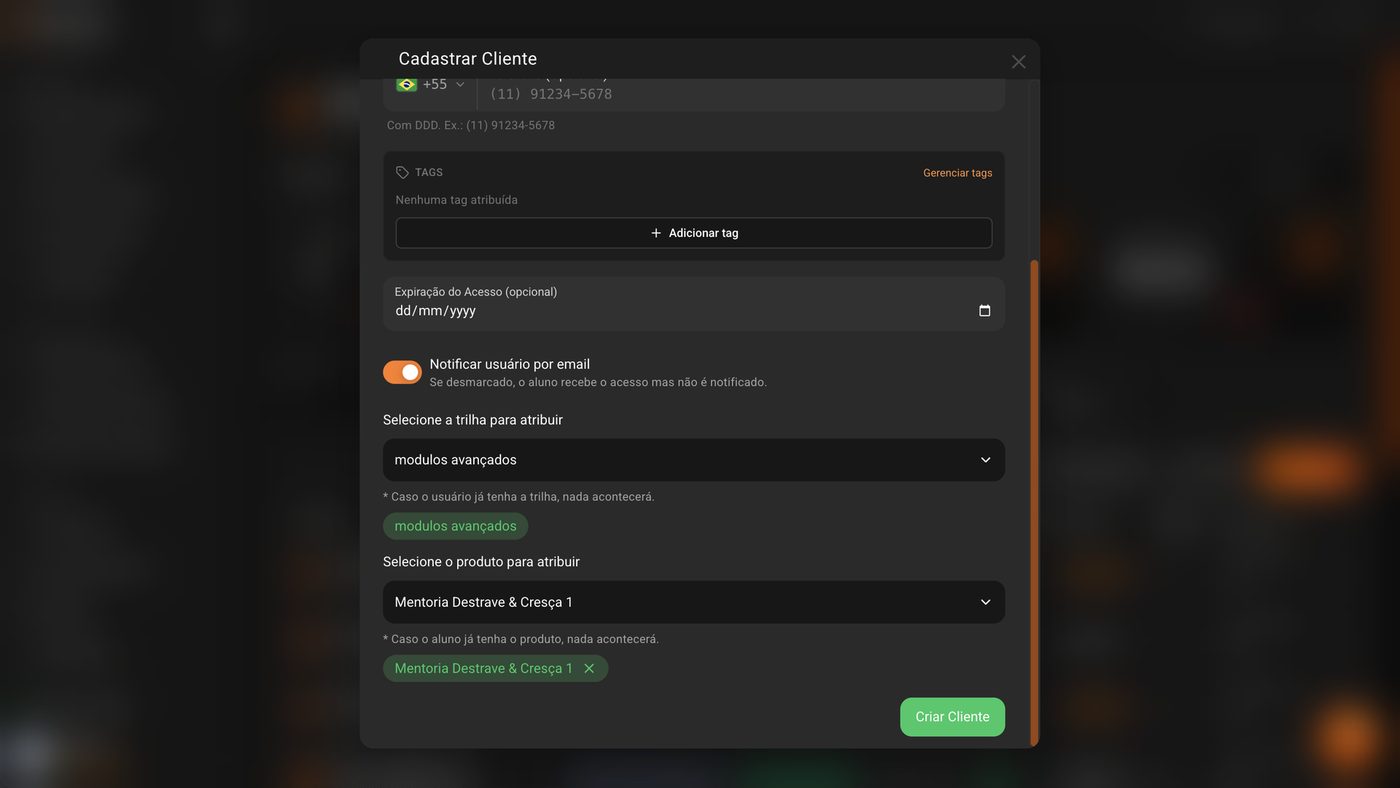
These are the only required fields. Phone, tags, and Access Expiration are optional.
Leave Notify user by email turned on.
When it's on, the student gets the email with their access. When it's off, they get access but no notice at all.
In Select the track to assign, pick a track if you want.
A track gives access to all of its mentorships at once.
In Select the product to assign, pick the mentorship.
You can pick more than one. You need to pick at least one track or one product.
Click Create Client.
A green notice confirms it, and the student shows up in the list.
Good to know
In the list, click the three dots on the student's row and choose Log in as Student. You enter their area without needing their password.
You can register them again with the same email. Nobody gets duplicated: they just get the new products. If they already had the product, nothing changes.
Reference
| Field | Required? | What it's for |
|---|---|---|
| Yes | It's the student's login. The access email goes here. | |
| Name | Yes | Shows up in the list and in the welcome email. |
| Phone (Optional) | No | With area code. Shows up in the Contact column of the list. |
| Tags | No | Labels to sort your students (e.g., "VIP"). |
| Access Expiration (optional) | No | The date the access ends. Empty = no end date. |
| Notify user by email | Already on | Decides whether the student gets the access email. |
| Select the track / the product to assign | At least one of the two | What the student will be able to access. |
Common questions
What arrives in the student's email?
A new student gets a welcome email with the link to your area and the password, or a button to create a password. Someone who already had an account gets a notice about the new products, and their password doesn't change.
A notice said the access email wasn't sent. What now?
The registration worked; only the email failed. To send it again, click the three dots on the student's row and choose Send access email. Their password doesn't change. See more causes in My student didn't get her access.
The Register button is grayed out. Why?
There are two possible causes: your account has no active Mentorfy plan, or you're part of a team and don't have permission to create clients. In that case, ask the account owner to give you access.
I don't see the "Request password creation on first access" or "Register Guardian" options.
They only show up when your student area is set up for them: password creation on first access and guardian registration (parents or tutors). Without those settings, the form is shorter.