Give, renew, or remove access all at once
Need to give a mentorship to the whole class, renew the deadline for those who expired, or remove a product from several students? Do it all at once, without opening each student one by one.
On the Mentorfy screen, a student shows up as a client, in the Clients menu.
Step by step
In My Clients, click Manage access in bulk.
Pick the product and click Next.
In the Categories tab, you pick a whole track.
Pick the students and click Next.
Search by name or email. To take everyone in the search, use Select all … matching filter.
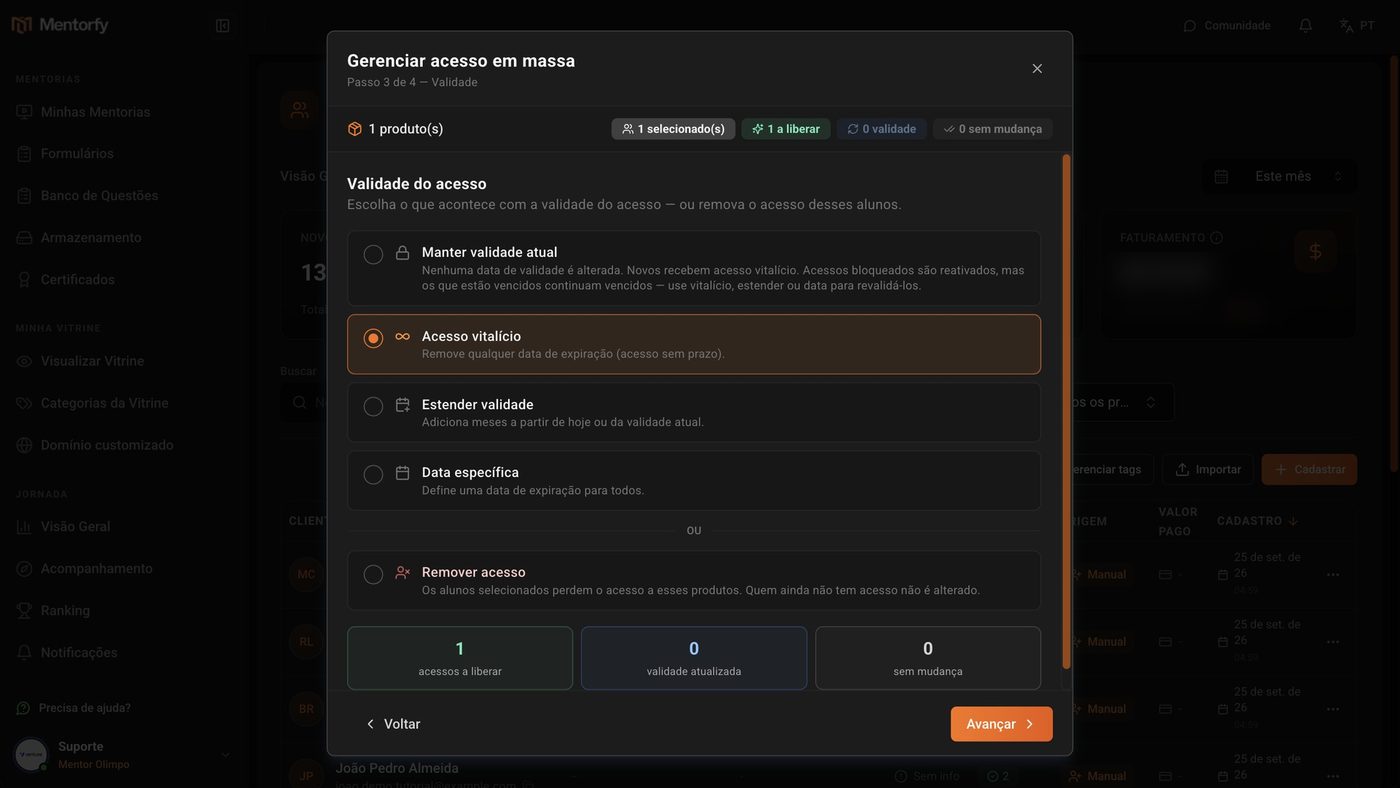
In Access expiration, choose what happens to the deadline.
Lifetime access, Extend expiration (in months), Specific date, or Keep current expiration. To take the product away, choose Remove access.
Review the summary and click Grant.
The button shows how many accesses will be created. At the end, the summary splits them into Created, Updated, No change, and Failures.
To sort students by interest, click Manage tags.
In Nova tag (New tag), give it a name and pick a color. Then filter the list by Tags.
Good to know
Keep current expiration doesn't touch any date: anyone whose access has expired stays expired. To renew, choose Lifetime access, Extend expiration, or Specific date.
Students get access right away, but nobody is notified. To share the news, use Notifications.
In Remove access, the Remove from the student's showcase option deletes the student's link to the product (including the group). It can't be undone. With it off, the product is only locked for the student, and you can give it back whenever you want.
Common questions
How many products can I give at once?
Up to 100 products per release. A track with many products counts all of them. If you go over that, a notice asks you to remove some.
Failures showed up in the summary. What do I do?
Open Failure details to see the reason for each one. Then click Retry failures only. Students that already worked aren't touched again.
It said "Nothing to do".
All the students you picked already had active access and you chose Keep current expiration. Pick another expiration option or other students.
What happens if I delete a tag?
It's removed from every student who had it. The students stay registered.