Notify your students in a few clicks
Remind your students about a live class, a deadline, or new content, on the channel they read most. Each student's name goes into the message on its own.
Step by step
In the menu, open Journey › Notifications and click Notify students.
This screen also has the Send History, with everything that has been sent.
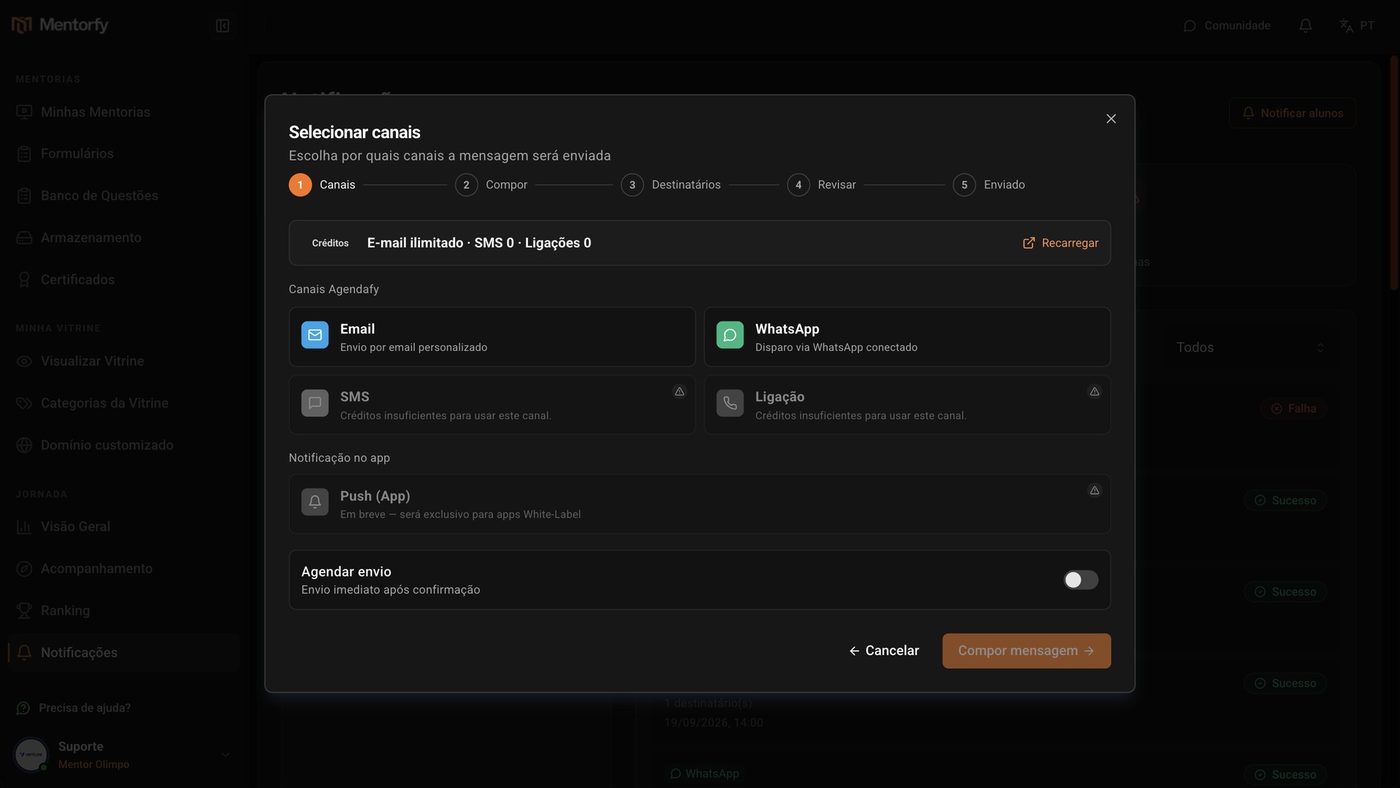
Pick the channel and click Compose message.
You can check more than one channel. Email is unlimited; SMS and phone calls use credits.
Write the Subject and the Message.
In Insert variable, choose Student name: each student gets the message with their own name.
Choose who gets it and click Review.
Filter by product or group and check the students. You can also paste a list of emails in Add by email.
Check everything in the review and click Send message.
At the end, the screen shows how many people the message was sent to.
Good to know
When you click Send message, the notices go out right away and can't be undone. Check the text and the recipients first.
To send on any channel, your account needs to be linked to Agendafy. Without that, the window shows Connect your Agendafy account, with the Connect with Agendafy button, which takes you to Integrations.
Reference
| Channel | Cost | What it needs |
|---|---|---|
| Unlimited | Account linked to Agendafy | |
| — | WhatsApp connected in Integrations | |
| SMS | Credits: every 160 characters = 1 credit, per student | SMS credits |
| Phone Call | Credits per student | Phone call credits. The text is read out loud. |
| Push (App) | — | Coming soon, only for White-Label apps |
Your balance shows at the top of the window, in Credits. To buy more, click Reload.
Common questions
SMS and Phone Call are grayed out.
You're out of credits: the window shows "Insufficient credits to use this channel." Click Reload to buy more.
WhatsApp is grayed out.
Your account's WhatsApp isn't connected or hasn't been set up yet. Connect it in Integrations. See Integrations.
I pasted emails, but some didn't get added.
Only emails of people registered as your students get added. The others show up in Not found and don't get the message.
How do I know it arrived?
Go back to Notifications and click the send in the Send History. See Schedule and check the send.