Schedule a notice and check that it arrived
Schedule the notice for the time your students study most, and then check in the history that it arrived.
Step by step
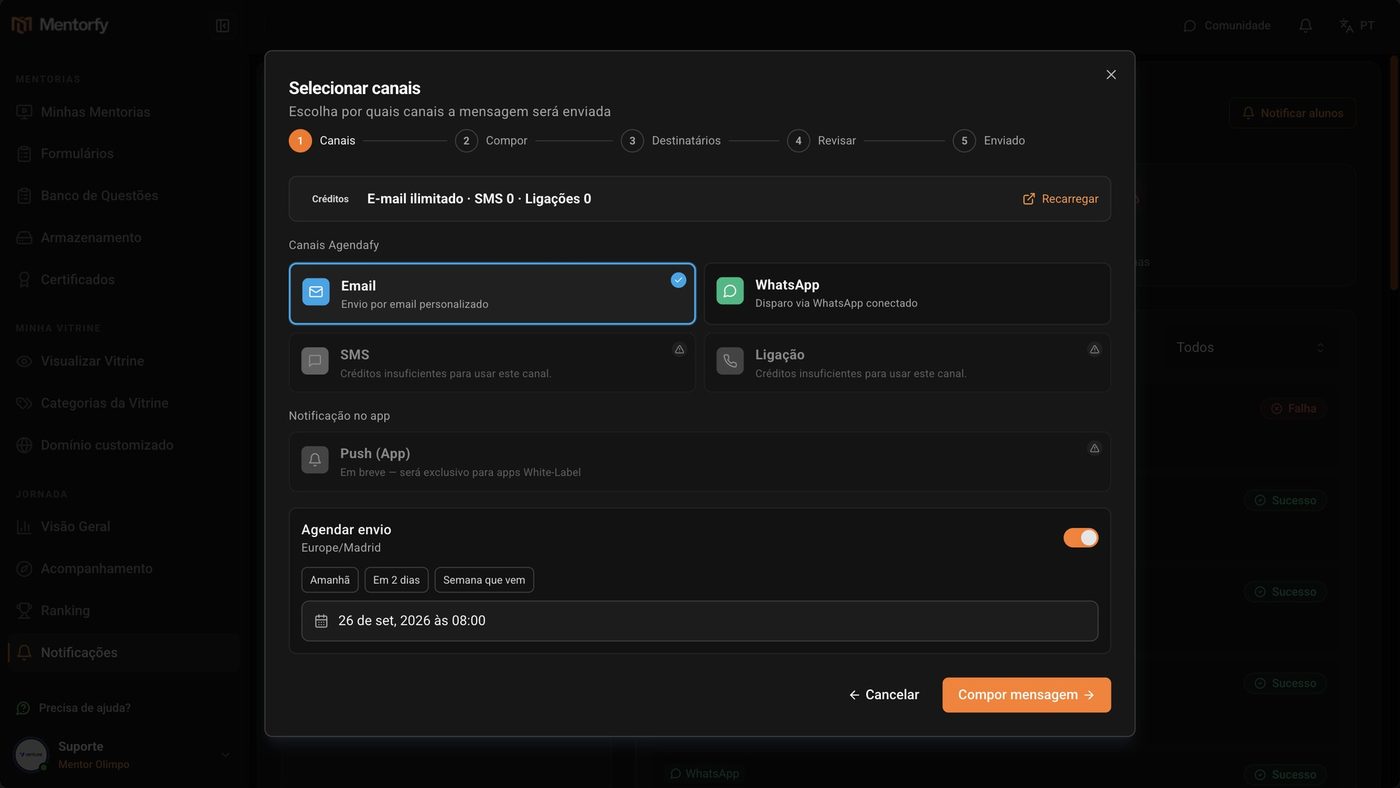
In Notify students, pick the channel and turn on Schedule send.
When you turn it on, the date is already set for tomorrow at 8 a.m. The time zone being used shows below the title.
Use a shortcut (Tomorrow, In 2 days, Next week) or click the date and pick the day and time.
Write the message and pick the students.
You can filter by product or by group. Same as sending right away.
In the review, check the time in Scheduled for and confirm.
The send is scheduled and shows up on the calendar on the Notifications screen.
After it goes out, click the item in the Send History.
In Send Details, you see the status, the channels, who got it, and the time of each step.
Good to know
Look at the Activity by Time map in the Overview and schedule for the busiest time.
There's no button on this screen to cancel a send that's already scheduled. Check the date, the text, and the recipients before you confirm.
Reference
| Status in the history | What it means |
|---|---|
| Scheduled | Scheduled, hasn't gone out yet. |
| Pending or Retrying | It's going out, or trying again after a failure. |
| Success | Sent. |
| Partial | Went out to only some of the recipients. |
| Failed | Didn't go out. Open the details to see the error. |
At the top of the screen, the Sent, Scheduled, Success Rate, and Failures cards sum it all up.
Common questions
What shows up in Send Details?
The status, the channels used, the list of recipients, the timeline (Created at, Scheduled for, Processed at), and the content of the message.
How do I find an old send?
In the Send History, use Filter by status. The calendar also shows each day's sends, colored by status.