Track each student's progress
In Tracking, you see who is moving forward, who got stuck, and who needs a nudge. All product by product, down to each student's details.
Step by step
In the menu, open Journey › Tracking and pick the product. Click View Details.
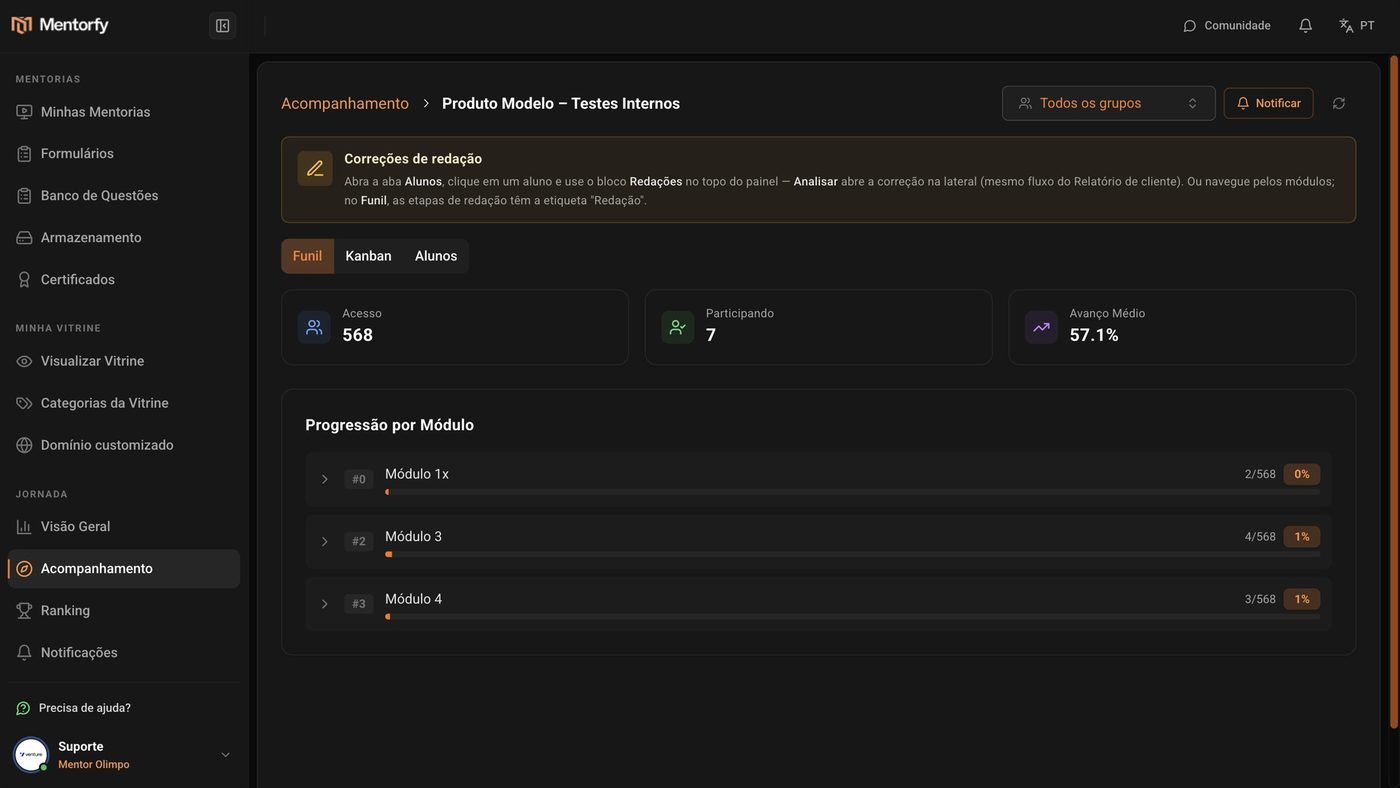
Each card shows Access (how many have access), Participating (how many have already interacted with some step), and Average Progress.
In the Funnel tab, see how many students reached each module.
In the Kanban tab, see each student in the module they're on.
In the Students tab, see each one's progress and last activity.
The Progress and Last Activity columns show who stopped.
Click a student to see each step they did.
If the product has essays, the Essays block shows up at the top of the panel. Click Analyze to grade them.
Good to know
At the top of the screen, switch All groups to one group to see only those students. Useful for tracking a company or a class.
See students who stopped? Click Notify to send a notice to the students of this product. See Notify your students.
Common questions
I want to see one student across all products, not one product at a time.
On the Tracking home screen, switch the view from Products to Students and click the student. You see their progress in each product.
The numbers look out of date.
The data is refreshed from time to time; the time until the next refresh shows under the title. To refresh right away, click the Refresh data now button (the little arrows in a circle).
What's the difference between Access and Participating?
Access counts who can enter the product. Participating counts who has already interacted with at least one of its steps. The difference between the two is the students who haven't started yet.