Have a board for each process
With several boards, each process, or each person on your team, has its own board of groups. A group is on one board at a time.
Step by step
Click the board name, next to Groups. Then click Create board.
Give the board a name, like "Sales", and pick a Color.
Choose Who sees this board and which columns it starts with.
In Columns to start with: Copy the columns of another board (only the columns; the groups stay where they are) or Start with a single column.
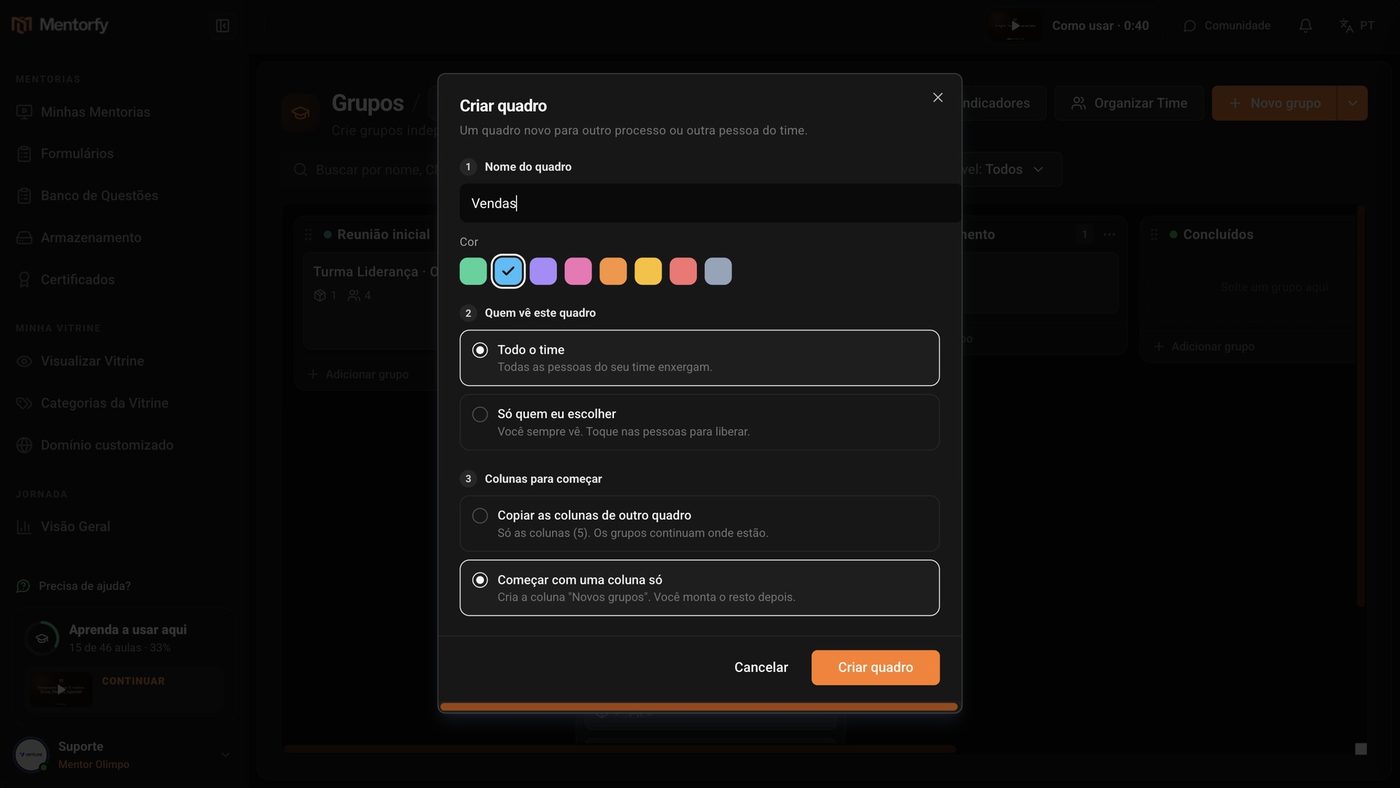
Click Create board.
Done: the new board opens right away. If you chose a single column, it's called New groups.
To switch boards, open the selector and pick another one.
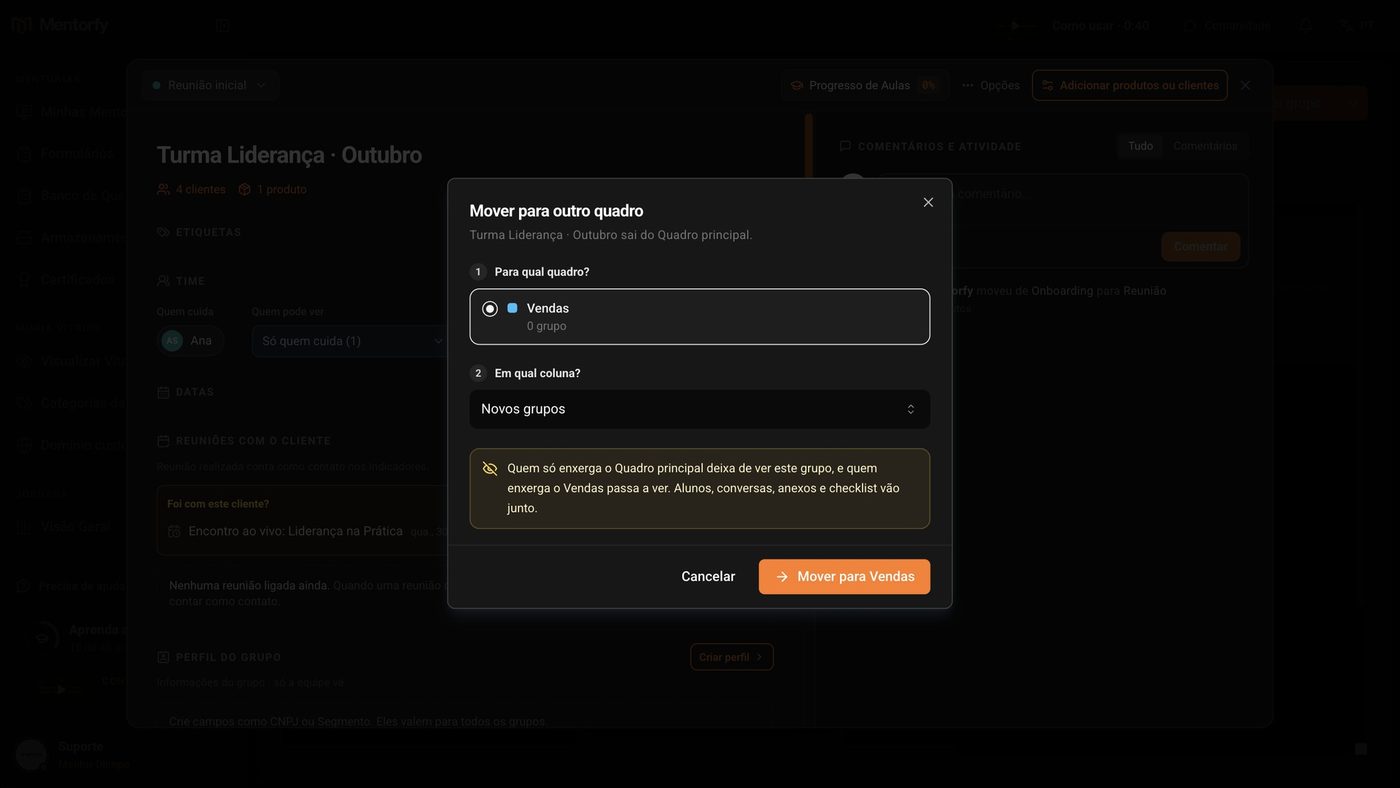
To move a group to another board, open the group, click Options and then Move to another board.
Pick the board and the column, and click Move to (with the board's name).
Good to know
Creating, setting up, and archiving boards is for the account owner or people with Edit on Groups.
In Who sees this board, choose Only people I choose for a personal board, like "Ana's CS". You always see it. If you don't pick anyone, only you will see the board.
Common questions
What happens when I move a group to another board?
Students, conversations, attachments, and the checklist go along with the group. People who only see the old board stop seeing the group, and people who see the new board start seeing it. The group's history records the change with the names of both boards.
How do I archive a board? Do I lose the groups?
Open the selector, click Board settings and then Archive this board. No group is deleted: first, you choose which board and column they go to, and students and access stay the same. The board's automations are turned off and saved with it.
To bring it back, open See all boards, go to Archived, and click Restore. The board comes back empty, at the end of the list, and its automations stay off until you turn them on again.
I can't archive the board. Why?
If it's your only board, create another one first. The Groups board always needs at least one active board.
I want the same columns on several boards. Is there a way?
Yes. In the selector, open Column sharing. The official columns stay the same on every board that follows the process, with a star and an orange border. The other columns on each board stay personal to whoever uses it. No group is moved.