Make meetings count as contact
Calendar meetings with the client count as contact, along with comments. When you link the meeting to the group, Indicators shows who is on track and who has gone without contact.
Step by step
On the board, click the group to open it.
In Meetings with the client, check the suggestion. If it was with this client, click Yes, it was.
Mentorfy suggests calendar meetings by their name. If it wasn't, click No and it won't be suggested again.
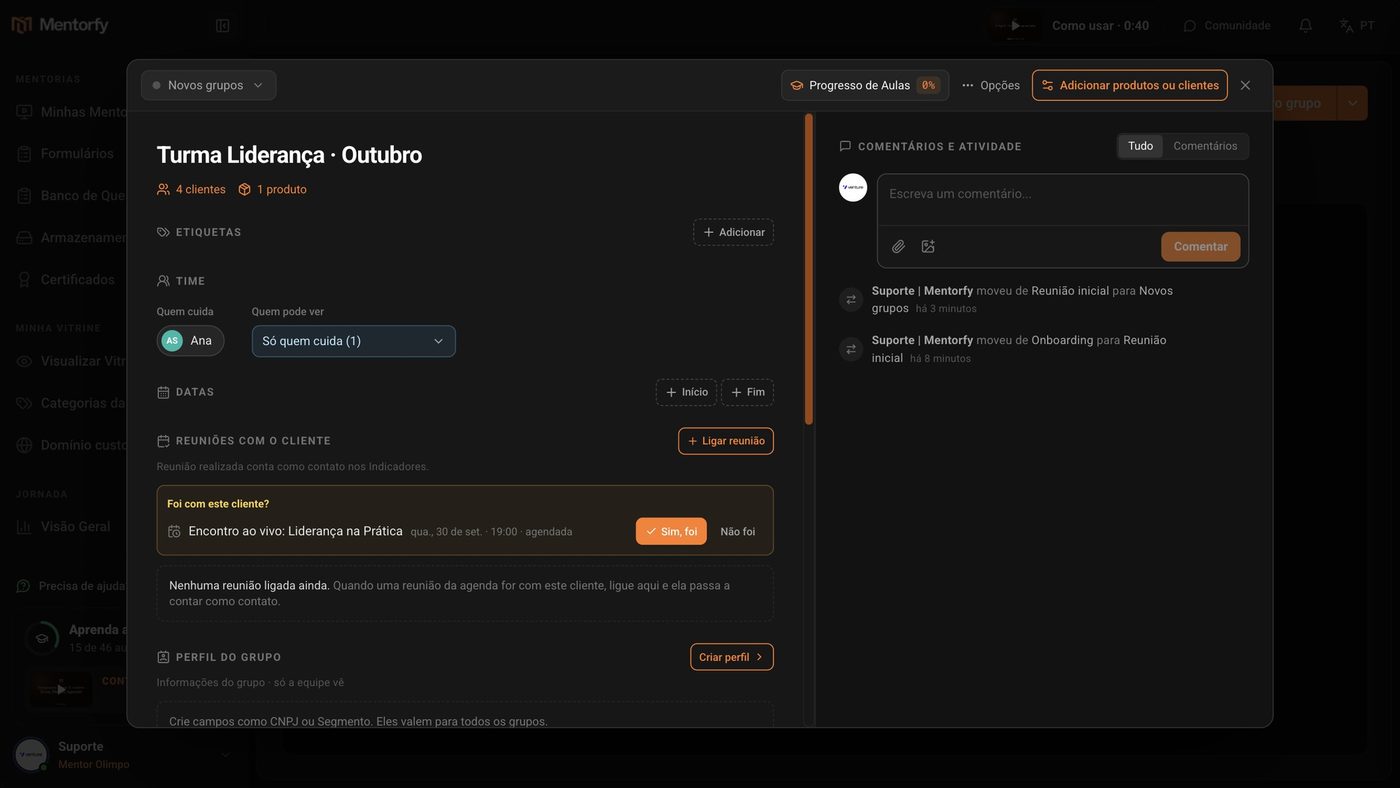
Or click Link a meeting and pick the meeting from the list.
The list shows Meetings from the last month. You can search by name.
Done: the meeting is linked.
It counts as contact as soon as it happens. Before that, it shows as scheduled.
After it happens, follow it in Indicators, under Follow-up records.
Good to know
If a student in the group was invited to the meeting, it counts on its own: it shows with the a student of the group was invited tag, without you needing to link it.
The Indicators button shows up for the account owner and for people with Edit on Groups.
Common questions
I linked the wrong meeting. How do I undo it?
In the Meetings with the client list, click Unlink next to the meeting. It stops counting as contact for that group.
I invited the whole group to a live class. Does that count as contact?
No. An invitation sent to the whole group is a general notice, not a conversation with the client. For it to count, link the meeting to the group with Link a meeting, or invite the student directly.
What else counts as contact?
Comments on the card and calendar meetings with the client. See the details and how to choose your contact rhythm in What counts as contact.