Set up your process in columns
Each column on the board is a stage of your process, from start to finish. With the right stages, you can tell at a glance where each group is.
Step by step
At the end of the board, click Add column.
Give the stage a name, like "Kickoff meeting", and click Add.
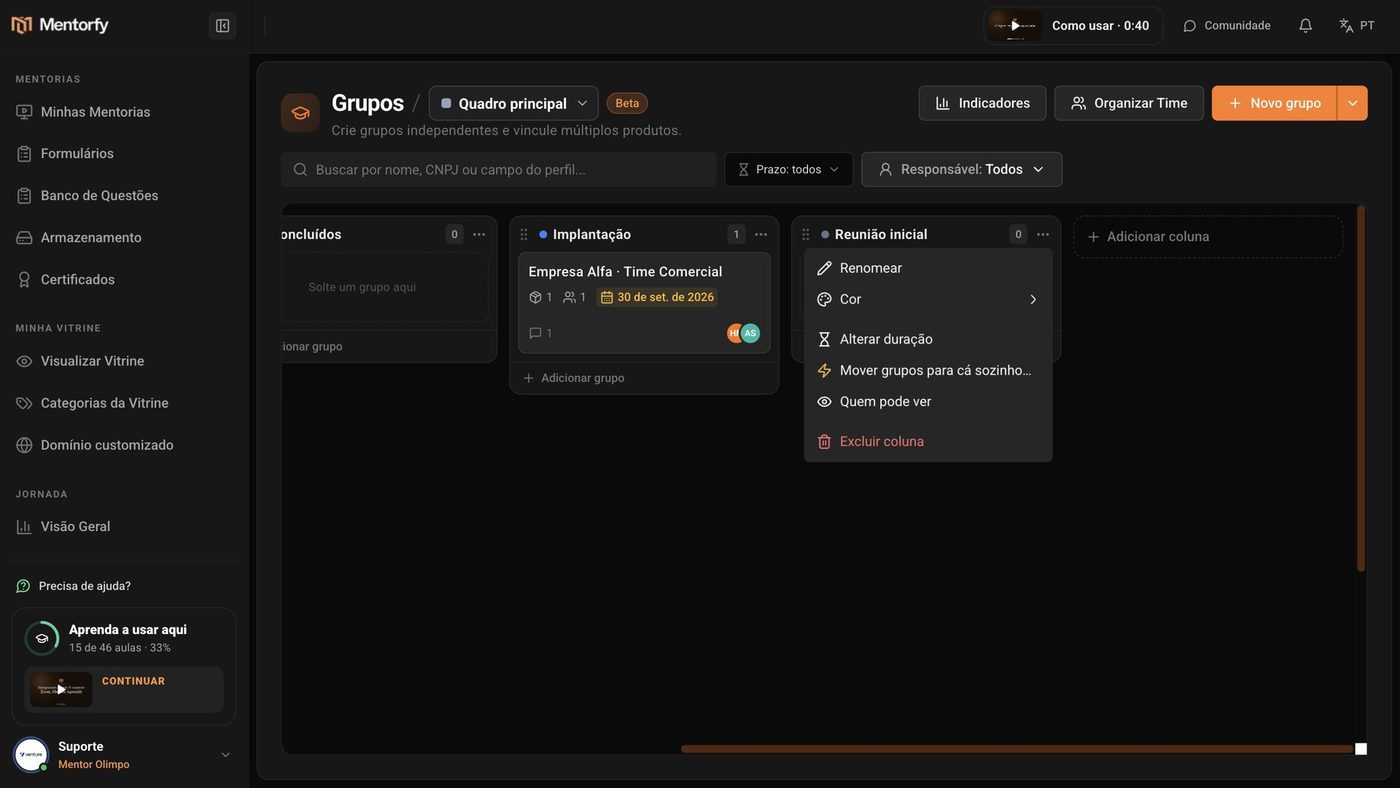
In the column menu, under Color, pick a color.
That way you spot the stage from afar. The same menu has Rename, Change duration, Who can see it, and Delete column.
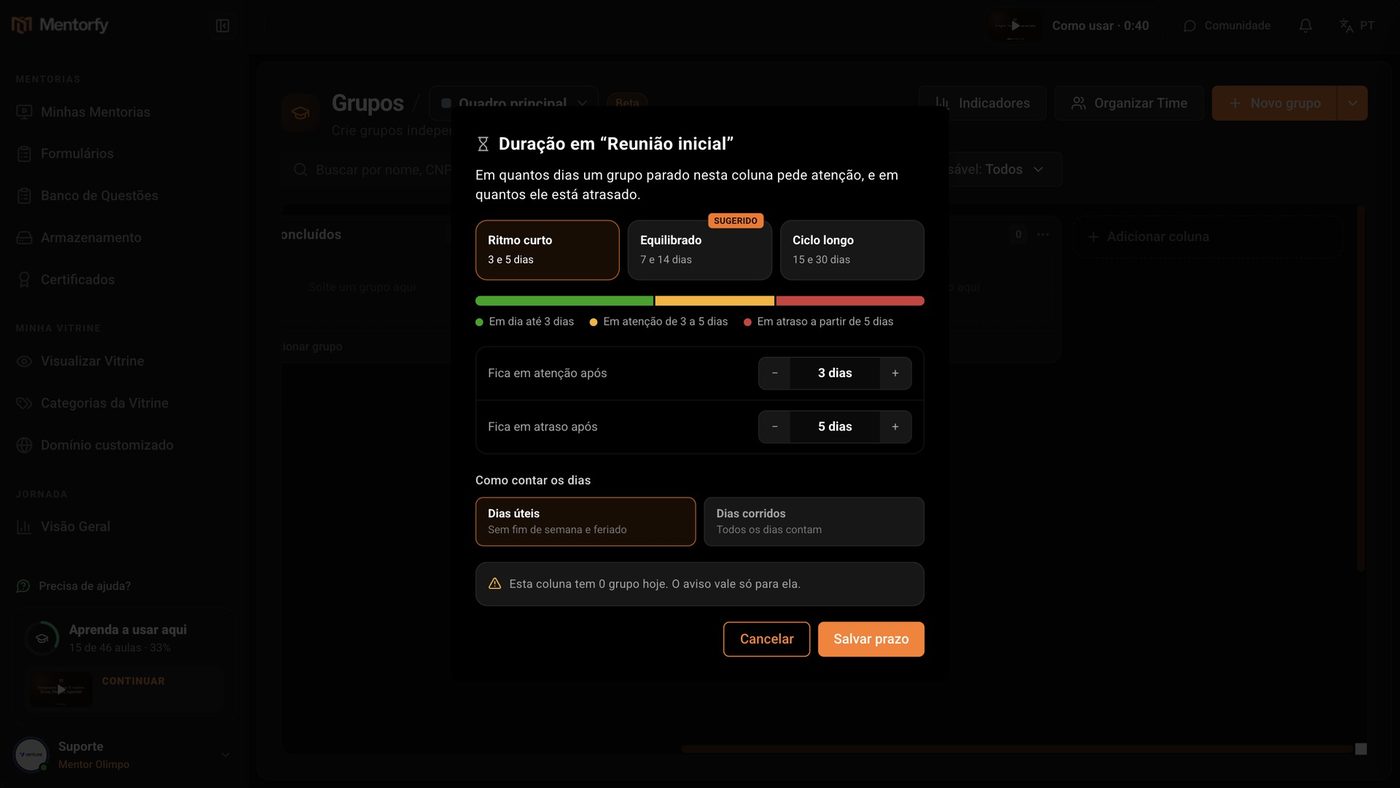
In Change duration, pick a rhythm and click Save duration.
A group that stays still in the column turns yellow (needs attention) and then red (overdue).
Drag the column to the right place, and drag groups from one stage to the next.
The board shows which stage each group is in.
Good to know
When in doubt, use Balanced: it's the rhythm the screen suggests. You can adjust the days with the - and + buttons.
The deadline changes what the whole team sees as overdue. That's why only the account owner or someone with Edit on Groups can change a column's deadline.
Reference
| Rhythm | Needs attention after | Overdue after |
|---|---|---|
| Short cycle | 3 days | 5 days |
| Balanced (suggested) | 7 days | 14 days |
| Long cycle | 15 days | 30 days |
In How to count the days, pick Business days (no weekends or holidays) or Calendar days (every day counts). The default is business days. To remove the warning from a column, use Remove duration.
Common questions
I deleted a column with groups in it. Do the groups disappear?
No. Deleting a column never deletes a group. If the column has groups, the screen asks you to choose in Move groups to which column they go to. If it's the only column, create another one first, so the groups have somewhere to go.
When does the deadline start counting?
From the day the group entered the column. If it was never moved, it counts from when the group was created. When the group needs attention or is overdue, the card gets a yellow or red badge with the days in the column, like "6d in column". Hover over the badge to read the reason.
Does the deadline apply to every column?
No. Each column has its own deadline, and the warning only applies to the groups in it.