Create a group to organize your students
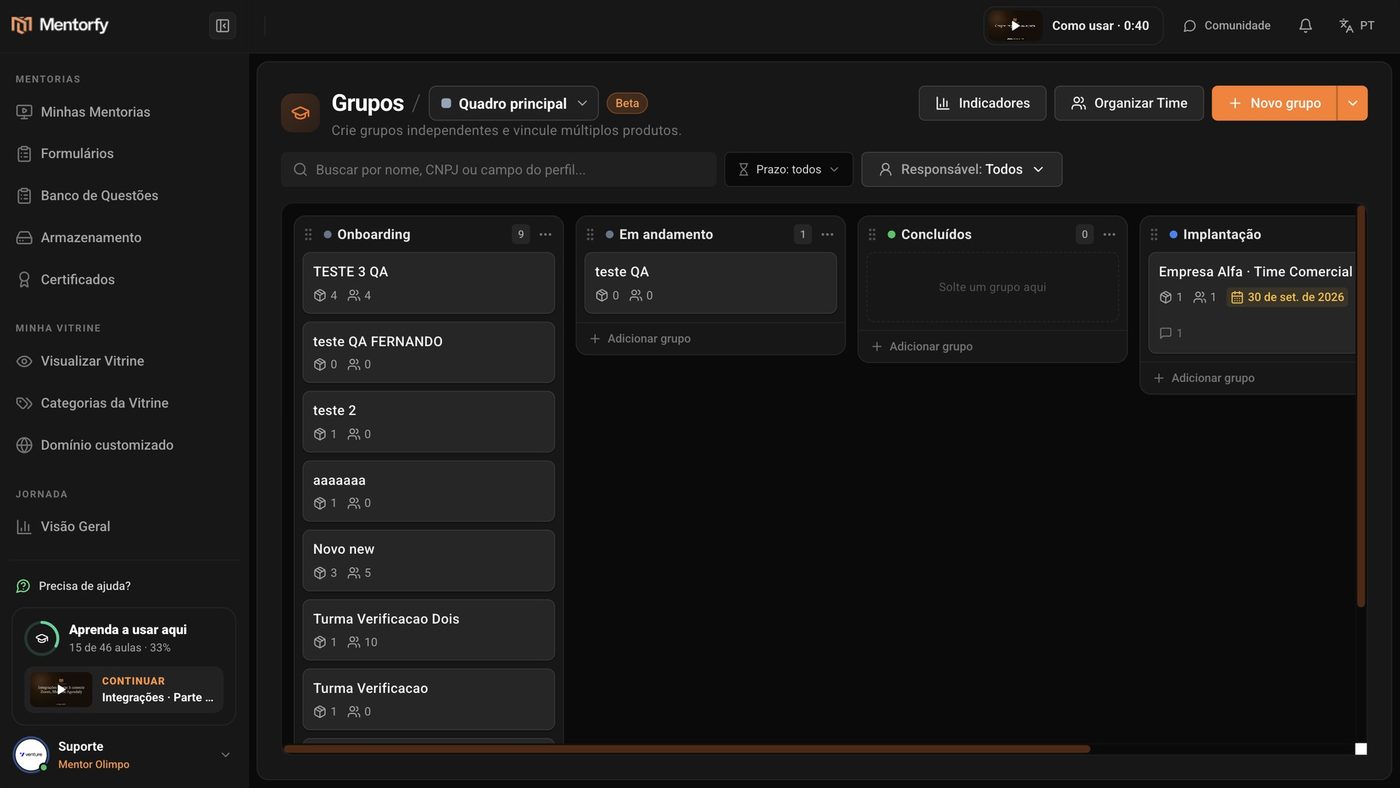
A group brings clients and products together in a single card. Use it to separate classes ("October class") or companies ("Alfa Company · Sales Team") and follow each one from the inside.
On the Mentorfy screen, a student shows up as a client, in the Clients menu.
Step by step
In Groups, click New group, in the top corner.
In Information, fill in the Name and the Description.
The Expiration date is optional.
In Products, check the category or product the group will follow.
Use By category to check a whole showcase category, or By product to pick them one by one.
In Clients, check who joins the group.
Click All to check the whole list, or search by name. The list only shows up after you pick at least one product.
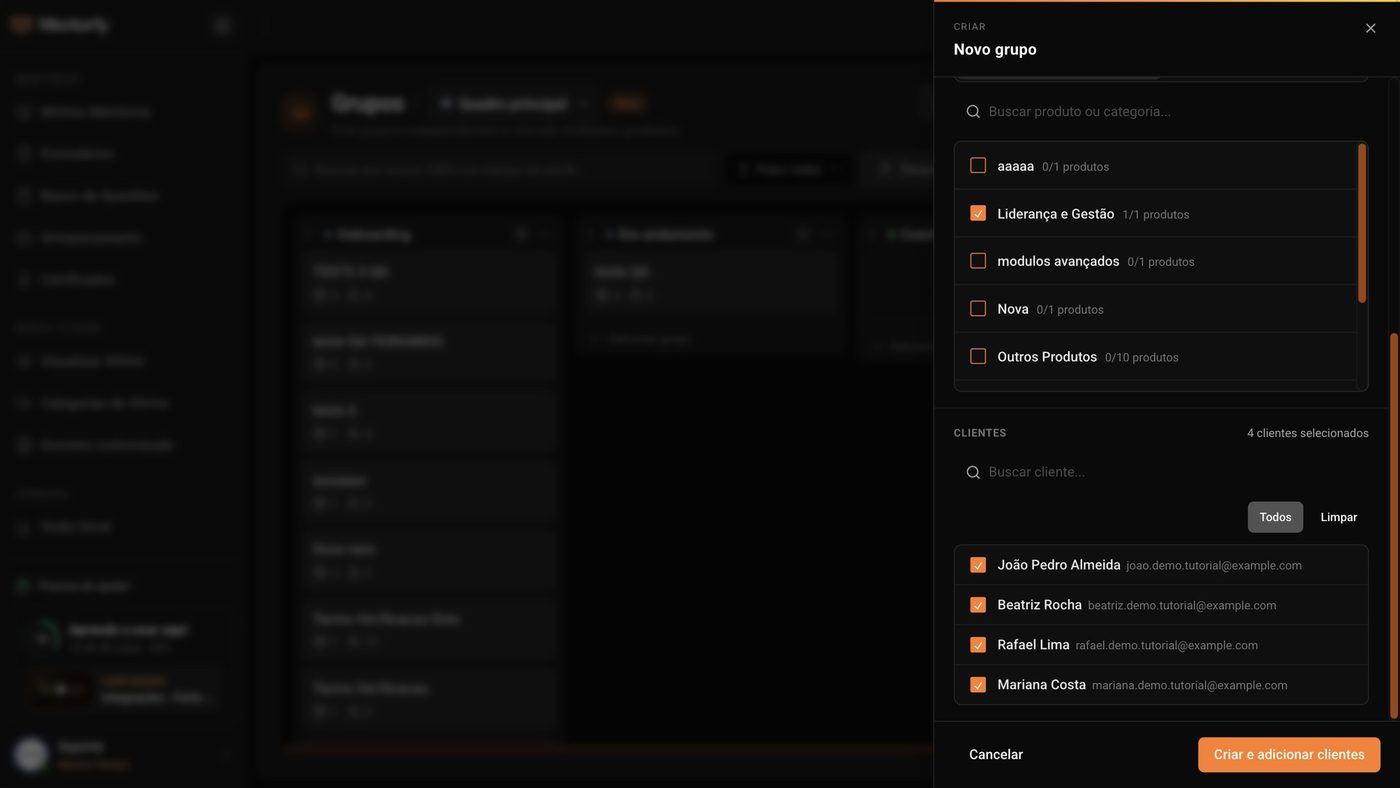
Click Create and add clients.
Done: the group already shows up on the board. With no clients checked, the button is called Create group.
Good to know
Each student is in only one group per product. If you check someone who's already in another group, the screen warns you first and lets you choose: Add only the one without a group, Create group without moving anyone, or move them anyway. Anyone who is moved leaves their old group.
To change products, clients, or access expiration later, open the group and click Add products or clients.
Common questions
Do the group's students get access to the product on their own?
Only if you turn that on. Open the group, click Add products or clients, and in the products, turn on Automatically grant access. When you save, every client in the group gets access to the checked products, and anyone who joins the group later gets it too.
I can't find a client in the list. Why?
The client list shows people who have the products you checked for the group. Check that the client has access to one of those products.
How do I delete a group? What happens to the students?
Open the group, click Options and then Remove card. The group is deleted for good, and the students keep their access to the products. If there are students inside, they're left without a group and don't go back on their own: that's why the screen asks you to confirm you understand before Delete group.