Choose what each person can access
In each person's profile, you choose what they can access: with a ready-made profile, or area by area. That way your support person doesn't touch your showcase, and your teacher doesn't touch your integrations.
Step by step
Click the person to open their profile. In the Access tab, pick a ready-made profile or one of your templates.
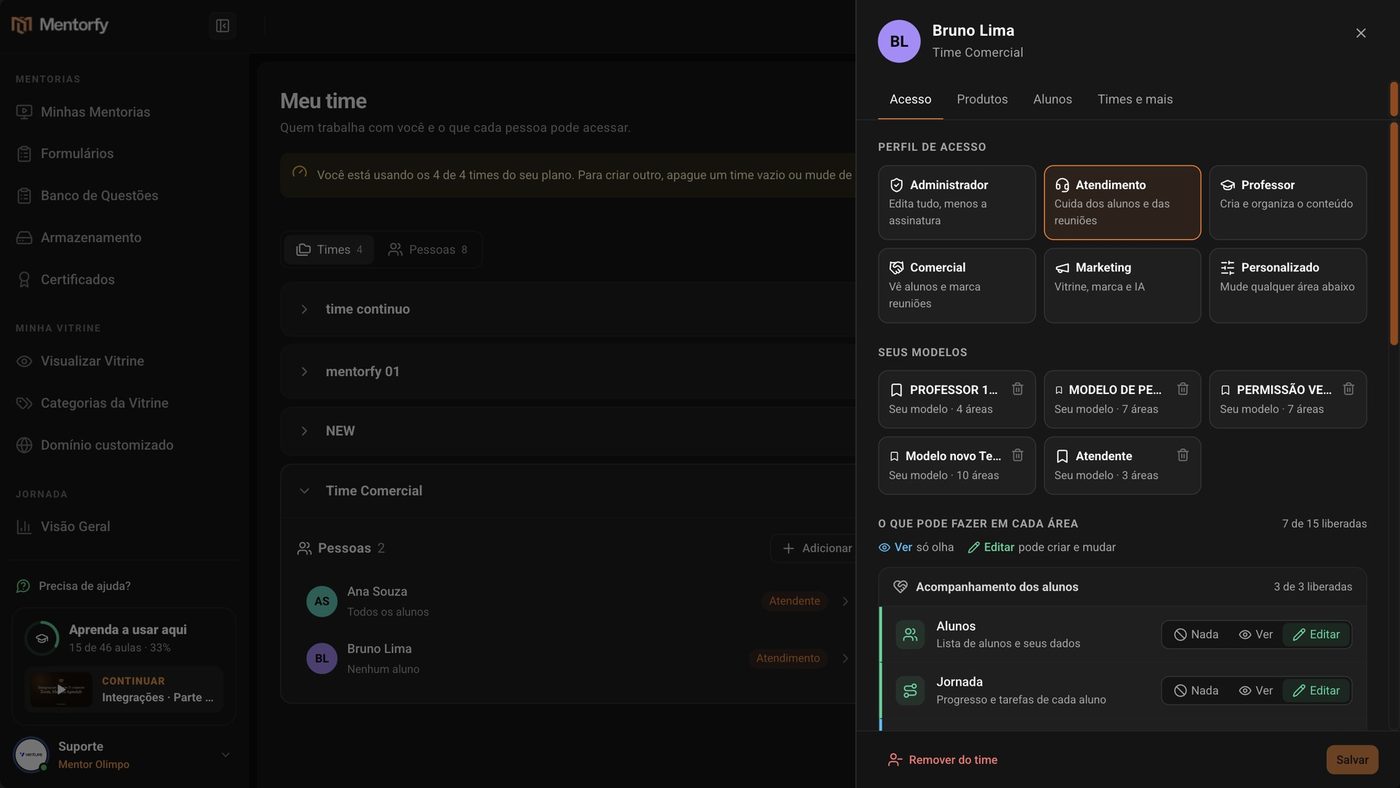
Further down, in What they can do in each area, adjust what you need.
Each area has three options: None, View, or Edit. When you change any area, the profile becomes Custom.
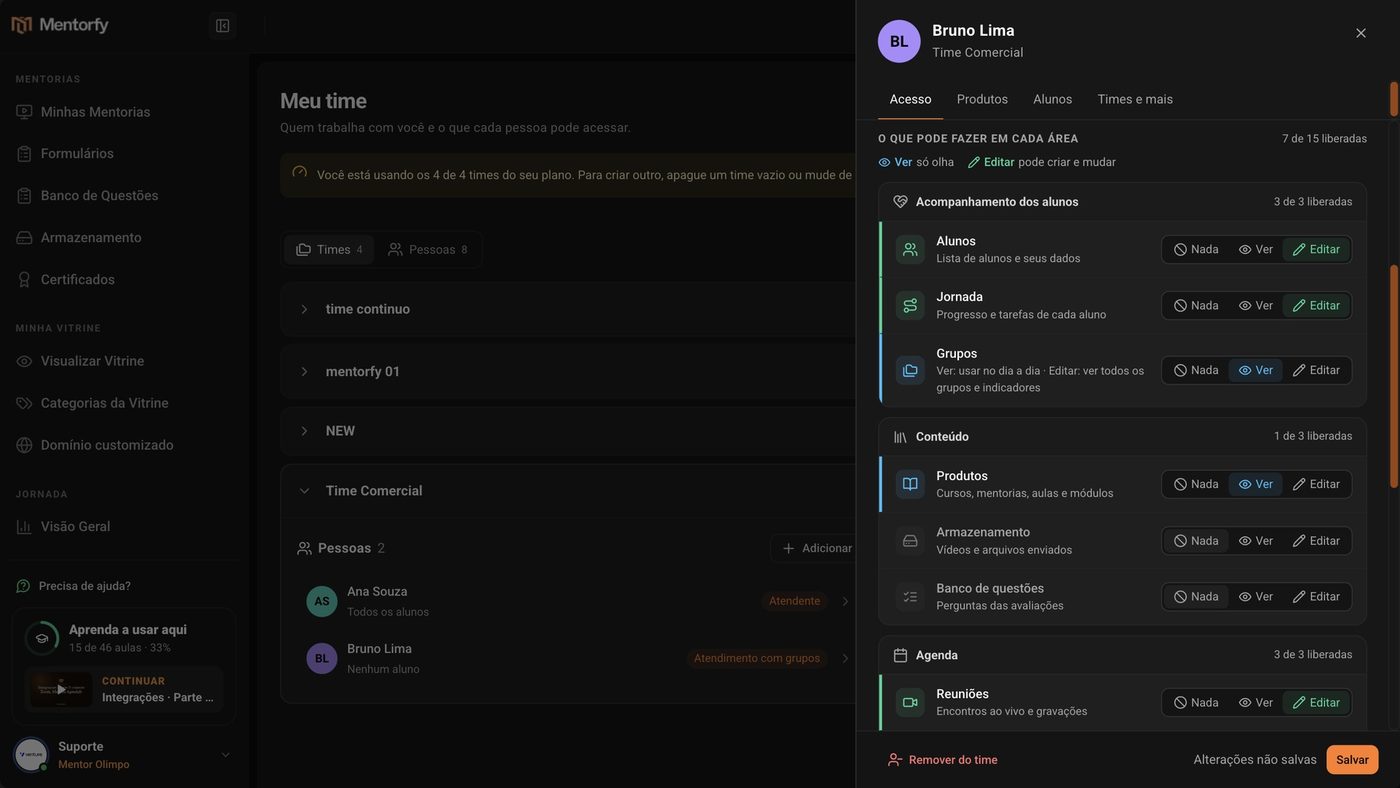
Going to use this combination again? Click Save as template, give it a name, and save.
The template shows up in Your templates, ready for the next person.
Click Save, at the bottom of the profile.
Done: the person already has the new access.
Good to know
Access belongs to the person, not the team. If they're on more than one team, the same access applies to all of them.
The Account settings areas (Team people, Integrations, and Profile) touch important data in your account. Give Edit on them only to people you trust as administrators.
Reference
What each level means
- None: no access to the area.
- View: can only look.
- Edit: can create and change.
In Groups, the levels work a little differently: View already lets them do day-to-day work, and Edit gives manager powers.
Areas and levels
| Area | What it is | With View | With Edit |
|---|---|---|---|
| Students | Student list and their details | Only looks | Creates and changes |
| Journey | Each student's progress and tasks | Only looks | Creates and changes |
| Groups | Groups board | Day-to-day use: opens and moves groups, comments, and uses Organize Team in the Groups tab | Everything in View, plus: sees every group, opens Indicators, changes column deadlines, uses the Columns tab, and creates or archives boards |
| Products | Courses, mentorships, lessons, and modules | Only looks | Creates and changes |
| Storage | Uploaded videos and files | Only looks | Creates and changes |
| Question bank | Assessment questions | Only looks | Creates and changes |
| Meetings | Live sessions and recordings | Only looks | Creates and changes |
| Calendar | Events and schedules | Only looks | Creates and changes |
| Agendafy notices | Automatic booking messages (shows up only with Agendafy connected) | Only looks | Creates and changes |
| Showcase | The page where students see your products | Only looks | Creates and changes |
| Brand Studio | Visual identity | Only looks | Creates and changes |
| AI Studio | Content creation with AI | Only looks | Creates and changes |
| Team people | Who's on the team | Sees who's on the team | Invites people and changes access |
| Integrations | The account's connections | Sees the connections | Connects payments, Zoom, and Google |
| Profile | Your mentor details | Sees your details | Changes your mentor details |
In Storage, with View or Edit, the Also see the whole account's library option shows up: the person then sees all the account's files, not only the ones they uploaded themselves.
Ready-made profiles
| Area | Administrator | Support | Teacher | Sales | Marketing |
|---|---|---|---|---|---|
| Students | Edit | Edit | View | View | None |
| Journey | Edit | Edit | View | None | None |
| Groups | Edit | View | View | None | None |
| Products | Edit | View | Edit | None | View |
| Storage | Edit | None | Edit | None | None |
| Question bank | Edit | None | Edit | None | None |
| Meetings | Edit | Edit | Edit | Edit | None |
| Calendar | Edit | View | None | View | None |
| Agendafy notices | Edit | View | None | None | None |
| Showcase | Edit | None | None | None | Edit |
| Brand Studio | Edit | None | None | None | Edit |
| AI Studio | Edit | None | None | None | Edit |
| Team people | Edit | None | None | None | None |
| Integrations | Edit | None | None | None | None |
| Profile | Edit | None | None | None | None |
- Administrator: edits everything except the subscription.
- Support: takes care of students and meetings.
- Teacher: creates and organizes content.
- Sales: sees students and books meetings.
- Marketing: showcase, brand, and AI.
Common questions
How do I let a support person see only their own students?
In the person's profile, open the Students tab, choose Only the students I pick, check the students, and click Save. See the step by step in Team products and students. In Groups, also use Who can see it in Organize the team.
I deleted a template. Do the people using it lose access?
No. People who used that template keep the same access, and it now shows as Custom.
Who can change people's access?
The account owner, or someone with Edit on Team people. Everyone else can open the page only to look, and they see the notice "You can look, but you can't change anything here."
The person shows as "Access not set". What's missing?
They don't have access to anything yet and can't see any area of the dashboard. Open their profile and pick a profile in the Access tab.