Choose the team's products and each person's students
In this part, you choose which products the team sees and which students each person follows. With no products, people on the team log in and find everything empty.
Step by step
On the team's card, in Products the team sees, click Manage.
Choose how to give access: Every product, including the next ones, or check whole showcase categories.
In Pick the products, checking a category takes everything in it. You can also check product by product.
Or, in Follow groups, pick a group.
The team gets the group's products now and the ones that join it later.
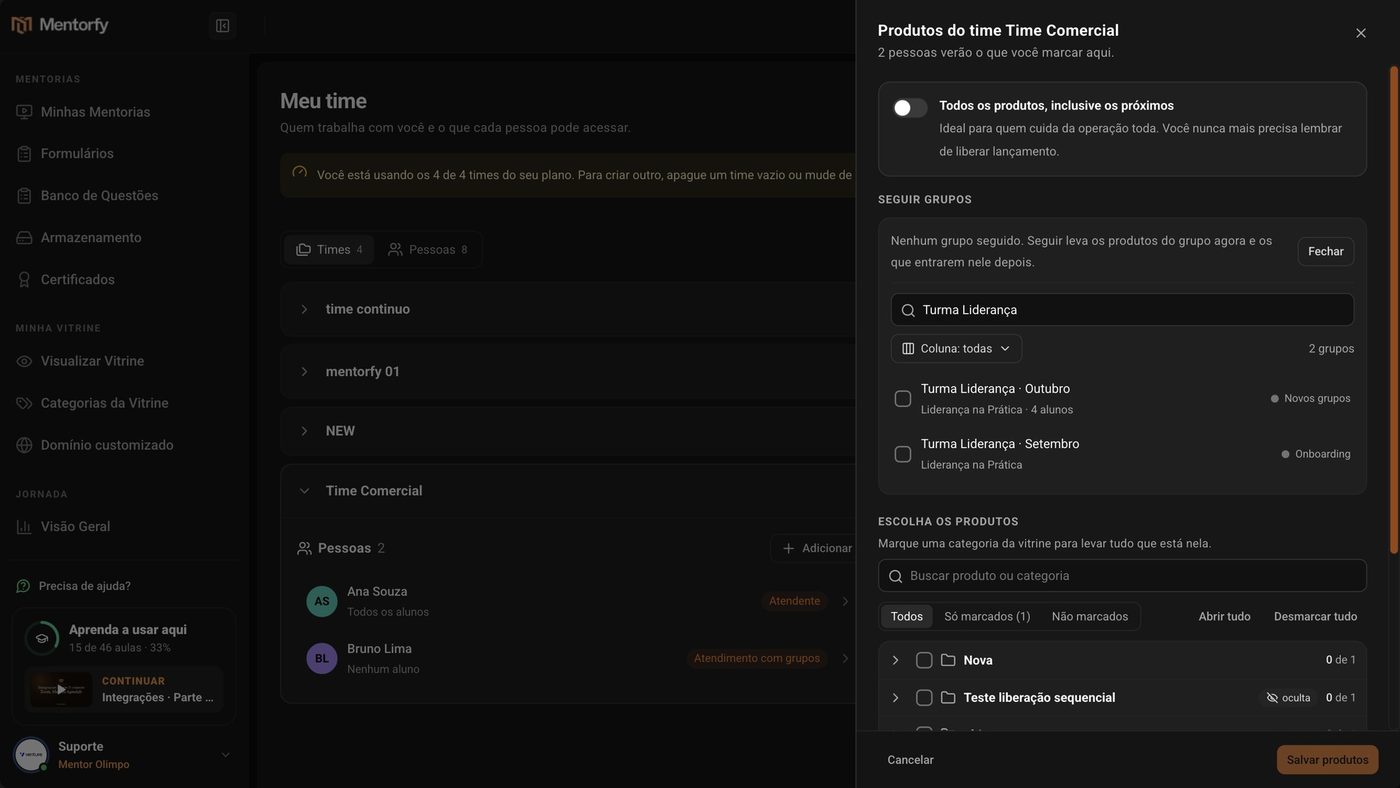
Click Save products.
The team's card shows which group it follows.
Now, open the person and go to the Students tab. Choose All students or Only the students I pick.
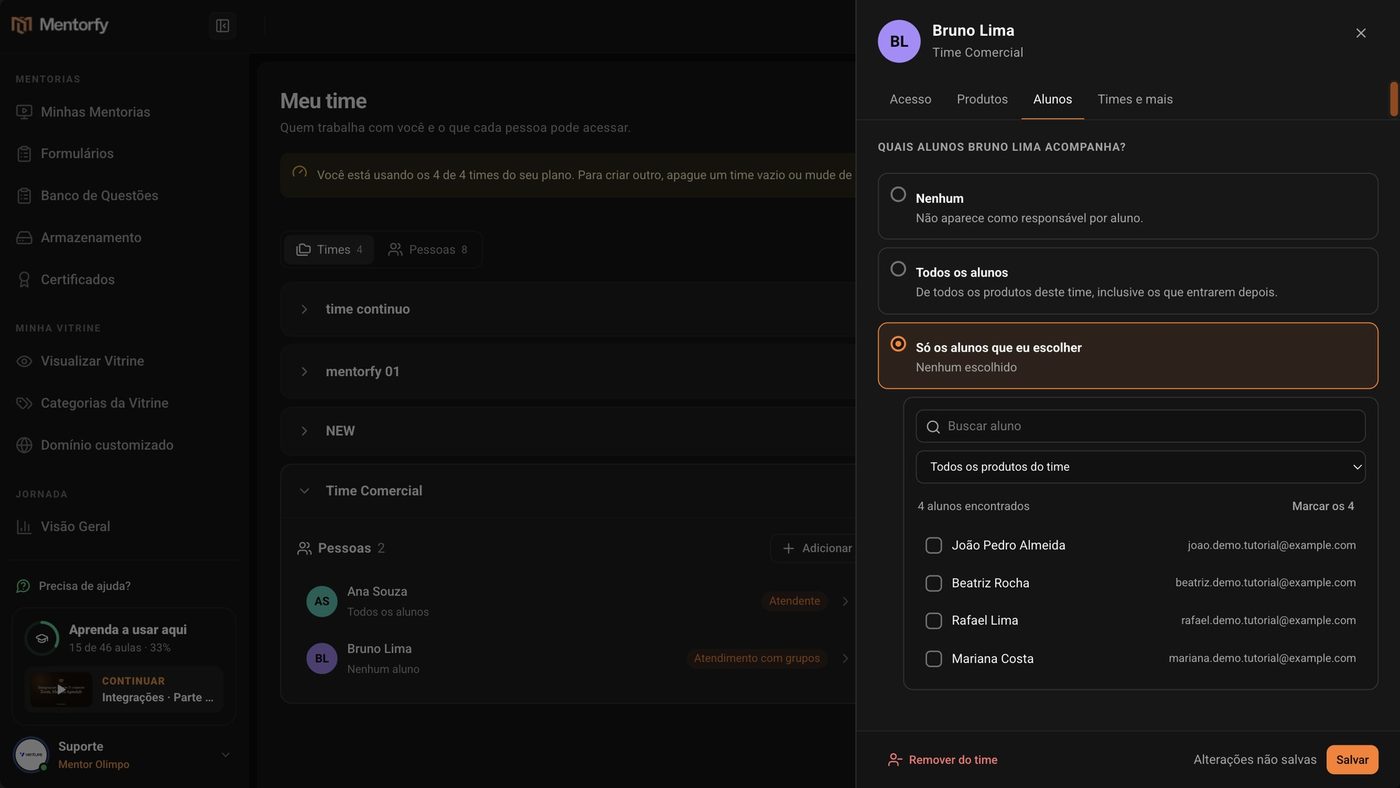
Check that person's students and click Save.
Done: they follow only those students.
Good to know
Who runs the whole operation? Use Every product, including the next ones. Each new product joins the team on its own, and you never have to remember to give access to a new launch again.
Checking a category takes the products that are in it today. Products added to the category later don't go along on their own. When that happens, the notice at the top of the page shows "new product missing", with the Add button.
Reference
| Option in the Students tab | What the person follows |
|---|---|
| None | Nobody. They don't show up as the person in charge of any student |
| All students | The students of all the team's products, including the ones who join later |
| Only the students I pick | Only the students you check |
Common questions
How do I let a support person see only their own students?
In the person's Students tab, choose Only the students I pick, check their students, and click Save. In the student list, they now see the students you checked. To find them fast, use Search student or Filter by product, and then Select all (with the number found).
The Students tab is empty. Why?
Students come from the team's products. If the team doesn't see any product yet, give it products first in Manage.
Can I change the products for just one person?
Not directly. Products come from teams: the person's Products tab shows what comes from each team. To change it, manage the team's products, or put the person on another team in the Teams and more tab.
I unchecked some students. What happens to them?
Before you save, the screen shows how many are leaving. When you save, that person stops following them. The students don't lose access to their products because of this.