Build your team
In My team, you build your team and decide what each person can access. Start by creating a team, and then invite people into it.
Step by step
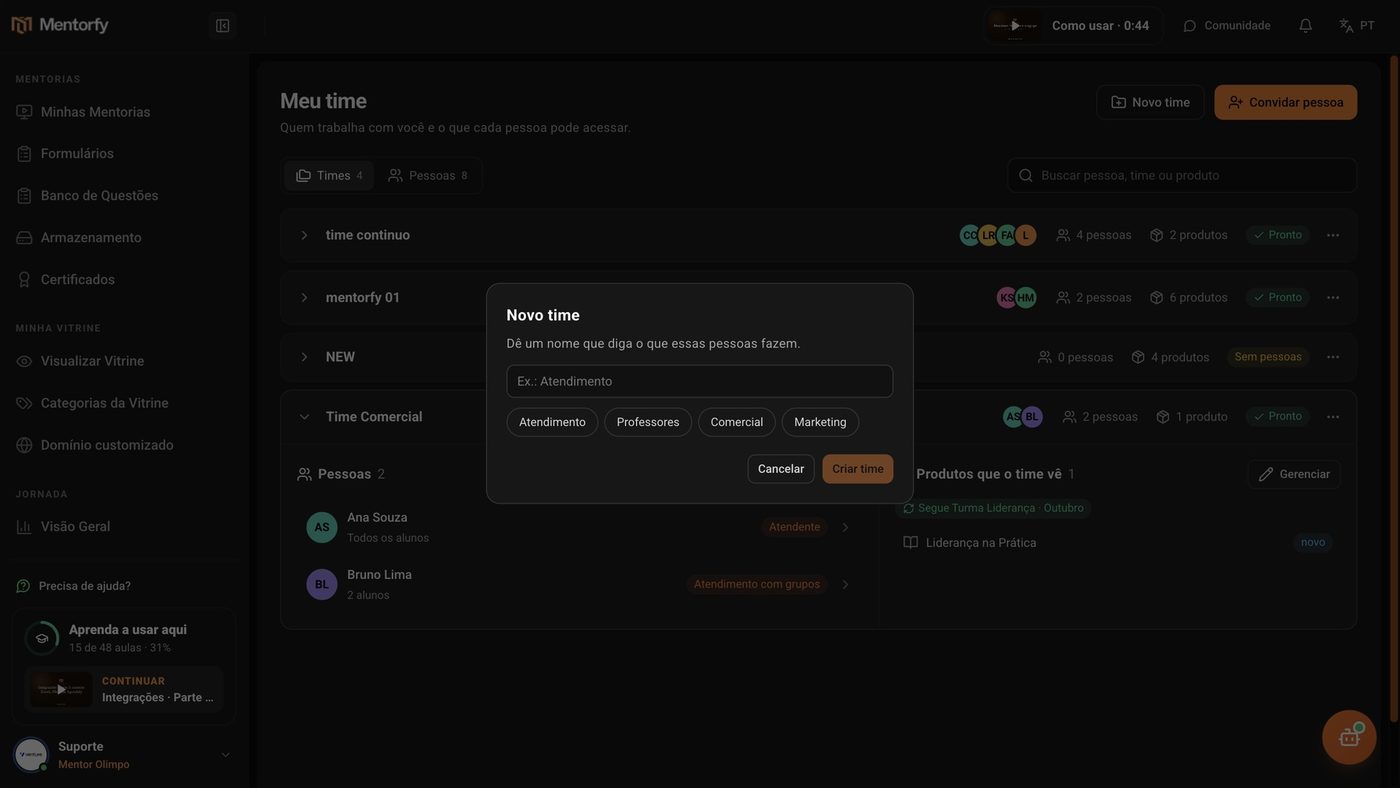
In the menu, open My team and click New team.
Give it a name that says what these people do and click Create team.
You can tap a suggestion: Support, Teachers, Sales, or Marketing. The new team shows up in the list, still without people.
Inside the team, click Invite person.
In Who is it?, fill in the Name and the Email.
The team is already checked in Which team?. You can check more than one.
In What can they access?, pick a profile, like Support.
Later, you can fine-tune it area by area in the person's profile.
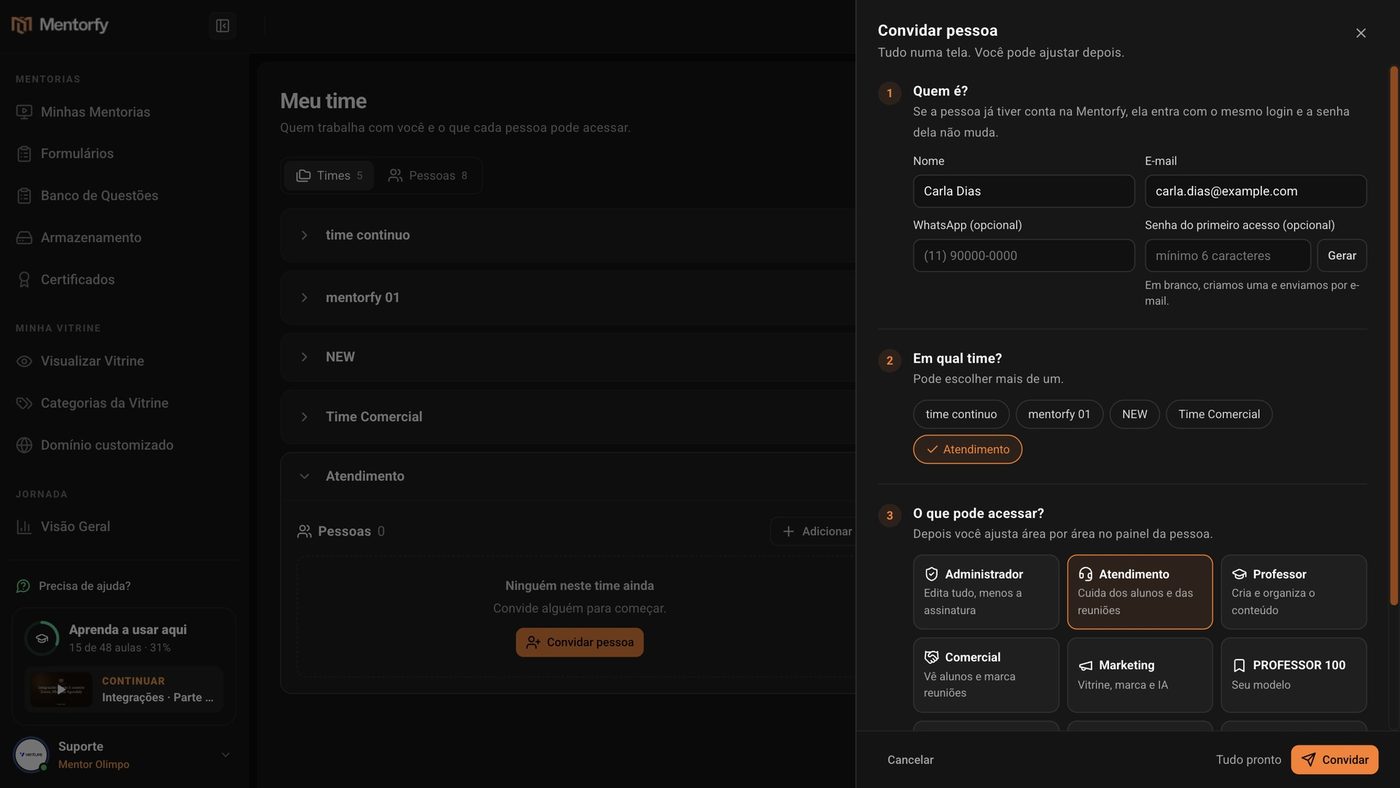
Click Invite.
Done: the person joins the team and gets the invitation by email. The notice at the top of the page shows what's still missing, like a team with no product.
Good to know
The First access password is optional. If left blank, Mentorfy creates one and sends it by email. If the Invite button doesn't unlock, read the Missing: line at the bottom: it tells you what still needs to be filled in.
A team with no products sees nothing: people log in and find everything empty. Give them products right after inviting. See Team products and students.
Common questions
How many teams can I have? How do I get more?
It depends on your plan. When you reach the limit, the page shows "You're using X of the Y teams in your plan" and the New team button is locked. To create another one, delete an empty team or change plans in See plans.
The person already has a Mentorfy account. What now?
You can invite them as usual, with the same email. They log in with the same login, and their password doesn't change.
How do I remove someone from the team? What do they lose?
Open the person and click Remove from team. If they're on more than one team, choose which one. Before you confirm, the screen shows what changes:
- they stop seeing the products that came only from that team;
- the students they followed on that team are left without anyone in charge;
- if that was their only team, they lose access to your dashboard. If they're on other teams, they stay on them with the same access.
What if I delete a whole team?
In the team menu, click Delete team. The people on that team stop seeing the products that came from it and stop following the students there. Their access to the dashboard areas stays the same.