Create a module with AI
Don't know where to start a module? Describe the topic: the AI suggests the title and the steps, you adjust them, and it even writes the content of each step.
Step by step
In the mentorship editor, click Create with AI.
In Where to create, choose New module and write the topic in Instructions for the AI.
The clearer, the better. Example: "A module on how to give feedback to your team: why it matters, a step by step, and a hands-on exercise at the end."
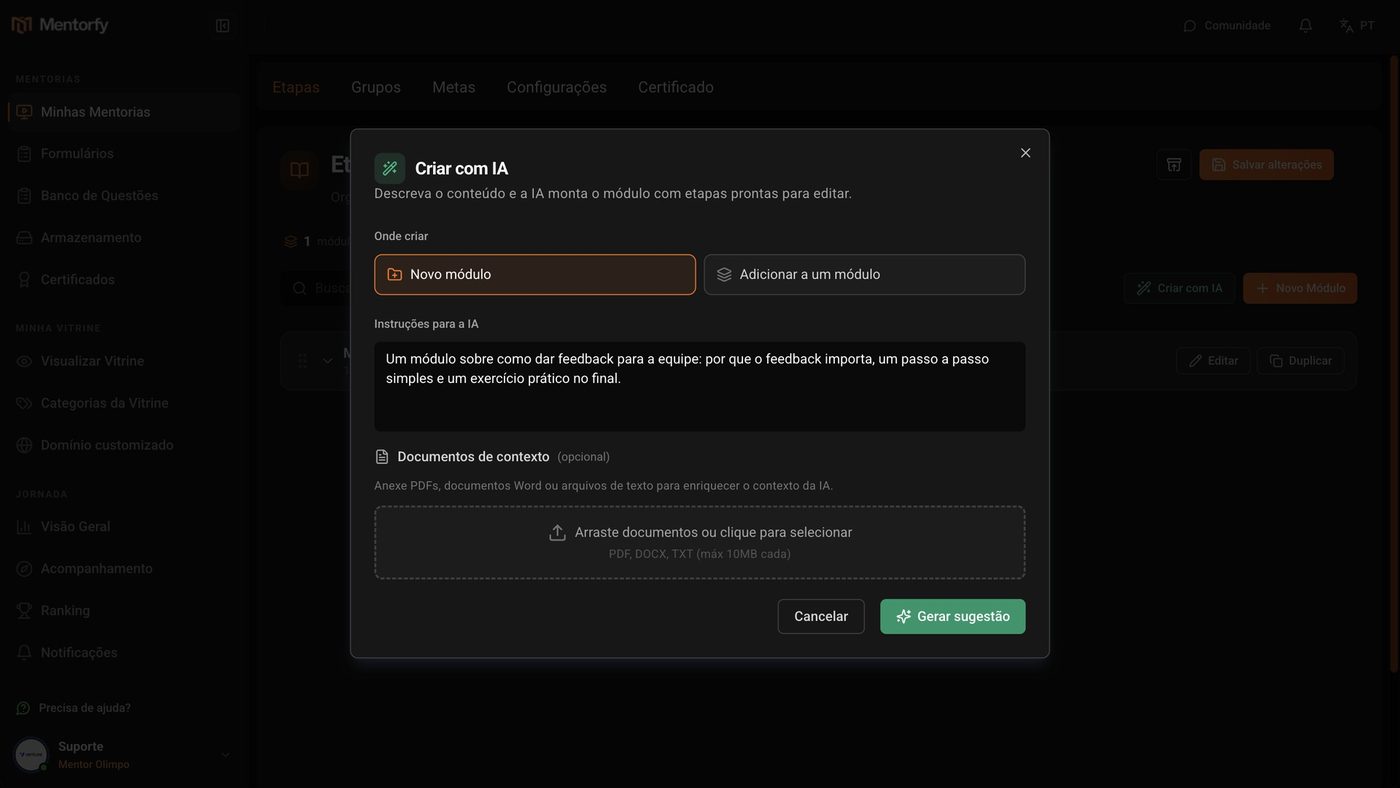
If you want, attach material in Context documents.
This is optional. The AI uses the material to get closer to your way of teaching.
Click Generate suggestion and review it.
The AI suggests the title and the steps. You can change the title, type, and order, delete steps, or click Add step.
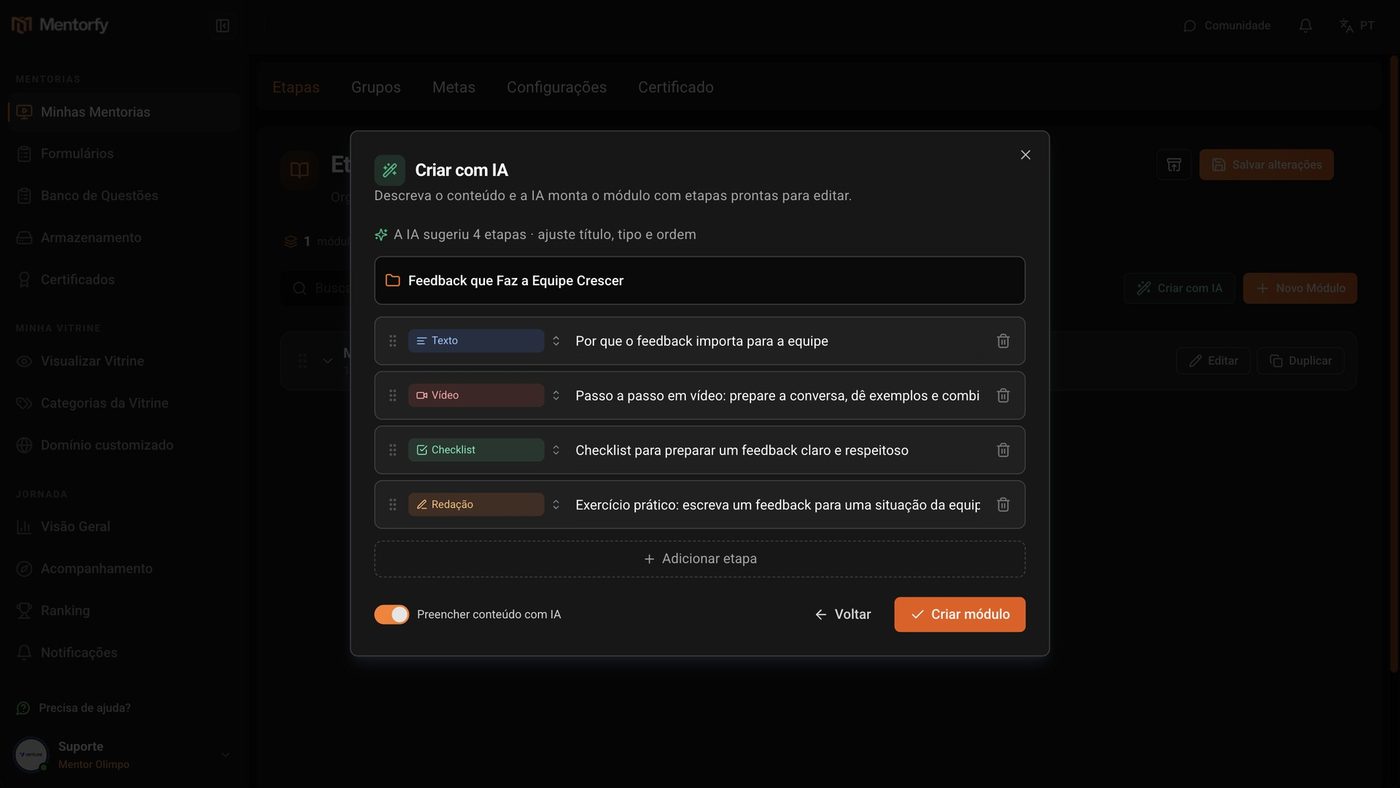
Keep Fill content with AI turned on and click Create module.
With this option on, the AI writes the content of each step for you.
Review the finished module.
It shows up in the editor with its steps. Read it, adjust what you want, and click Save changes.
Good to know
In Where to create, choose Add to a module so the AI creates steps inside a module that already exists.
The AI makes a draft. Check the text of each step before your students see it.
Reference
| Context documents | Limit |
|---|---|
| Formats | PDF, DOCX, TXT |
| Size | up to 10 MB each |
| Number | up to 5 documents |
Common questions
I didn't like the suggestion. What now?
Click Back, improve the instructions, and click Generate suggestion again. Nothing is created until you click Create module.
Can I attach more than one file?
Yes. Drag or click the Context documents area and choose up to 5 PDF, DOCX, or TXT files, up to 10 MB each. When you reach the limit, the screen lets you know.