Create your first mentorship
The mentorship is the product your student buys. Create the mentorship first: then you add the modules and lessons inside it.
Step by step
In the menu, open My Mentorships and click New program.
It's the orange button. In the Table view, it's in the top right corner. In the Showcase view, it's in the bottom bar, next to New category.
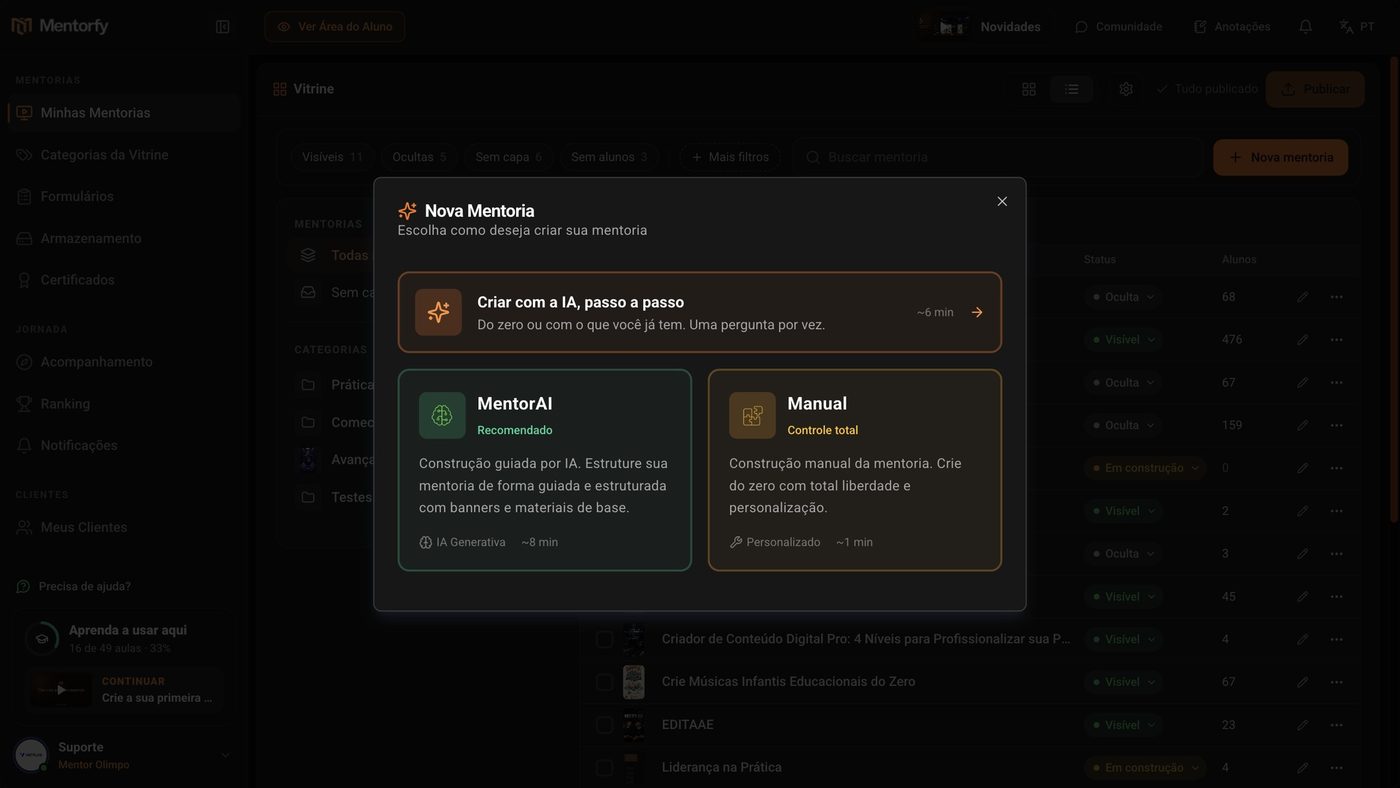
Choose Manual.
Manual (Full control, about 1 minute) creates it from scratch, with full freedom. It's the path on this page. The other two options use AI: Create with AI, step by step (about 6 minutes) asks one question at a time, and MentorAI (Recommended, about 8 minutes) is the AI-guided build.
Choose Single Product.
It creates one mentorship at a time. Multiple Products is for creating several at once.
In Mentoring Name, give it a name.
This is the name the student sees. You can change it later.
In Mentoring Type, choose the format.
Online Course is the format with video lessons. See the other types in Reference, just below.
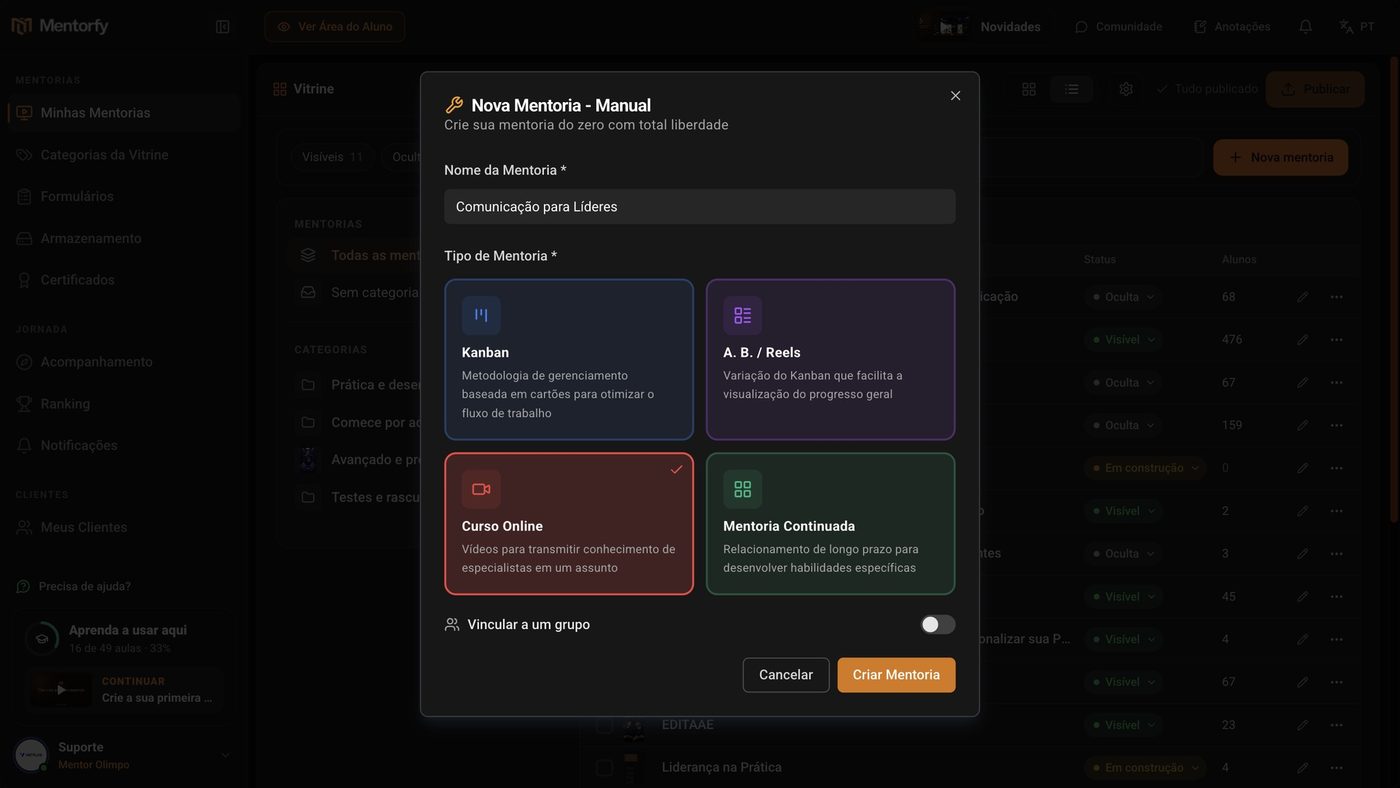
Click Create Mentoring.
Done: the mentorship opens right away in the editor (Mentoring Steps), and the Create first module button is waiting for you. If you want, before creating, use Link to a group: the mentorship joins the groups you tick.
Good to know
On some screens you'll see "product" instead of "mentorship". It's the same item.
In the list, the new mentorship shows the status Under construction. The student sees the card but can't open it yet. When it's ready, change the status to Visible in the Status column.
After you create it, the AI can draft a whole module for you. See Create a module with AI.
Reference
| Type | What it's for (screen text) |
|---|---|
| Kanban | Card-based management methodology to optimize workflow |
| A. B. / Reels | Kanban variation that makes it easier to visualize overall progress |
| Online Course | Videos to transfer knowledge from subject-matter experts |
| Continued Mentoring | Long-term relationship to develop specific skills |
Common questions
Where do I find the mentorship after creating it?
In My Mentorships, in the Table view, each mentorship is a row. Click the pencil (Edit content) to go back to the editor. The row's ... menu also has Configure, Edit content, Journey, Appointments, Certificates, Access, price and delivery, Duplicate, and Export.
What happens if I delete a mentorship?
In the row's ... menu, click Delete, then Proceed, then Confirm Deletion. The mentorship is deleted for good: the screen itself warns you that it can't be recovered and that mentees lose access. If there are still clients linked, the screen tells you it couldn't be removed. If you only want to take the mentorship out of view, hide it in the showcase (see Control what shows up).