Control what shows up in the showcase
In the showcase, you decide what the student sees: each mentorship can be visible, under construction, or hidden, and a whole category can be hidden.
Step by step
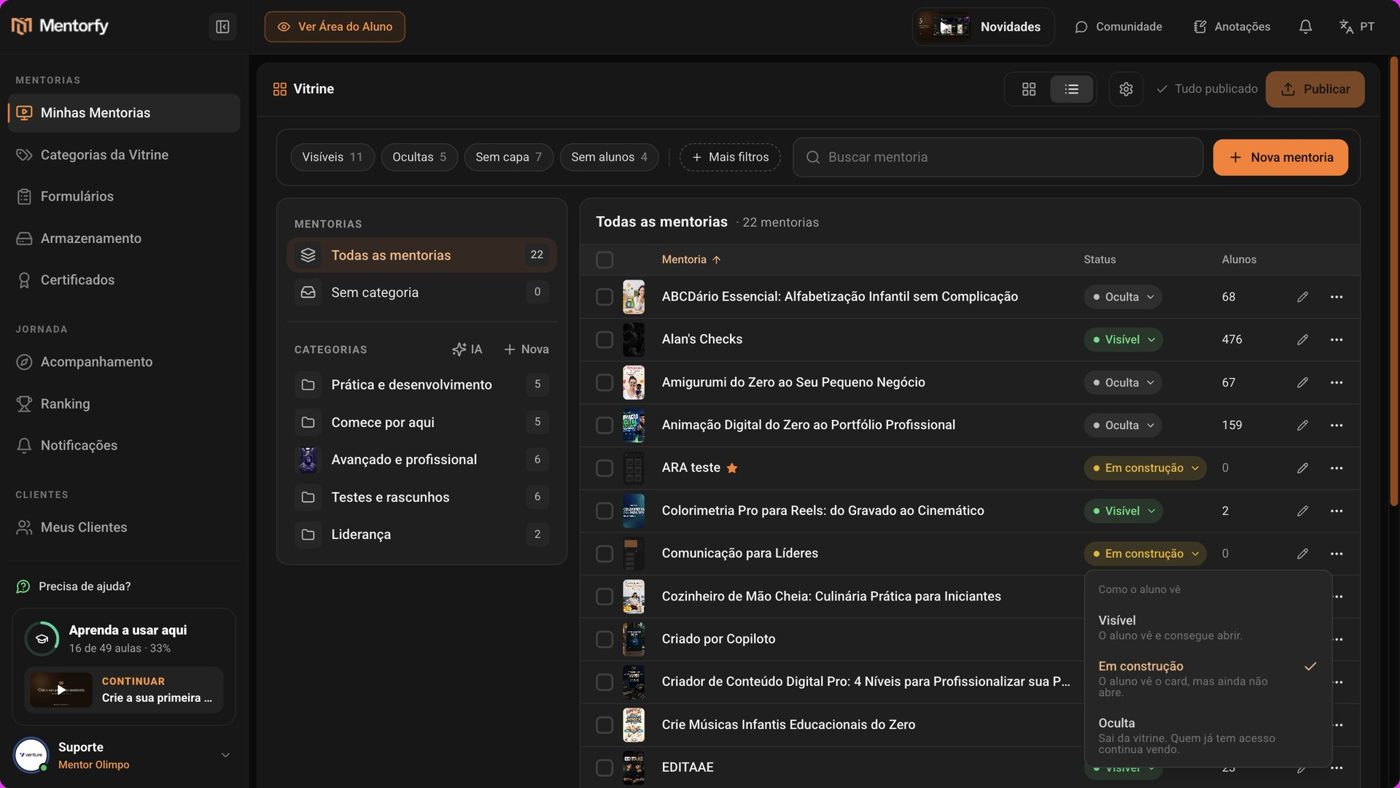
In My Mentorships, in the Table view, click the mentorship's Status.
The Status column shows how the student sees each mentorship.
In the How students see it menu, choose an option.
The change goes into the draft and a notice with Undo shows up. The options are in Reference.
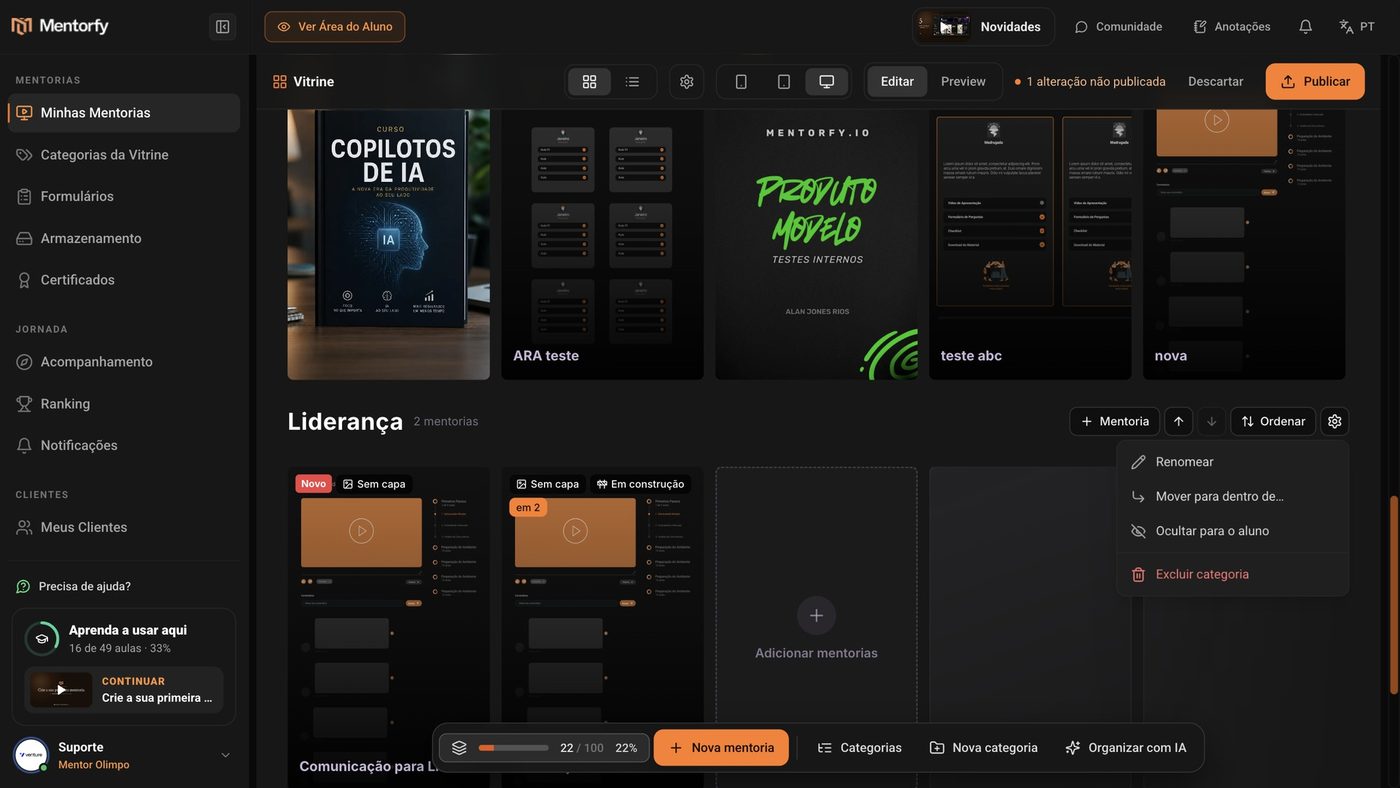
To hide a whole category, open the Showcase view and click the category's gear icon.
Choose Hide from students. The category gets the Hidden from students label. To go back, choose Show to students.
Click Preview to check.
The button is next to Edit, at the top. Preview shows the showcase as the student sees it: the hidden category disappears, and mentorships under construction show the Available soon notice. To keep editing, click Edit.
Click Publish and confirm with Publish now.
Only then does the change reach the student. It can take a few minutes to show up in their app.
Good to know
At the top of the Table, the Visible, Hidden, No cover, and No students filters help you find what you're looking for. More filters opens other options.
A Hidden mentorship and a hidden category leave the showcase for people who don't have access yet. A student who already has access to the mentorship still sees it and can open it.
Use it to show the cover of a mentorship that's still being built. The student sees the card, but can only open it once you change it to Visible.
Reference
| Status | What the student sees |
|---|---|
| Visible | The student sees it and can open it |
| Under construction | The student sees the card but can't open it yet |
| Hidden | It leaves the showcase. Students who already have access still see it |
Common questions
I hid a mentorship and it still shows up for the student. Why?
The change only reaches the student after Publish. If it's in more than one category, check in Preview: a hidden mentorship doesn't show up in any of them.
The mentorship is Visible, but the student doesn't see it. Why?
In the Table, a yellow icon next to the mentorship explains the reason when you hover over it. For example, its category is hidden or it's only in hidden categories.
I want to take a mentorship down for good. Should I hide it or delete it?
Hiding is better: you can undo it with one click. Deleting a mentorship is forever and the screen warns you it can't be recovered (see Create your first mentorship).