Organize your showcase in categories
Categories are the shelves of your showcase: they make each mentorship easy to find. Create the shelf, put the mentorships inside it, and publish.
Step by step
In My Mentorships, open the Showcase view and click New category.
The Showcase view is one of the two icon buttons at the top (the other is Table). New category is in the bottom bar.

Give it a Name and click Create category.
The new category shows up at the end of the showcase, empty. An empty category doesn't show up for the student.
In the category title, click + Program.
The Add programs panel opens. Use the search, or the All / No category filter, to find the mentorships.
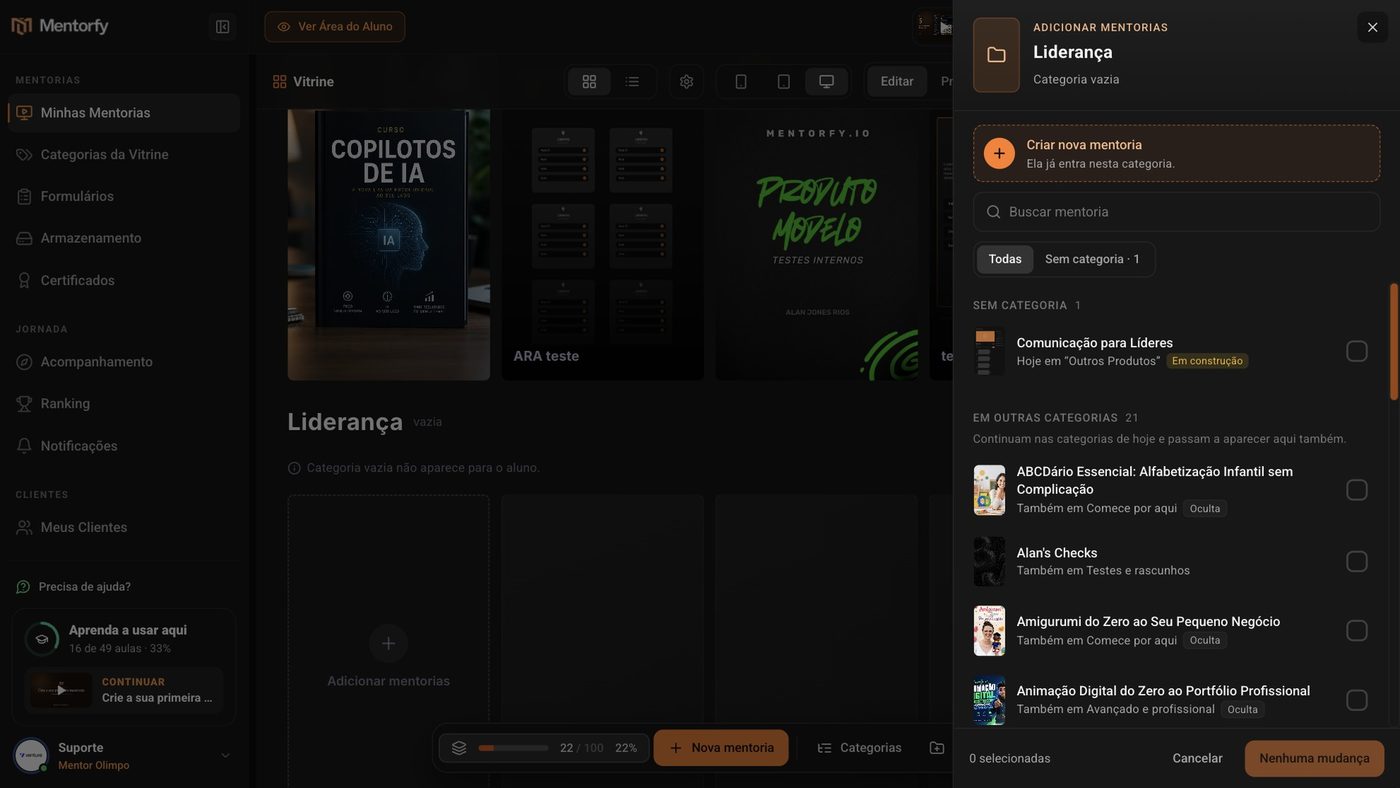
Tick the mentorships and click Add N programs.
A mentorship can be in more than one category: the ones already in other categories stay there and also show up here. Don't have the mentorship yet? Click Create new program: it goes straight into this category.
Set the order.
The arrows move the category up and down the showcase. Reorder arranges the mentorships inside it.
Click Publish and confirm with Publish now.
Until you publish, nothing changes for the student. The Publish for your students? window shows a summary of what will change. After you confirm, it can take a few minutes to show up in the student app.
Good to know
Each change goes into the draft. At the top you see how many changes are unpublished (for example, 1 unpublished change) and the Discard button, which takes everything back to what the student sees today. The exception is a mentorship's cover: when you change it, the student already sees the new cover.
Mentorships that aren't in any category show up for the student under Other Products. To take a mentorship out of the showcase, hide it (see Control what shows up in the showcase).
In the bottom bar, Organize with AI helps you build the categories. In the Table view, the left panel lists the categories, with the AI and + New buttons.
Common questions
How do I rename a category or create a subcategory?
Click the gear icon next to the category title. Rename changes the name. Move inside… puts the category inside another one, and Top level brings it back to the start of the showcase.
What happens if I delete a category?
In the gear menu, click Delete category. The category and its subcategories leave the showcase, but the mentorships are not deleted. The ones that aren't in another category go to Other Products. The window also lets you choose another category to receive the mentorships. Like any change, the deletion only reaches the student when you publish.
I made a mistake. Can I undo it?
Yes, as long as you haven't published. After many changes a notice with Undo shows up, and the Discard button at the top takes everything back to what is published.