Build the modules and lessons of your mentorship
With the mentorship created, it's time for the content. Modules group the lessons, and each lesson is a step: video, text, files, tasks, and much more.
Step by step
In the mentorship editor, click New Module.
Then click Edit on the module and give it a name.
In the module, click Add step.
The list of tools opens, grouped by type. See them all in Reference.
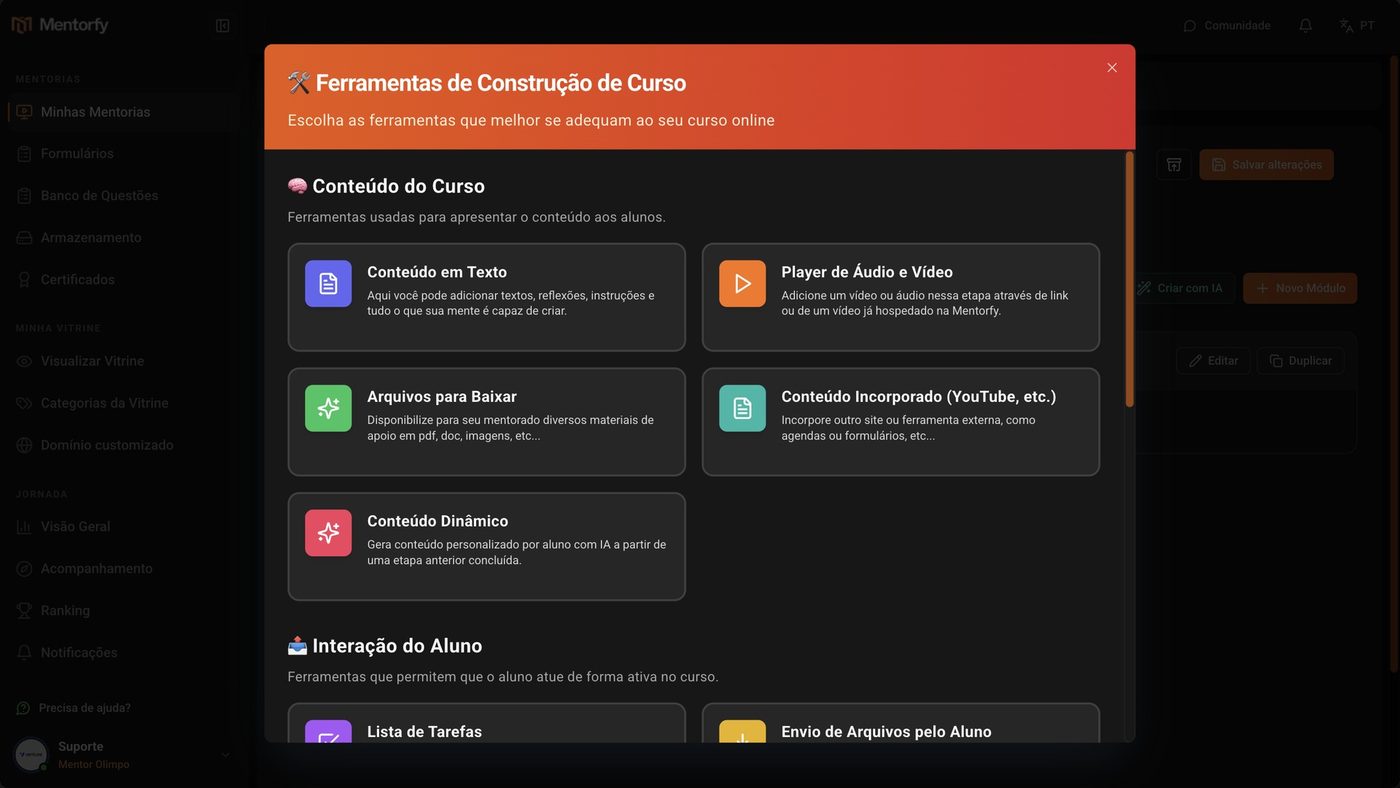
For a video lesson, choose Player de Áudio e Vídeo (Audio and Video Player) and click Add to Course.
Click Edit on the step, give it a title, and choose the video in From storage.
You can also Upload from computer or use an External link.
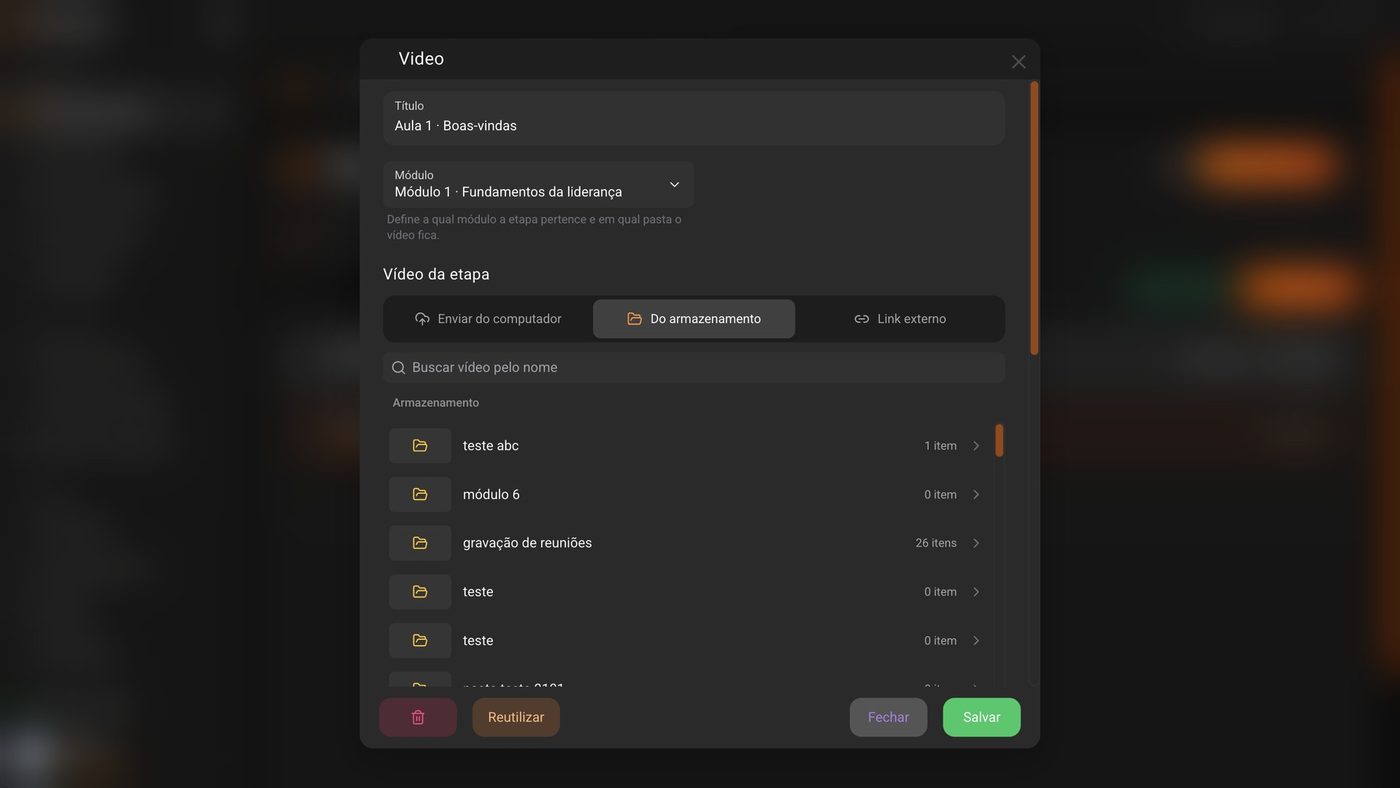
Click Save on the step.
Finally, click Save changes, at the top of the editor.
Done: the lesson is now in the module.
Good to know
Saving the step is not enough. Click Save changes, at the top of the editor, before you leave.
Building lessons is faster when the videos are already in Storage. See Upload your lesson videos.
Reference
The Add step tools are split into groups:
| Group | What it's for (screen text) |
|---|---|
| Course Content | Tools used to present content to students (text, video, downloadable files, embedded content…) |
| Student Interaction | Tools that allow students to actively participate in the course (task list, file submission…) |
| Activities and Assessments | Tools to assess and exercise student knowledge (like the multiple-choice quiz) |
| Feedback and Engagement | Tools to understand student experience and satisfaction |
| Organization | Tools to structure and organize content |
Common questions
I deleted a module or a step by mistake. Can I get it back?
Yes. In the mentorship editor, click Restore Changes. Deleted modules and steps show up there, and when you restore them, the students' answers come back too.
How do I add a quiz to the lesson?
Use the Perguntas de Múltipla Escolha (Multiple Choice Questions) step, in Activities and Assessments. It pulls the questions from the Question Bank. See Use the questions in a lesson.