Use the bank's questions in a lesson
The Bank's questions become a quiz inside the lesson, without typing everything again. You choose the category and how many questions the student will answer.
Step by step
In the mentorship editor, click Add step and go to Activities and Assessments.
Choose Perguntas de Múltipla Escolha (Multiple Choice Questions) and click Add to Course.
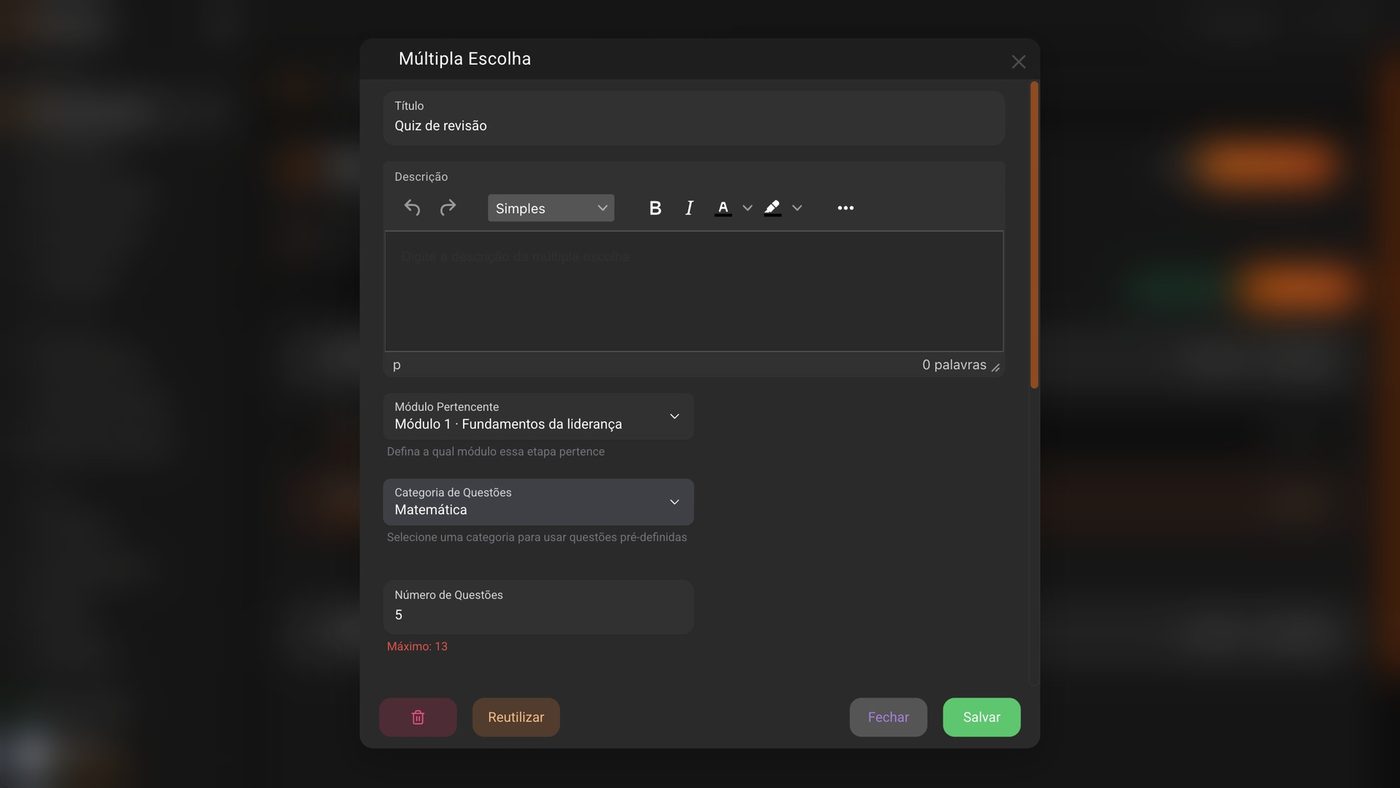
Click Edit on the step and give it a title.
In Question Category, choose the category from the bank.
In Number of Questions, say how many the student will answer and click Save.
Below the field you see the maximum, which is the total number of questions in the category.
Click Save changes, at the top of the editor.
Done: the quiz is now in the lesson.
Good to know
In the same step, use Create questions manually to write questions that don't go into the bank.
A module can be unlocked by the score in the Multiple Choice steps of the previous module. If the previous module has no quiz, the next one is unlocked automatically.
Common questions
I got "Invalid question count". What do I do?
The number must be at least 1 and at most the total number of questions in the category. Lower the number or create more questions in the Bank.
What does the student see after answering?
After answering, the student sees the explanation you wrote in the question. That's why it's worth putting care into it. See Save your questions.