Save your questions to use in lessons
Questions are saved in the Question Bank and become a quiz in any mentorship. Create the category first: without a category, the question isn't created.
Step by step
In the menu, open Question Bank. On the Categories tab, click New Category.
Give it a name, like "Leadership", and save.
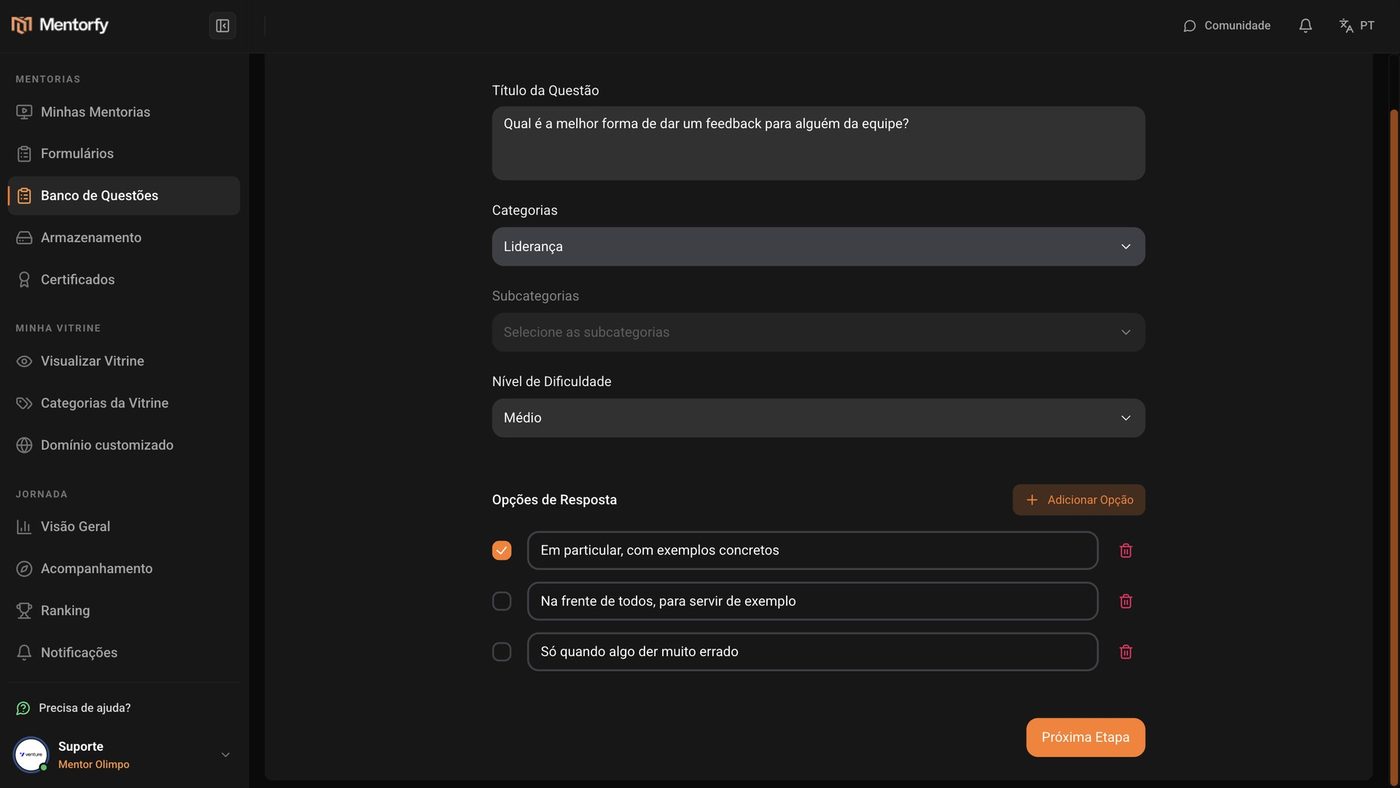
On the Questions tab, click New Question and write the question in Question Title.
In Categories, choose the category. Then choose the Difficulty Level.
Difficulty goes from Very Easy to Very Hard.
In Answer Options, write the options and mark the correct one. Then click Next Step.
You need at least 2 options. Use Add Option to add more.
Write the explanation and click Save.
The student sees the explanation after answering. Done: the question is now in the bank.
Good to know
You need to use at least one of the three. The file can be an image or a PDF, and you can record the audio on the spot.
On the Subcategories tab, you split a category into smaller parts. To find a question later, use Filter by category.
Reference
| Field | Rule |
|---|---|
| Question Title | at least 3 characters |
| Categories | at least one |
| Difficulty Level | from 1 (Very Easy) to 5 (Very Hard) |
| Answer Options | at least 2, with one marked as correct |
| Question Explanation | text, file, or audio (at least one) |
Common questions
I got "Select at least one category". What do I do?
The question needs a category. If you don't have one yet, go to the Categories tab, click New Category, and then go back to the question.
I can't get past the first step of the question.
Check that: the question has at least 3 characters, there are at least 2 options filled in, and one of them is marked as correct. The screen shows what's missing.