Upload your lesson videos
Before building your lessons, upload your videos to Storage. The platform prepares each video to play well on any internet connection.
Step by step
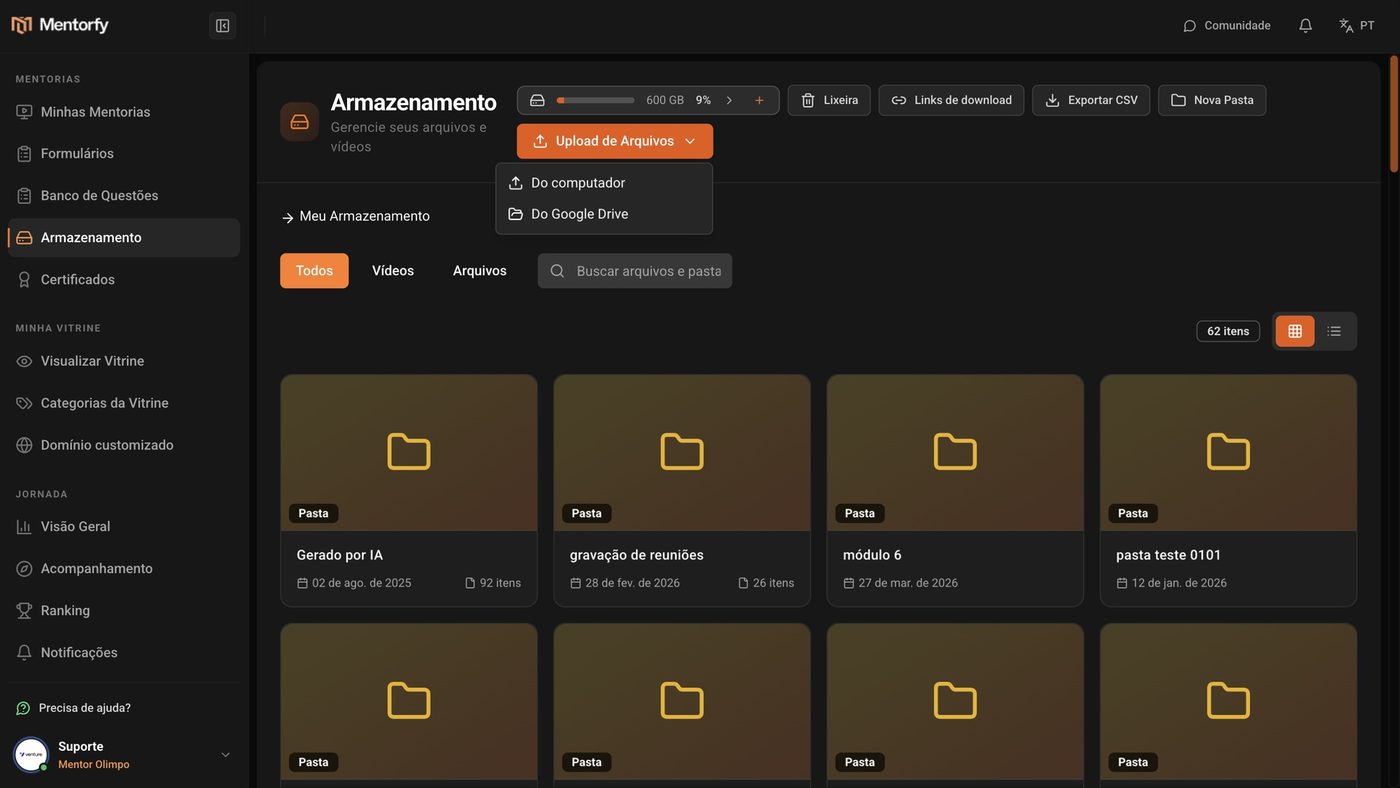
In the menu, open Storage and click Upload Files.
Choose From Computer and select the video.
If the video is on Google Drive, choose From Google Drive.
Follow the upload.
The progress shows up in Files in progress. You can keep using the platform in the meantime.
Done: the video shows up in the library, with its length.
After the upload, the platform still processes the video for a few moments before it's ready.
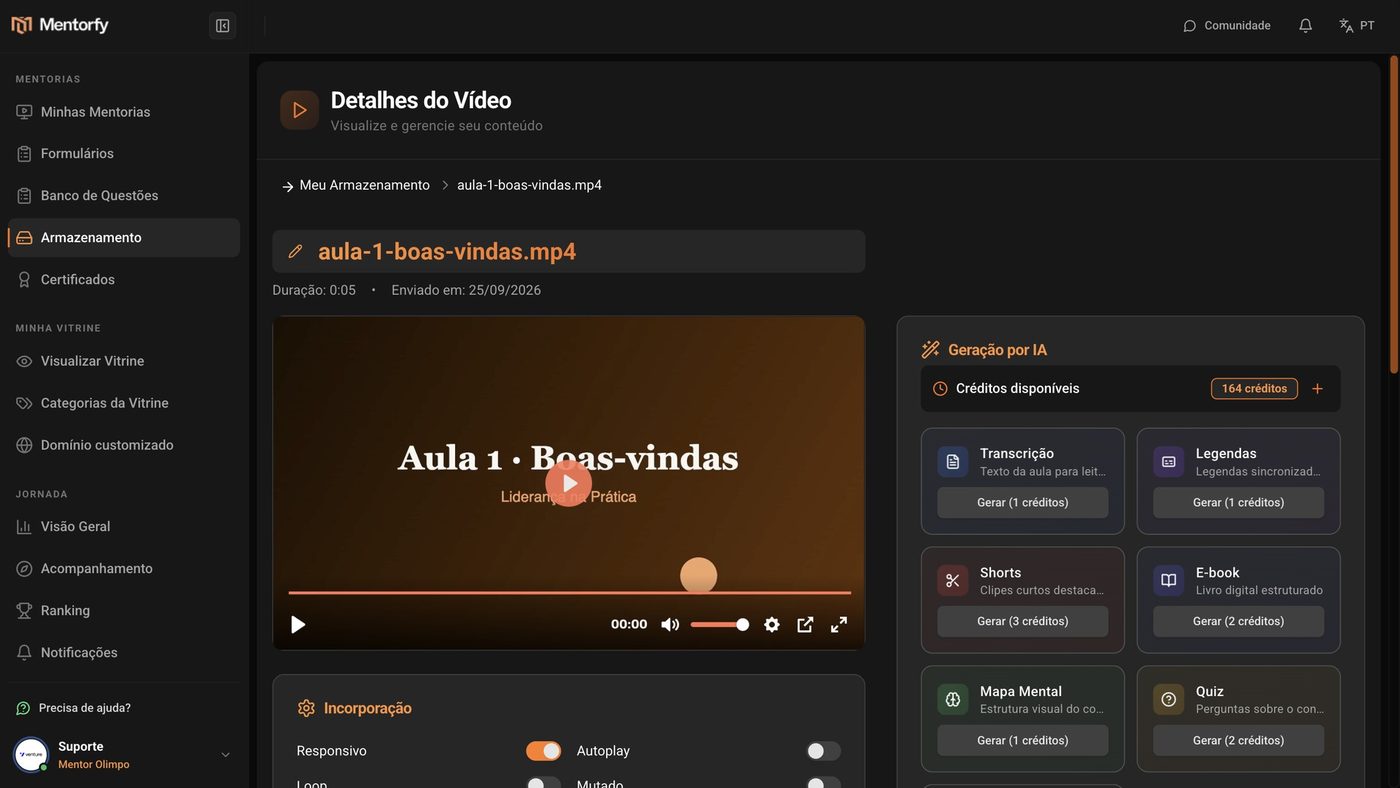
Click the video to see its details.
In Video Details you can watch it and, in AI Generation, create a transcript, subtitles, a quiz, and more.
Good to know
The bar shows how much of your space is already used. It counts the original video and the versions in different qualities (1080p, 720p, 480p) that the platform creates on its own. Need more? Use Increase storage.
Each Generate button shows how many credits it uses. Your balance shows in Available credits, on the same screen.
Reference
| What | Details |
|---|---|
| Supported videos | MP4, WebM, AVI, MOV, WMV, MKV, FLV, M4V, 3GP |
| Other files (PDF, images…) | up to 5 GB each |
| Where to upload from | From Computer or From Google Drive |
| Created with AI from the video | Transcript, Subtitles, Shorts, E-book, Mind Map, Quiz, Dubbing |
Common questions
I got "Insufficient storage". What do I do?
You've run out of space. Delete old videos or use Increase storage. Heads up: what's in the Trash still takes up space. To free it up right away, open the Trash and empty it.
How do I put the video in a lesson?
In the mentorship editor, create a Player de Áudio e Vídeo (Audio and Video Player) step and choose the video in From storage. See Build the modules and lessons.