Organize your videos in folders
With lots of videos, organize everything in folders: one for each course or module. Moving a video to another folder doesn't remove it from the lessons.
Step by step
In Storage, click New Folder.
Give it a name, like "Leadership Lessons", and click Create.
On the video, open the actions menu (the three dots) and choose Move.
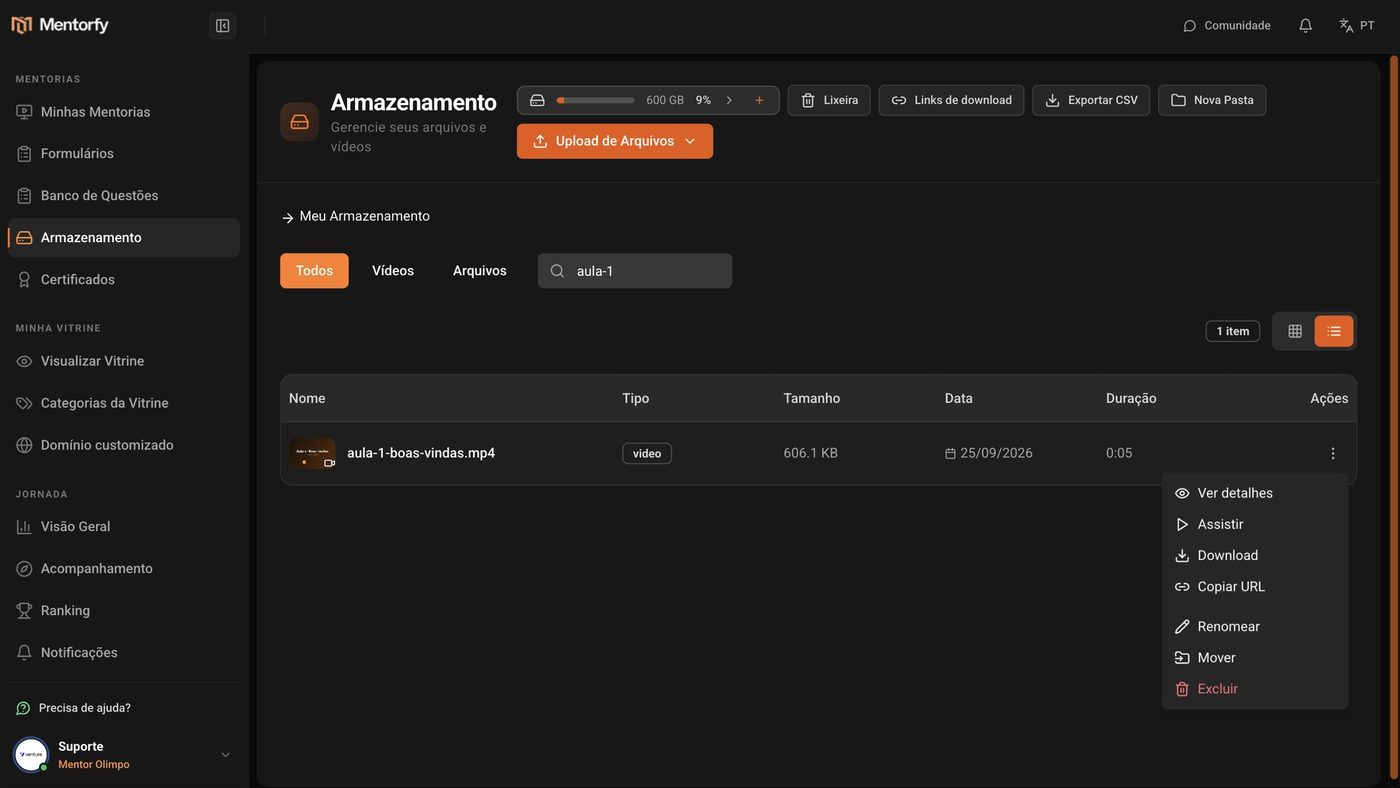
Choose the destination folder and click Move to with its name.
To take the video out of any folder, choose Home.
Done: the video is now in the folder.
It keeps working in every lesson where it already was.
Good to know
When you click Delete, the platform shows which lessons use the video (for example, Used in 1 lesson).
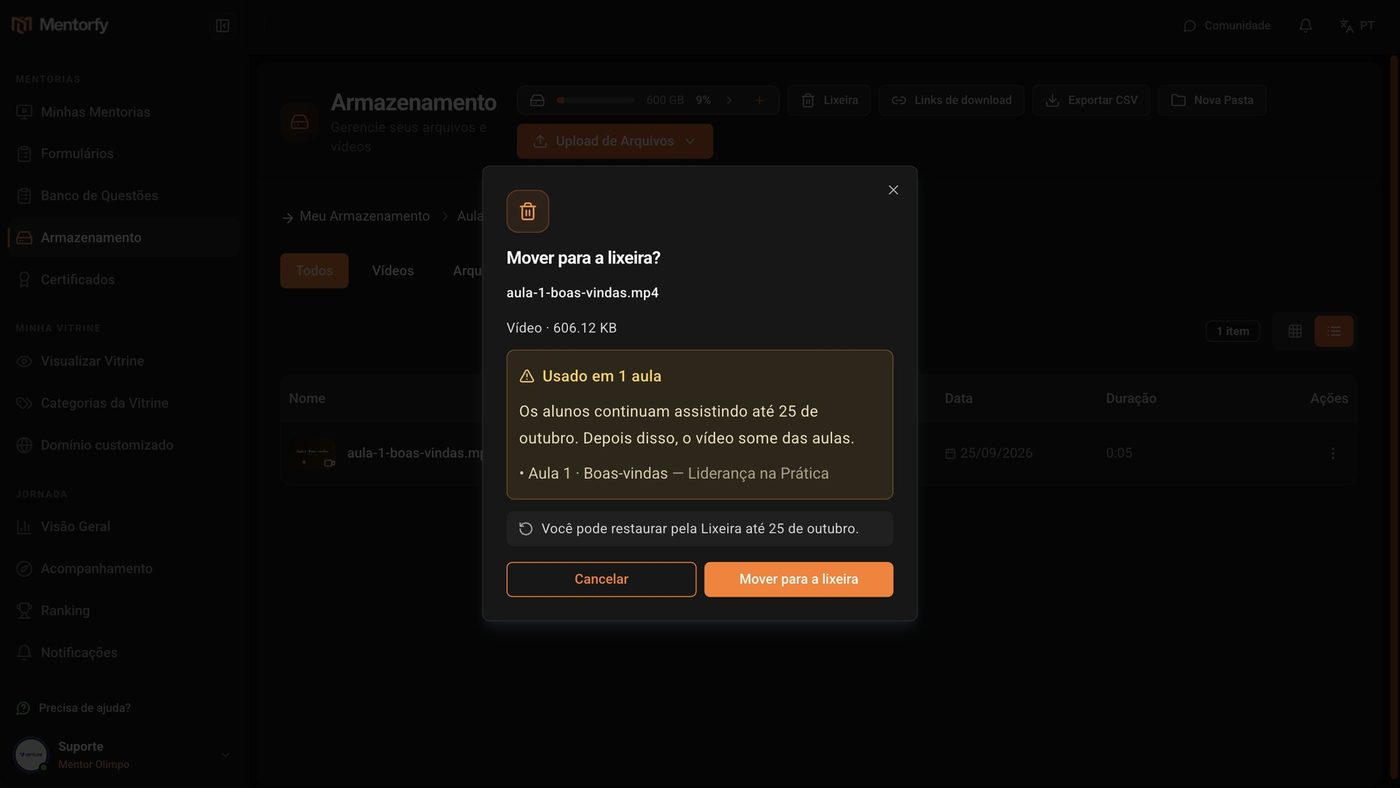
The item stays in the Trash for 30 days and can be restored. During that time, students keep watching it in the lessons. After that, it is deleted for good and disappears from the lessons.
Common questions
I deleted a video by mistake. How do I get it back?
Click Trash, at the top of Storage, and then Restore on the item. It goes back to the folder it came from. If that folder no longer exists, it goes back to the start of Storage.
What happens if I use "Delete forever" or "Empty trash"?
The item is deleted right away and it can't be undone. If the video was in a lesson, the lesson is left without that video. The screen tells you how many lessons will be affected before you confirm.
What if I delete a folder with videos inside?
The whole folder goes to the Trash, with everything inside it. The screen shows how many videos, files, and subfolders it has before you confirm. Restoring the folder brings everything back.