Give out automatic certificates
Prepare the certificate once and turn it on. From then on, anyone who completes the mentorship gets the certificate by email, automatically.
Step by step
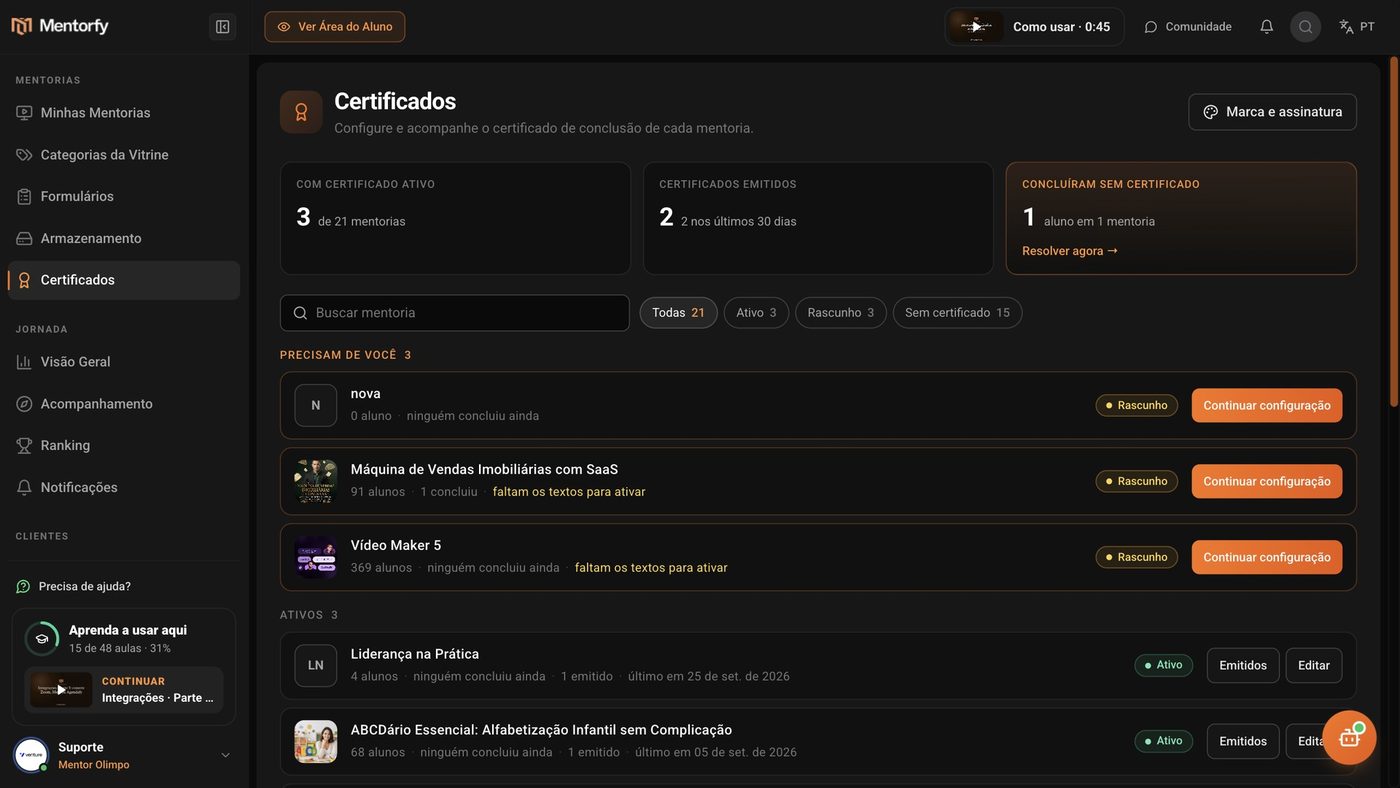
In the menu, open Certificates, find the mentorship, and click Create certificate.
Use Search program if you have many. The mentorships that need you show up first, in the Need you group.
In Design, choose the style and the color.
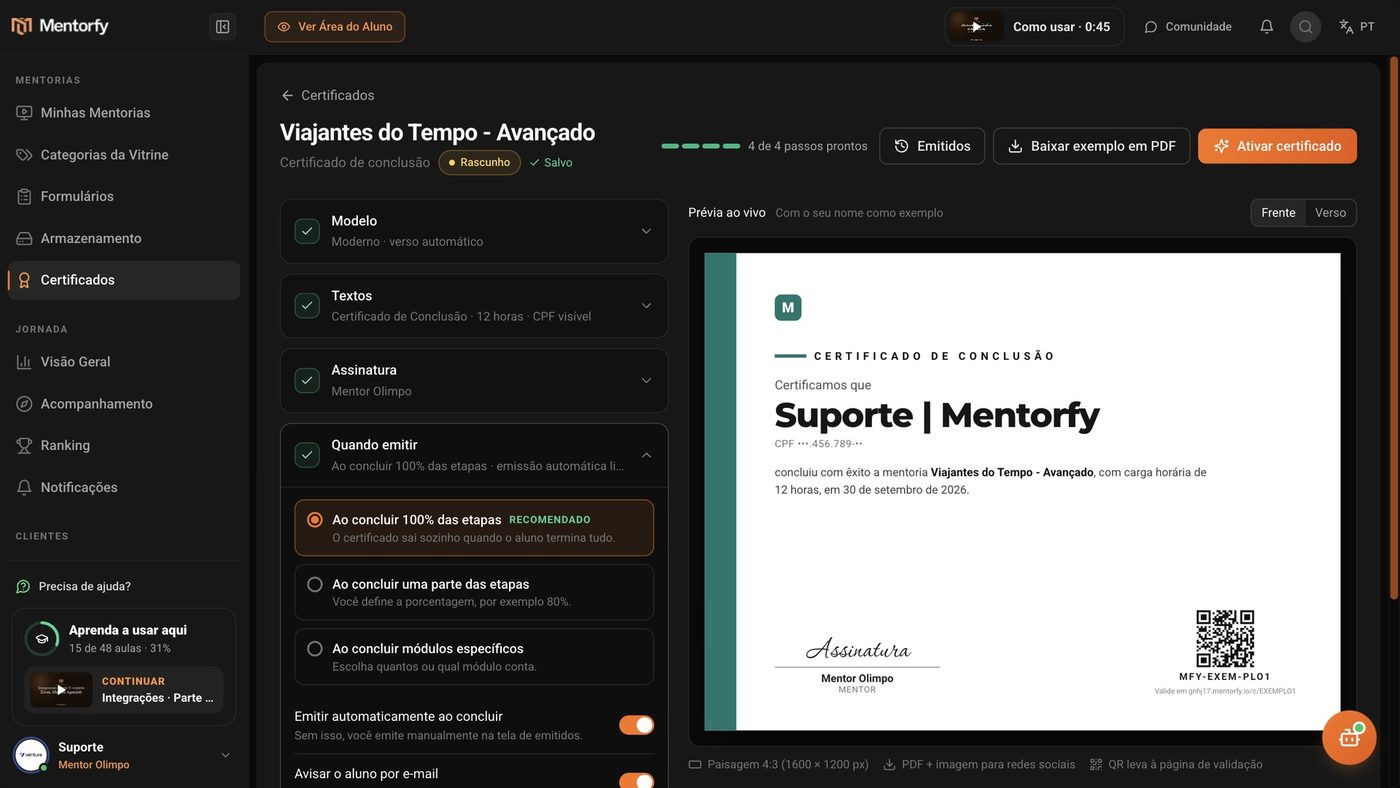
Pick Classic, Modern, or Minimal, and an Accent color. The Live preview, on the side, shows the result right away. Want to use your own artwork? See Use your own artwork and a default certificate.
In Texts, enter the Workload.
The title and the main text are already filled in. In the texts, chips like + student name and + program are replaced with each student's details. Without the hours, the certificate can't be turned on, because the text uses the workload. In Certificate language, choose Portuguese (Brazil), English, or Spanish.
In Signature, check who signs.
If you already saved your brand, the signature comes filled in. If you want, upload another image or use handwritten lettering.
In When to issue, check the rule.
The default is When 100% of the steps are completed. See the other options in Reference.
Click Activate certificate.
If the Activate the new certificate? window appears, click Activate now. Done: anyone who completes the mentorship gets the certificate by email.
Good to know
After you save your brand (see the next page), a new certificate starts with 3 of 4 steps ready. Only the workload is missing. The X of 4 steps ready counter is at the top of the screen.
If a student had already completed the mentorship, they get the certificate as soon as you turn it on. The confirmation window tells you how many students that is.
Your changes are saved on their own. Next to the title, you see Saved. Until you turn it on, the certificate stays as a Draft and isn't issued to anyone. To see how it will look, click Download sample PDF.
Reference
| In When to issue | What it does |
|---|---|
| When 100% of the steps are completed | The certificate goes out on its own when the student finishes everything (recommended) |
| When part of the steps is completed | You set the percentage, for example 80% |
| When specific modules are completed | You choose how many modules count, or which module |
| Issue automatically on completion | If turned off, you issue it by hand from the issued certificates screen |
| Notify the student by email | Sends the email with the certificate link |
| Ask for the student ID before issuing | The student enters it once and it stays saved on their profile |
Common questions
I turned the certificate off. Do people who already got it lose it?
No. Certificates already issued stay valid. Only new ones stop. If it was the default certificate, it no longer is: mentorships that used the default are left without a certificate.
I have several mentorships. Do I need to create a certificate for each one?
No. You can choose one certificate as the default for mentorships that don't have their own. See Use your own artwork and a default certificate.
A student finished and didn't get it. What do I do?
Open Issued on the mentorship and use Issue to a student. See Brand and issued certificates.