Use your own artwork and a default certificate
Want the certificate to use the design you already have? Upload your artwork and place the fields. Then, if you want, make this certificate work for mentorships that don't have their own yet.
Step by step
In the certificate editor, under Design, click My artwork.
Until you upload the artwork, the certificate stays as a Draft. If it was already active, it goes back to draft and you need to click Activate certificate again after uploading the artwork.
Upload Your artwork.
Use PNG, JPG, or PDF at 1600 × 1200 px (4:3), in landscape. The fields appear on top of it.
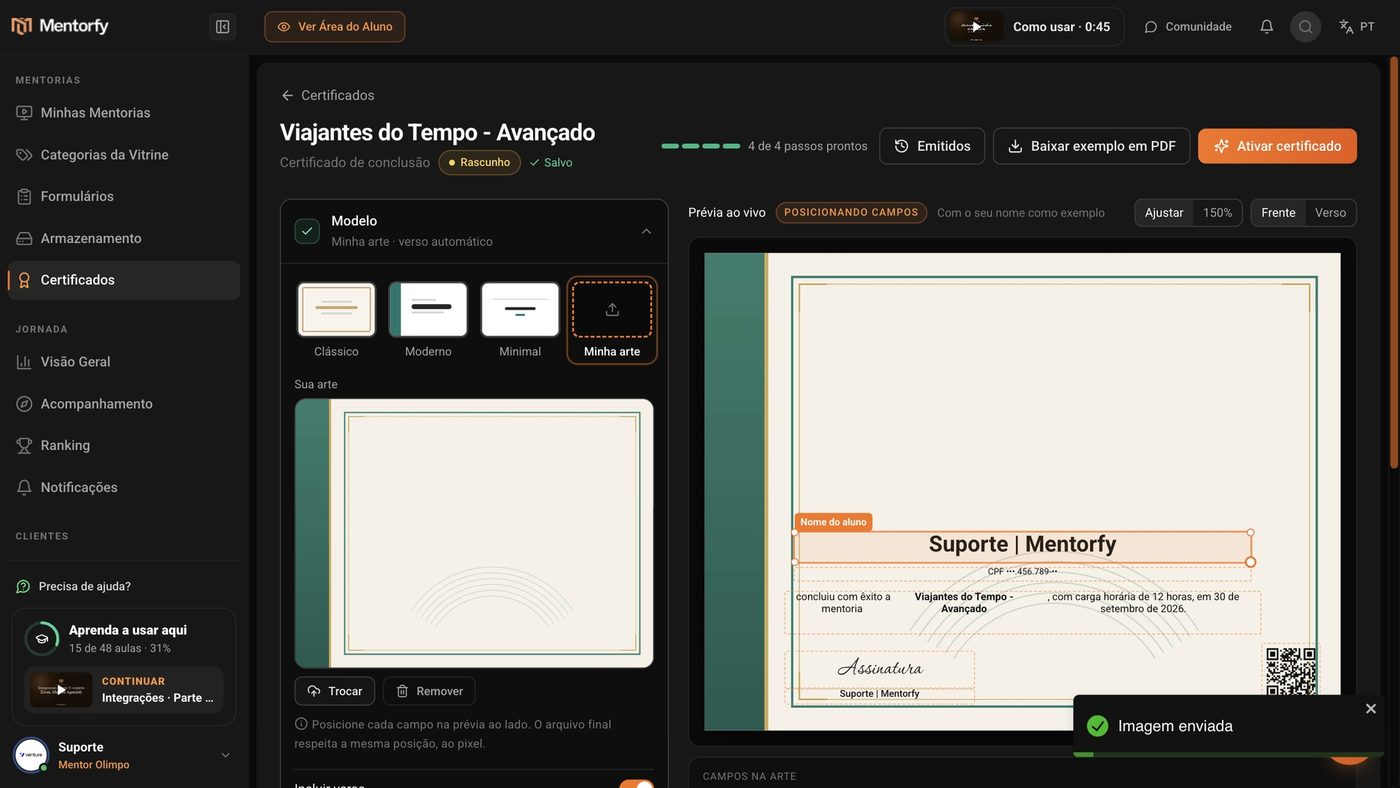
Drag each field to the right place on the preview.
Place, for example, the student's name. The final file keeps the exact same position, pixel by pixel. Under Fields on the artwork, click a field to turn it on. To remove a field, select it and use Remove from artwork.
Check the Back.
Under Design, the back can be Automatic content or My artwork. On the Back tab of the preview, you see how it looks.
Click Activate certificate.
To use it on other mentorships, turn on Default certificate.
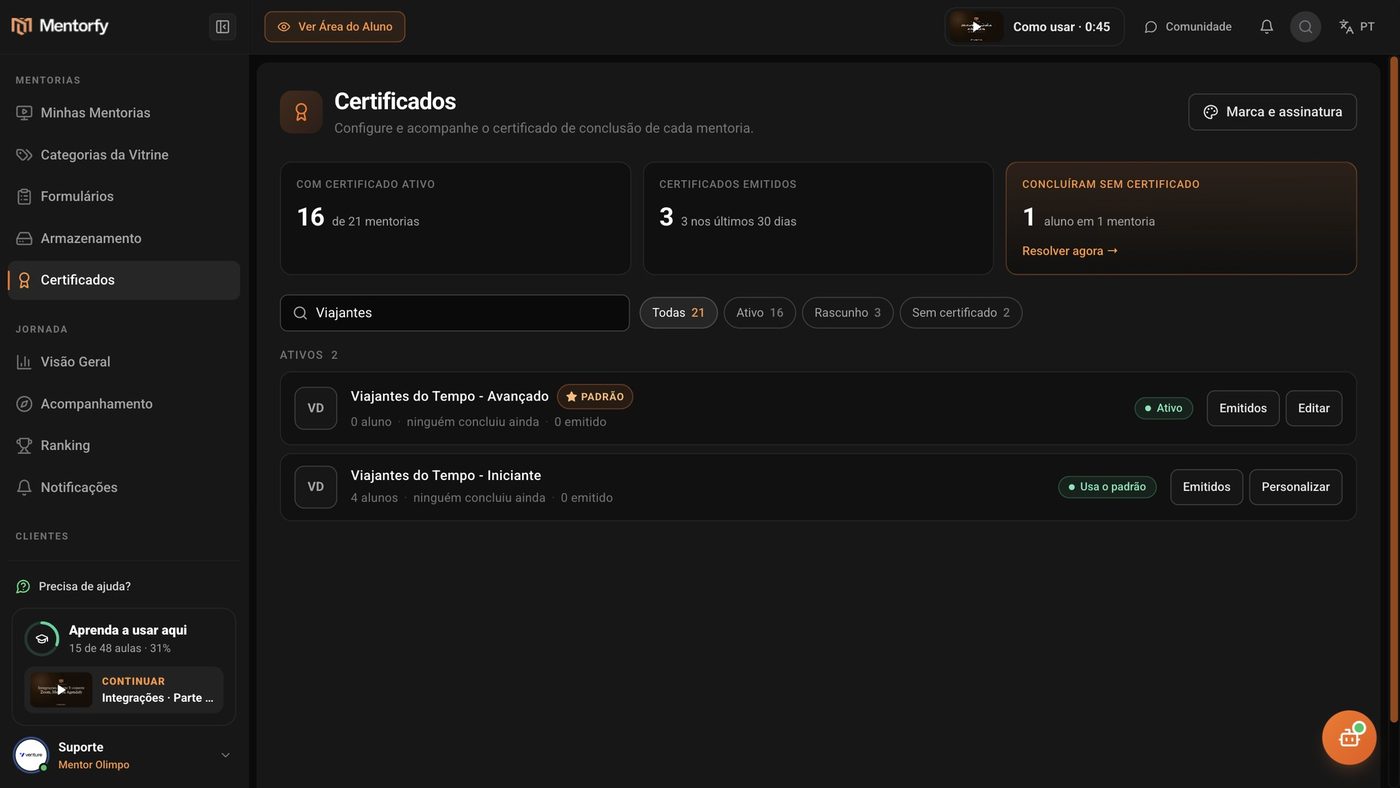
Turn on Use for programs without their own certificate. Students who already finished get it now. On the Certificates screen, those mentorships show Uses default, and the default's mentorship shows the DEFAULT tag.
Good to know
Students who already finished a mentorship without its own certificate get the certificate as soon as you turn on Default certificate.
On the row of the mentorship that Uses default, click Customize. In the editor, click Customize for this program. It gets its own certificate, as a draft, and students start getting the new one once you activate it.
With Automatic content, the platform generates the back with the list of modules, the workload, "Issued by", and the code. With My artwork, you upload the back's artwork and place the fields. Without artwork on the back, the background is white.
Reference
| File | Accepted format |
|---|---|
| Certificate artwork (front and back) | PNG, JPG, or PDF at 1600 × 1200 px (4:3). Image up to 8 MB, PDF up to 25 MB |
If the image isn't 4:3, the artwork is adjusted to fill and may crop the edges. If the PDF has more than one page, the first one is used.
| A certificate can only be the default if… | Why |
|---|---|
| It's Active | Draft and disabled certificates don't issue |
| It uses the 100% or percentage-of-steps rule | The module rule only applies to its own mentorship |
Common questions
The Default certificate switch is locked. Why?
The certificate must be active and use the 100% or percentage-of-steps rule. The screen tells you which of the two is missing.
I already have a default. What if I turn it on for another certificate?
There's only one default at a time. When you turn it on for another certificate, it becomes the default in place of the current one.
I turned the default off. What happens?
Mentorships that used the default are left without a certificate. The same happens if you disable the default certificate, or if you change its rule to modules.