Set up your brand and see issued certificates
In Brand and signature, you set the name, logo, color, and signer once, and it applies to all certificates. In Issued, you see who already got a certificate and take care of each one.
Step by step
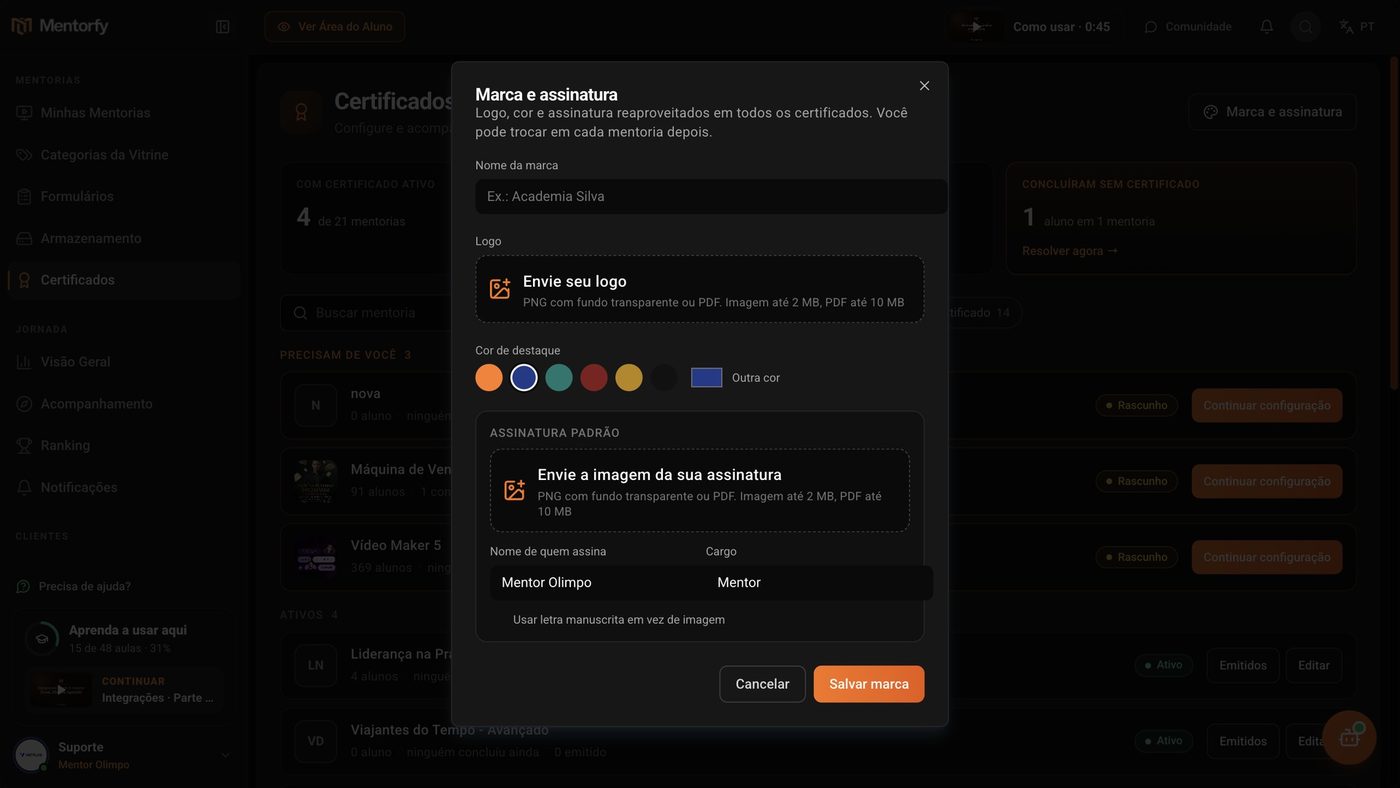
On the Certificates screen, click Brand and signature.
The button is in the top right corner.
Fill in your brand and click Save brand.
Enter the Brand name, the Logo, the Accent color, and, under Default signature, the name and role of the person who signs.
To see who already got one, click Issued on the mentorship.
At the top, you see how many certificates went out, how many students downloaded, and how many need attention. The bar below shows the rule that's active, with the Change rule link.
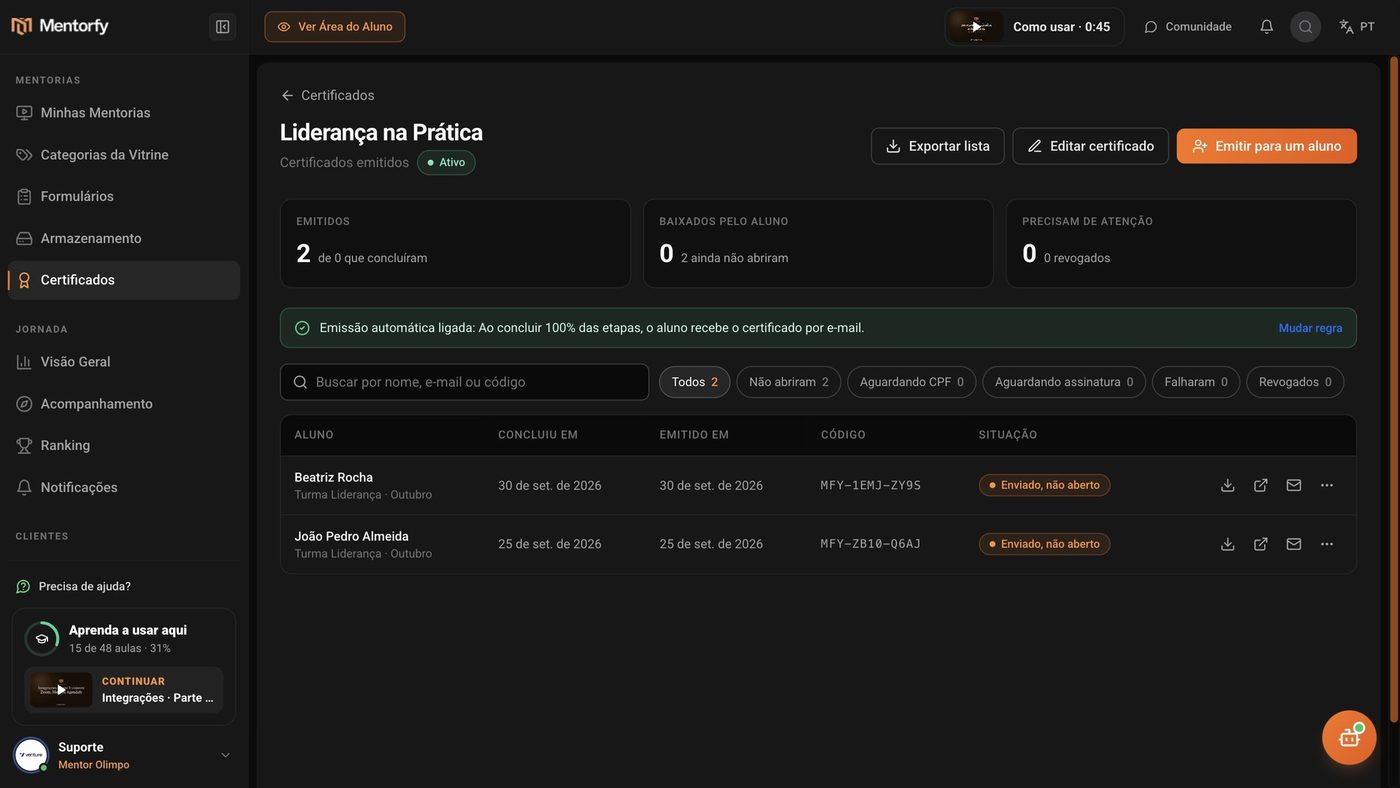
Need to deliver early? Click Issue to a student.
Search for the student by name or email and click Issue. It works even if they haven't met the rule.
Take care of each certificate in the list.
On the student's row, you can download the PDF, open the validation page, and resend the email. Under More actions, you choose Generate again or Revoke.
Good to know
Your brand applies to all certificates, but you can change the logo, color, and signature on a specific mentorship's certificate.
If the certificate asks for the student's ID or signature, it only goes out after the student does it. In the list, the status shows as Waiting for ID or Waiting for signature.
Reference
| File | Accepted format |
|---|---|
| Logo | Transparent PNG or PDF. Image up to 2 MB, PDF up to 10 MB |
| Signature image | Transparent PNG or PDF. Image up to 2 MB, PDF up to 10 MB |
No signature image? Turn on Use handwritten lettering instead of an image: the platform writes the name in a signature font.
| Filter in Issued | What it shows |
|---|---|
| Not opened | Certificates sent that the student hasn't downloaded yet |
| Waiting for ID | Students who haven't entered their ID yet |
| Waiting for signature | Students who haven't signed in their area yet |
| Failed | Certificates that weren't generated |
| Revoked | Certificates you canceled |
Common questions
The student says they didn't get the email. How do I resend it?
On the student's row, use Resend email. You can also Download PDF and send it to them.
I issued one by mistake. Can I cancel it?
Yes. Under More actions, use Revoke. You can write a reason (optional, only you see it). The validation page then shows "invalid" and the student loses the download. If you change your mind, use Reactivate on the certificate's row.
A certificate failed or is waiting for the ID. What do I do?
If it failed, click Try again on the row. If it's Waiting for ID, the student needs to enter their ID; then click Issue now on the row. If it's Waiting for signature, only the student can sign, in their own area.
How do I get the list into a spreadsheet?
Click Export list, at the top of the issued screen. The platform downloads a file with the mentorship's certificates.