Copilot
Mentor Copilot (Experimental)
The Copilot is Mentorfy's intelligent assistant for managing mentees. It uses advanced artificial intelligence to analyze data, answer questions, and help the mentor make more assertive decisions with their clients.
The Copilot is an experimental feature, available 24/7 and constantly evolving.
What can the Copilot do?
- Generate insights on student engagement
- Create conversation summaries and action plans
- Answer questions about the knowledge base
How to access
When opening the Copilot for the first time, a 3-screen presentation will be displayed. Read carefully and click "Next" to proceed. On the last screen, click "Get Started" to access the assistant.
Important: The Copilot is a technology under development. By continuing, you agree that the use of AI is your responsibility and is subject to inaccuracies.
Best practices when using the Copilot:
- Always verify the generated information before acting on it
- Avoid sharing sensitive personal data in conversations
Main interface
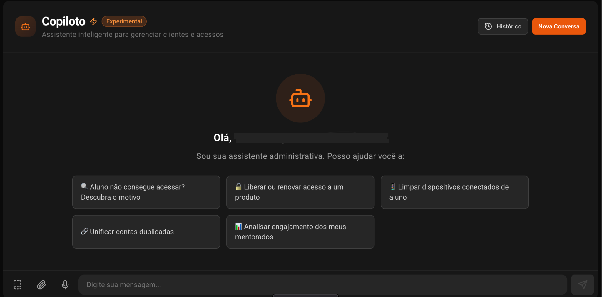
On the Copilot's home screen you will find quick shortcuts for the most common tasks:
- Student can't access? — find out the reason for the block
- Grant or renew access to a product — manage access directly through the chat
- Clear connected devices of a student — remove devices linked to the account
- Unify duplicate accounts — resolve duplicate registrations
- Analyze engagement of my mentees — get insights on student participation
You can also freely type your question or request in the "Type your message..." field.
Additional features
- History — access previous conversations with the Copilot
- New Conversation — start a new chat from scratch
- Attachment — send files as context to the Copilot
- Microphone — send voice messages
Template Library
The Template Library allows you to save and reuse frequent prompts in the Copilot, speeding up repetitive day-to-day tasks.
How to access
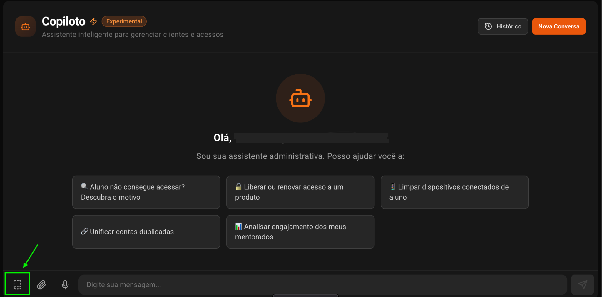
Click the Template Library icon inside the Copilot interface to open the panel.
Features
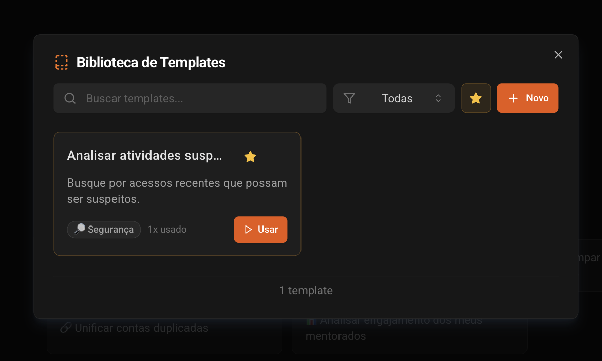
Search templates — Use the search field to locate an existing template (created by you) by name or keyword.
Filter by category — Use the "All" filter to view all templates or select a specific category to refine the listing.
Favorite templates — Click the star ⭐ on any template to mark it as a favorite and access it more quickly.
Use a template — Click "Use" to apply the template directly in the Copilot message field.
Create new template — Click "+ New" to create a new custom template. Give it a title, write the prompt, and define the category.
Information displayed for each template
- Title — template name
- Description — summary of what the prompt does
- Category — e.g.: Security, Engagement, Support
- Usage counter — how many times the template has been used
Student Copilot (Experimental)
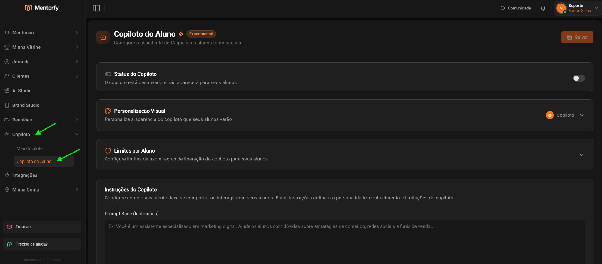
The Student Copilot is the AI assistant that appears as a floating button in the student area within your members area. You configure here how it should behave, what it can answer, and which documents it can consult.
Copilot Status
Enable or disable the Copilot using the toggle in the right corner of the section.
When disabled, the Copilot will not appear to your students.
To activate, you must have available credits in your account. If you don't have any, purchase more credits to continue.

Visual Customization
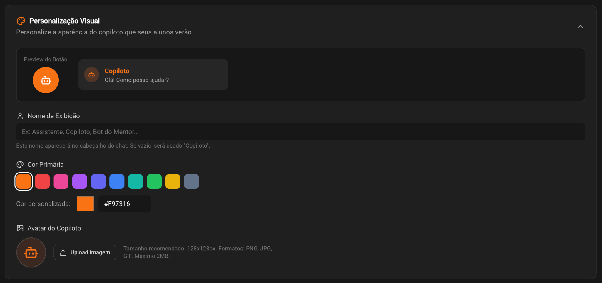
Customize the appearance of the Copilot's floating button that your students will see in your members area. A real-time preview is displayed as you make changes.
Display Name — Enter the name that will appear in the chat header for your students.
- Examples: Assistant, Copilot, Mentor's Bot
- If left blank, the default name "Copilot" will be used
Primary Color — Choose one of the predefined colors or enter a custom hexadecimal code in the "Custom color" field.
Copilot Avatar — Upload an image to customize the floating button icon.
- Recommended size: 128×128 px
- Accepted formats: PNG, JPG, or GIF
- Maximum size: 2MB
Student Limits
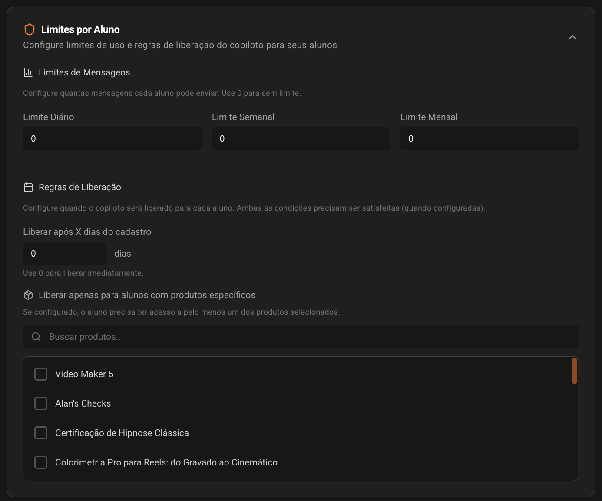
Configure how many messages each student can send and when the Copilot will be released to them.
Message Limits
Set the maximum number of messages each student can send per period. Use 0 for no limit.
| Field | Description |
|---|---|
| Daily Limit | Maximum messages per day |
| Weekly Limit | Maximum messages per week |
| Monthly Limit | Maximum messages per month |
Release Rules
Configure when the Copilot will be released to each student.
Release after X days of registration — Set how many days after registration the student will have access to the Copilot.
- Use 0 to release immediately
Release only for students with specific products — Restrict access to the Copilot only for students who have certain products. Use the search field to locate and select the desired products.
If configured, the student must have access to at least one of the selected products to use the Copilot.
Copilot Instructions
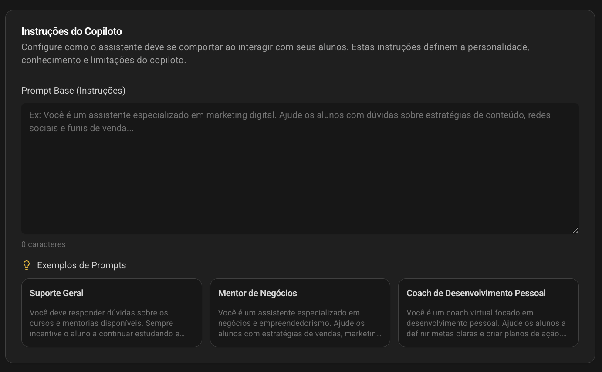
Defines the personality, knowledge, and limitations of the assistant when interacting with your students.
Base Prompt (Instructions) — Write in the field the instructions that will guide the Copilot's behavior.
Examples of ready-made prompts available on the platform:
- General Support — answers questions about courses and mentorships, encourages the student to keep studying, and celebrates achievements
- Business Mentor — assistant specialized in business and entrepreneurship, focused on sales, marketing, and management
- Personal Development Coach — focused on goal setting, action plans, and self-knowledge
Tip: Be specific in your instructions. The more detailed the prompt, the better the quality of the Copilot's responses.
Knowledge Base
Add documents for the Copilot to use as a reference when answering your students.
Current plan limits
- Documents: up to 10 files
- Storage: up to 50MB
How to add a document
- Enter a title for the document (optional) — e.g.: Course Manual, FAQ, Handout
- Click "Select File" and choose the file
- Accepted formats: PDF, DOCX, TXT, or MD (max. 20MB per file)
Added documents are listed in the "Added Documents" section and are automatically processed by the AI.
Usage and Forecast
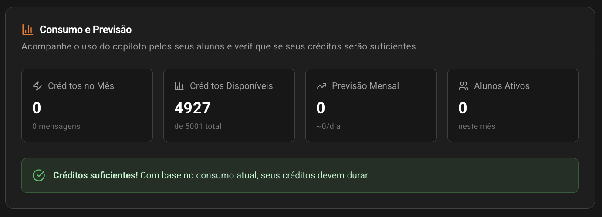
Track Copilot usage by your students and check whether your credits will be sufficient.
| Indicator | Description |
|---|---|
| Monthly Credits | Total credits consumed in the current month |
| Available Credits | Remaining credit balance |
| Monthly Forecast | Estimated daily consumption based on current usage |
| Active Students | Number of students who used the Copilot this month |
The platform displays an alert when credits are sufficient or at risk of running out based on current consumption.
Student Ranking
Displays the students who used the Copilot the most during the month, allowing you to track engagement with the assistant.
After configuring all sections, click "Save" in the upper right corner to apply the changes.