Watch and share the recording
When the meeting ends, the recording gets ready on its own. Here's how to watch it and share it with your students.
Step by step
In the meeting list, look at the Recording column. When it shows Available, click it.
Check the details: the date, the length, and how many people took part.
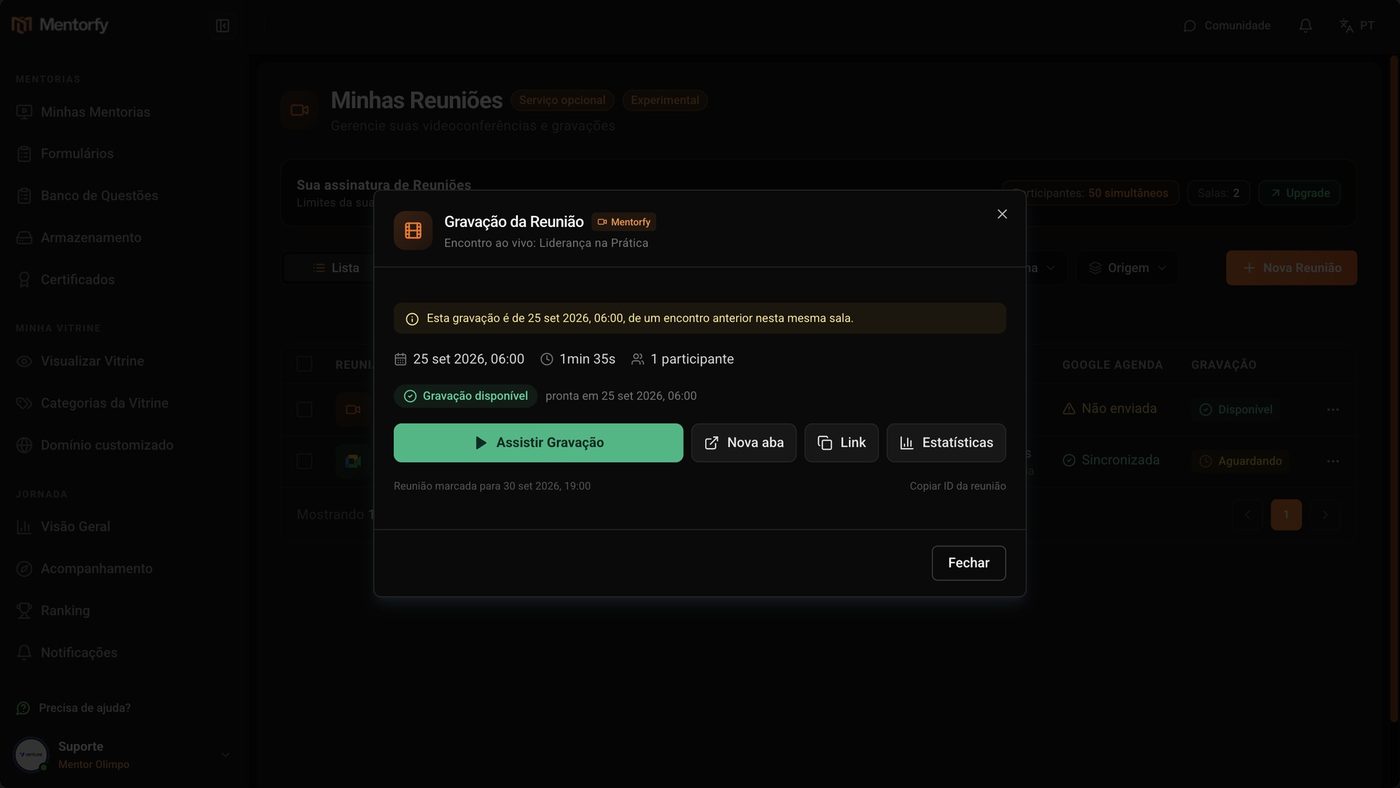
Click Watch Recording. The video opens right there.
To send it to your students, go back and click Link.
The recording's address is copied, ready to paste in the group or in an email.
Good to know
The same window has New tab, to open the video in another tab, and Statistics, with the meeting's dashboard.
Reference
| In the Recording column | What it means |
|---|---|
| Pending | The recording is queued for processing |
| Processing | The recording is being processed. It can take a few minutes, depending on the length |
| Available | Ready to watch |
| Error | Something went wrong while processing. Contact support |
| No recording | The meeting has no recording |
| Release recording | Google Meet meeting: Google already recorded it; you still need to pick the file in Drive |
Common questions
The meeting ended and the recording doesn't show up. What happened?
Wait for the status to change from Processing to Available: it depends on the length of the session. If it shows No recording, check whether Record Meeting was on when you created the meeting.
I used Google Meet. How do I release the recording?
Click Release recording and pick the file in the Google Drive window. Mentorfy copies it to your storage and releases it to the student. So you don't have to do this every time, connect your Google account and click Turn on automatic copy: the next recordings come in on their own.
Processing gave an Error. What now?
Contact support and give them the meeting's name and date.