Create a live meeting with recording
Schedule your live sessions in My Meetings. With recording turned on, the video gets ready on its own after the session.
Step by step
In My Meetings, click New Meeting.
Choose Mentorfy Meeting, give it a name, and set the date and time. Click Next.
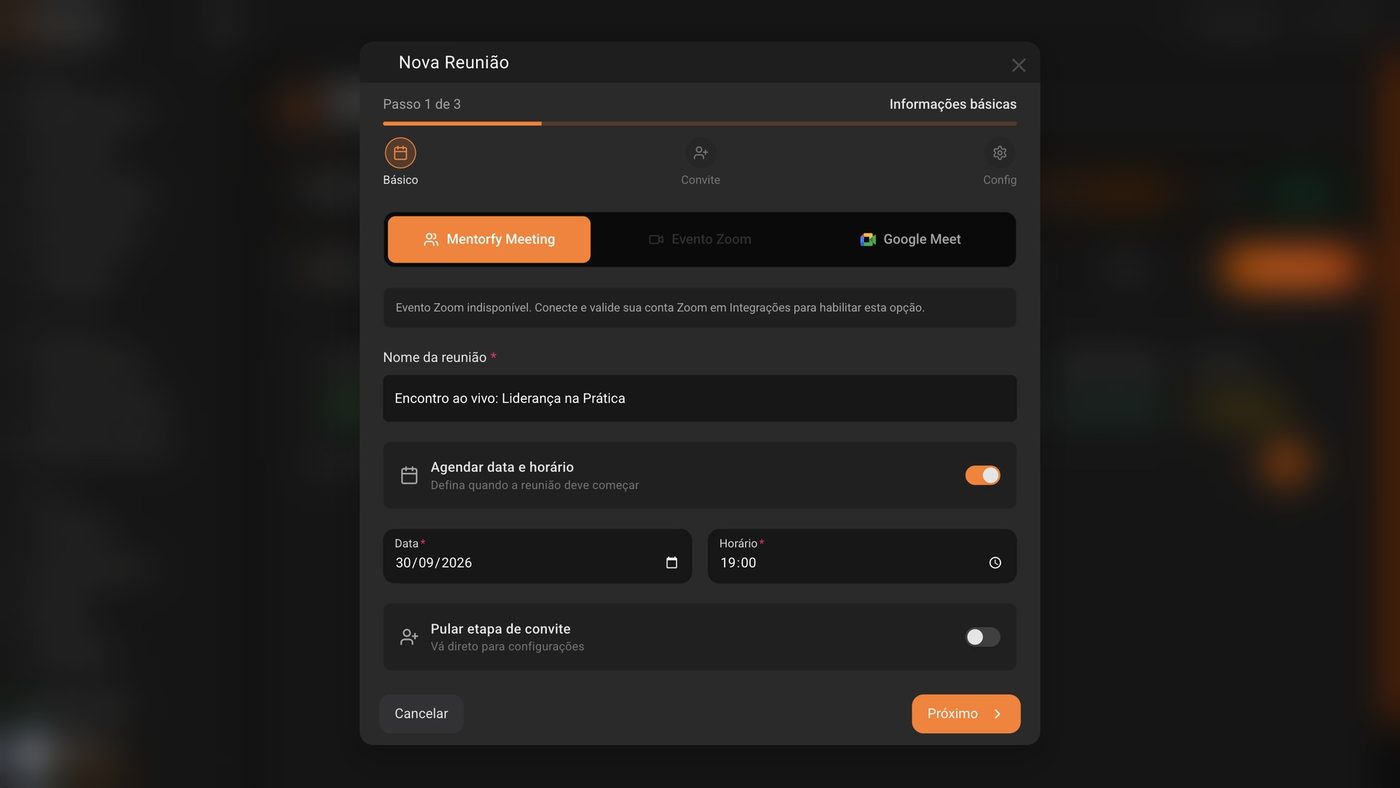
In the invitation, choose groups, students, or emails. If you prefer, click Skip and send the link later.
Use the Groups, Students, Email, or List tabs. In How to notify, choose Google Calendar, Email, or WhatsApp.
In the settings, leave Record Meeting turned on. With Auto Record, recording starts on its own.
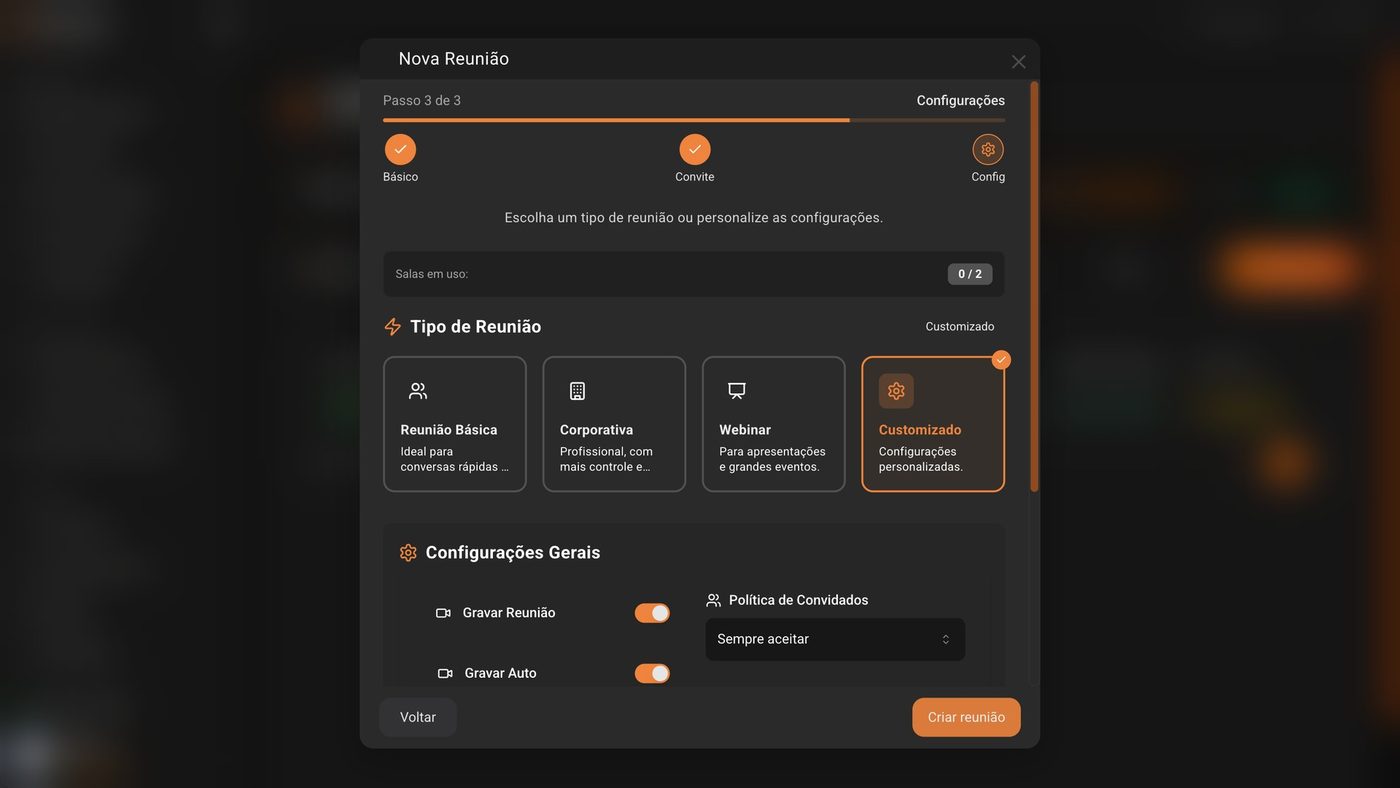
Click Create meeting.
Done! Copy the Guest link and send it to your students.
To join yourself, use the Moderator link (you) or the Enter meeting button.
Good to know
Invited a group? Anyone who joins the group later also gets the invitation until the meeting ends, and can watch the recording.
Mentorfy Meeting is a subscription service, purchased separately. When you subscribe to the platform, you may get 30 days of Meetings free. Without it, connect Zoom or Google Meet in Integrations and create the meeting there.
Reference
| Meeting Type | What it's for |
|---|---|
| Basic Meeting | Quick, casual conversations |
| Corporate | Professional, with more control and security |
| Webinar | Presentations and large events |
| Custom | Settings your way |
Common questions
Mentorfy Meeting is locked. Why?
It requires a separate subscription. If your Zoom or Google Meet is connected in Integrations, create the meeting with them. To subscribe, use the plans button that shows in My Meetings.
Does Google Meet record?
It does if you use a Google Workspace account with recording allowed. If it isn't allowed, the room is created without automatic recording.
I invited too many people. What happens?
The Mentorfy room has a participant limit, shown in the invitation step. If you go over it, the screen warns you: invite fewer people or use Zoom or Google Meet.
Can I delete a meeting?
Yes, in the meeting menu, with Delete meeting. But the links and invitations for that room stop working, and it can't be undone.