Teach Student Copilot with your material
In the Knowledge Base, you give your material to Student Copilot: workbook, FAQ, student guide. That way, it answers with your content, and not only with what the AI already knows.
Step by step
In Student Copilot, open the Knowledge Base.
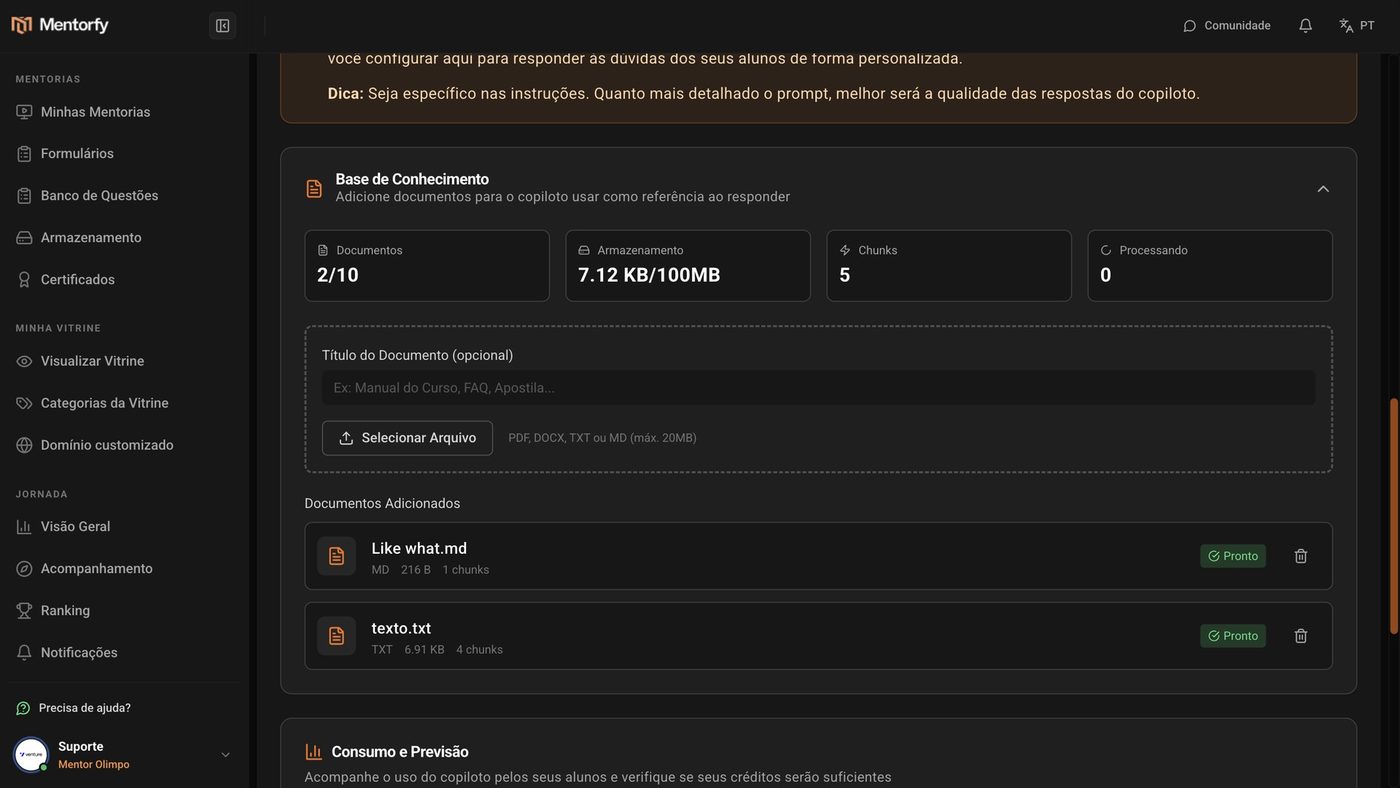
If you want, fill in the Document Title (optional).
For example: "Student guide". It helps you recognize the file in the list.
Click Select File and choose the file.
PDF, Word (DOCX), TXT, or MD all work.
Wait for the document to show as Ready.
It takes a few seconds. From then on, the assistant uses this material in its answers.
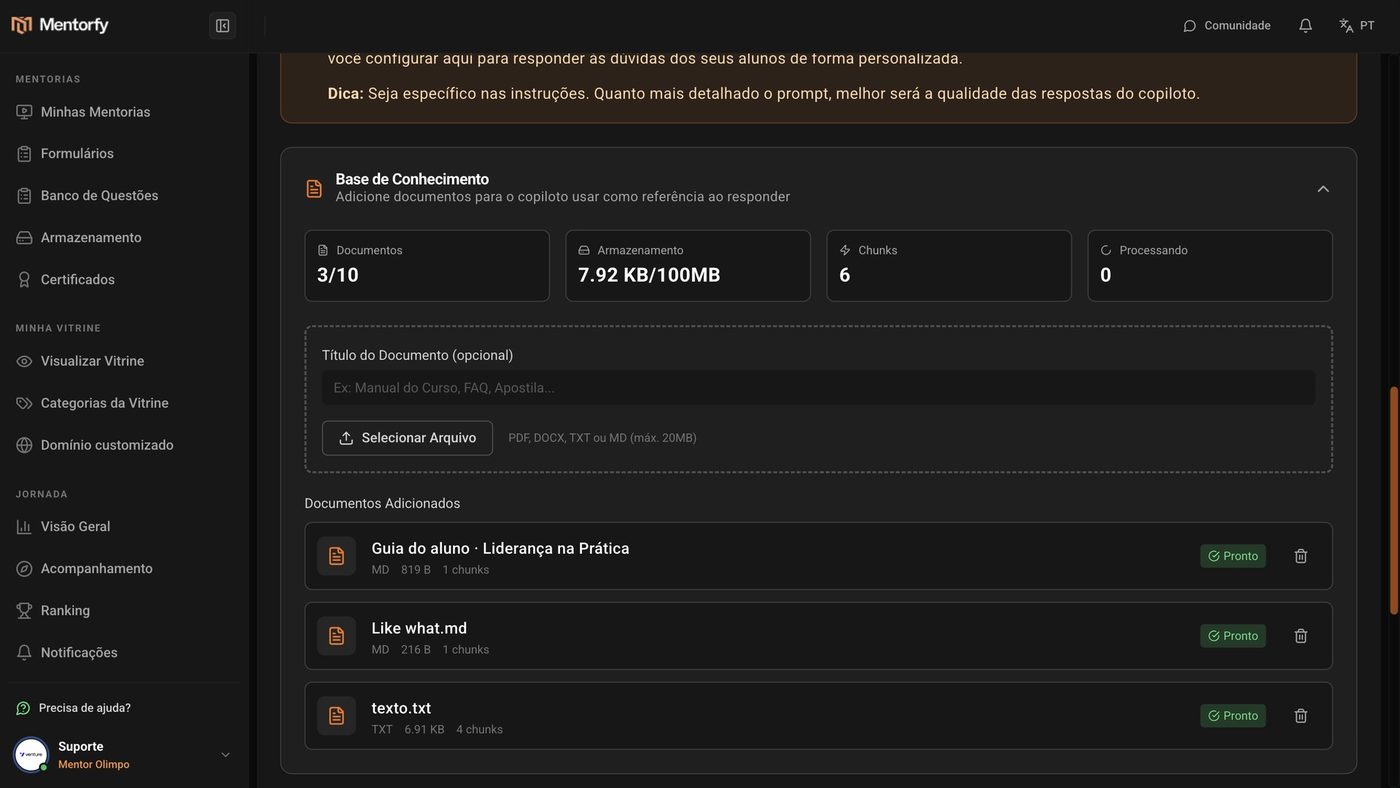
Good to know
Choose documents with well-organized text, like questions and answers or topics with headings. The assistant finds the answer more easily.
Your material is linked only to your account. Another mentor's student assistant doesn't use your documents.
Reference
| Format | Maximum size per file |
|---|---|
| 20 MB | |
| Word (DOCX) | 10 MB |
| TXT or MD | 5 MB |
At the top of the section, the counters show how many Documents you've uploaded (out of the total allowed) and the Storage used.
| Document status | What it means |
|---|---|
| Pending / Processing | The file arrived and is being read. Wait a few seconds |
| Ready | The assistant already uses this material |
| Error | The file couldn't be read. Try Reprocess |
Common questions
It said "Unsupported file type".
Only PDF, DOCX, TXT, or MD work. If your file is another type (for example, a spreadsheet or a presentation), save it as a PDF and upload it again.
It said "Document limit reached" or "Storage limit reached".
You've reached your account's maximum. Remove a document you no longer use, with the trash icon, and upload the new one.
I updated my workbook. What do I do?
Remove the old version and upload the new one. That way the assistant doesn't mix the two.
The document is stuck on Error.
Click Reprocess. If it stays on Error, remove the document and upload the file again.