Give your students an AI assistant
Student Copilot is an assistant that answers your students' questions at any time, the way you teach it. It shows up as a floating button in the student area.
Step by step
In the menu, open Copilot and then Student Copilot.
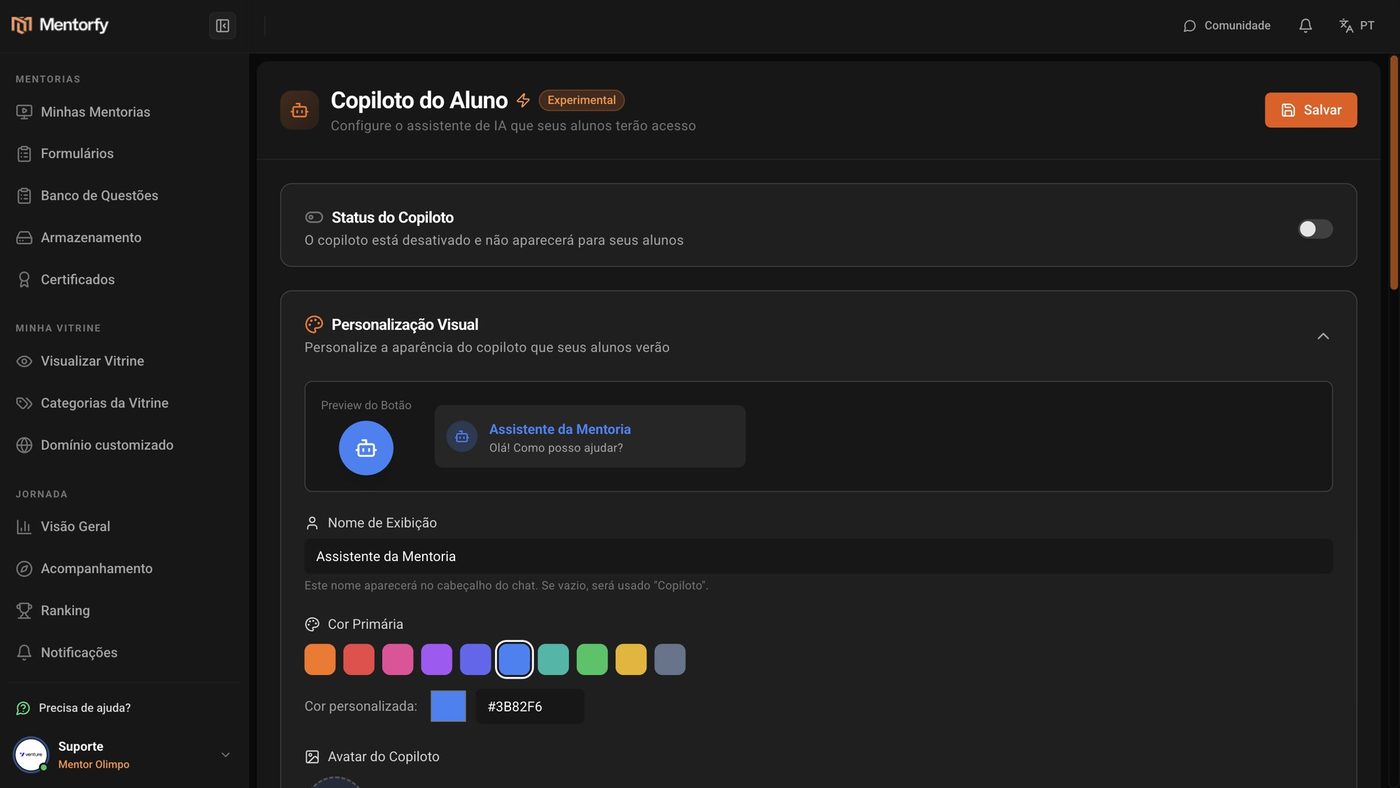
In Visual Customization, fill in the Display Name and pick the Primary Color.
The Button Preview shows the button the student will see. If you leave the name empty, it shows "Copilot".
In Copilot Instructions, tell it how to answer.
To start fast, click one of the Prompt Examples: General Support, Business Mentor, or Personal Development Coach. Then adjust it in your own words.
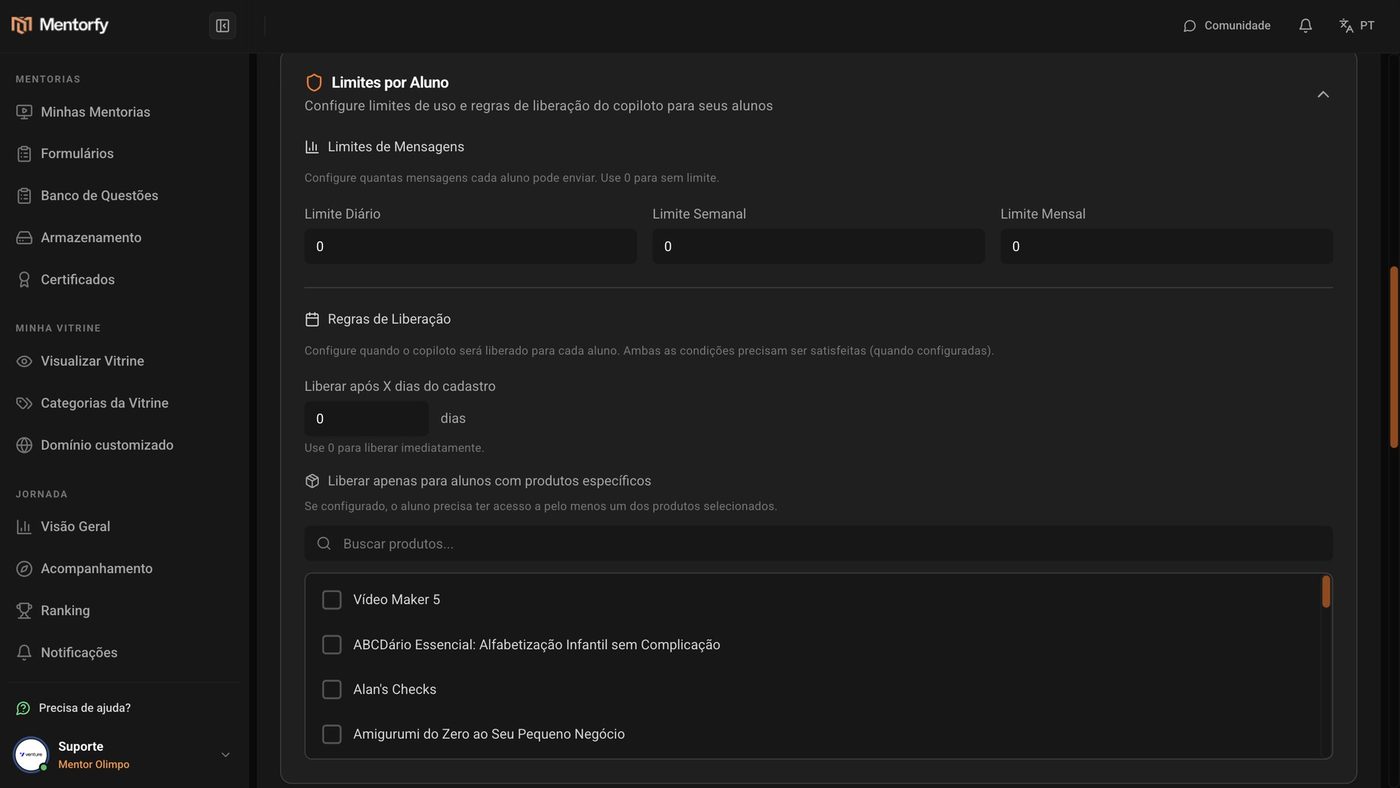
In Limits per Student, set the Daily Limit of messages.
Use 0 for no limit.
Click Save, in the top corner.
When you want to make it available to students, turn on Copilot Status.
When it's off, students don't see it. You can set everything up calmly before turning it on.
Good to know
Be specific in the instructions. The more detailed, the better the answers.
To turn on the assistant, you need to have AI credits available. During the trial period, each student message uses credits from your account; on a paid plan, it doesn't. See usage in Limits and usage.
Reference
| Field | What it accepts |
|---|---|
| Display Name | Any text. Empty = "Copilot" |
| Primary Color | One of the ready-made colors or a Custom color |
| Copilot Avatar | PNG, JPG, or GIF, up to 2 MB (128x128 px recommended) |
| Daily / Weekly / Monthly Limit | Number of messages per student. 0 = no limit |
Common questions
I saved, but my students don't see the button. Why?
Check that Copilot Status is on: when it's off, students don't see the assistant. Also check the Release Rules: if you required days since registration or a specific product, the student can only use the assistant once they meet the rules.
A notice said I don't have credits.
With no credits available, you can't turn on the assistant, even on a paid plan. Buy more credits in My Account and try again.
Does the assistant answer with the content of my lessons?
It uses your instructions and the documents you upload to the Knowledge Base. See how to upload them on the next page.