Choose the login screen and the student area banner
In the Login & Conteúdo (Login & Content) step of Brand Studio, you set the first screen the student sees, where the menu goes, and the banner at the top of the home page.
Step by step
In the Área do Aluno (Student Area) editor, open the Login & Conteúdo step.
In Modelo de Layout (Layout Template), choose how the login screen looks.
Centered, with a banner, or with a video on the side.
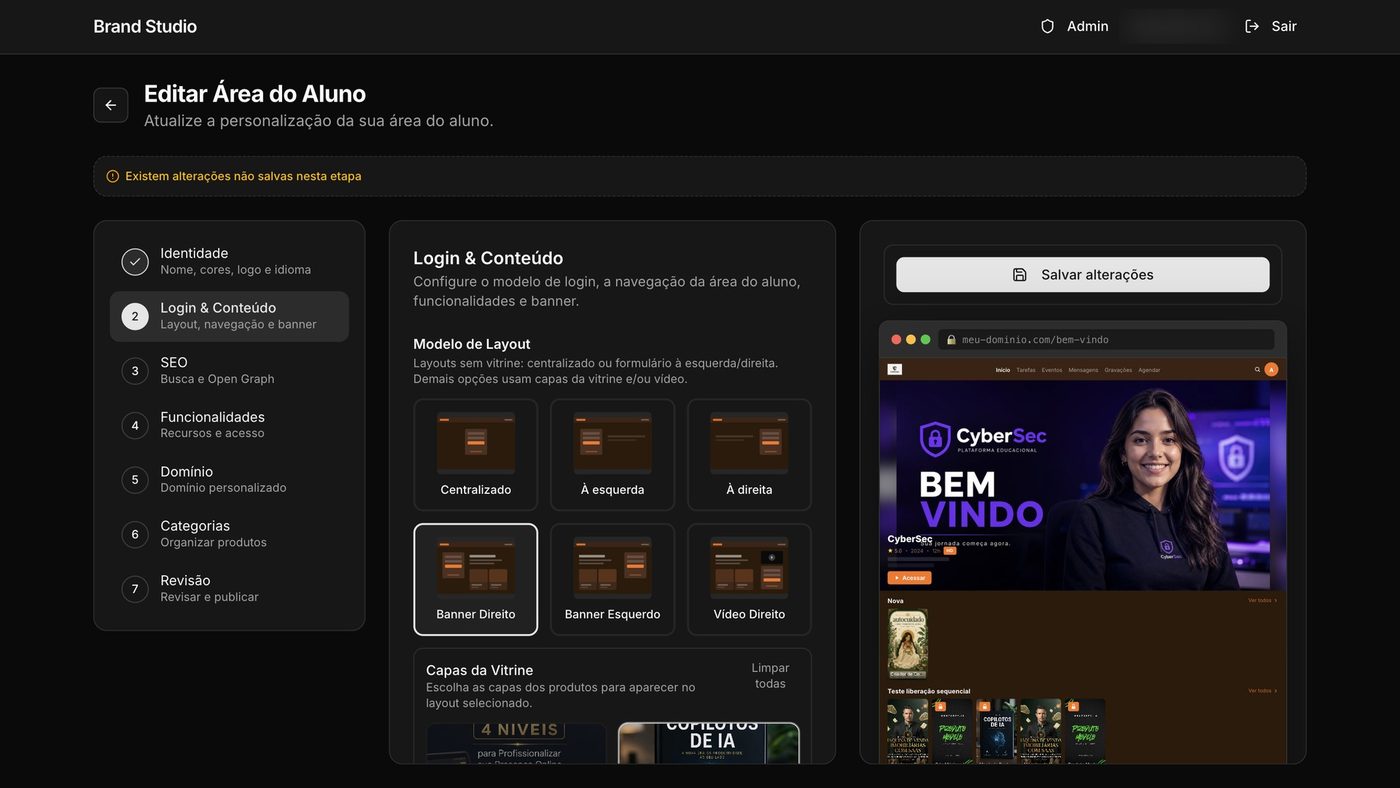
In Navegação da área do aluno (Student area navigation), choose Barra no topo (Top bar) or Menu lateral (Side menu).
The side menu looks like a streaming app.
In the Banner Hero, write the Título (Title) and the Descrição (Description).
It's the highlight at the top of the home page.
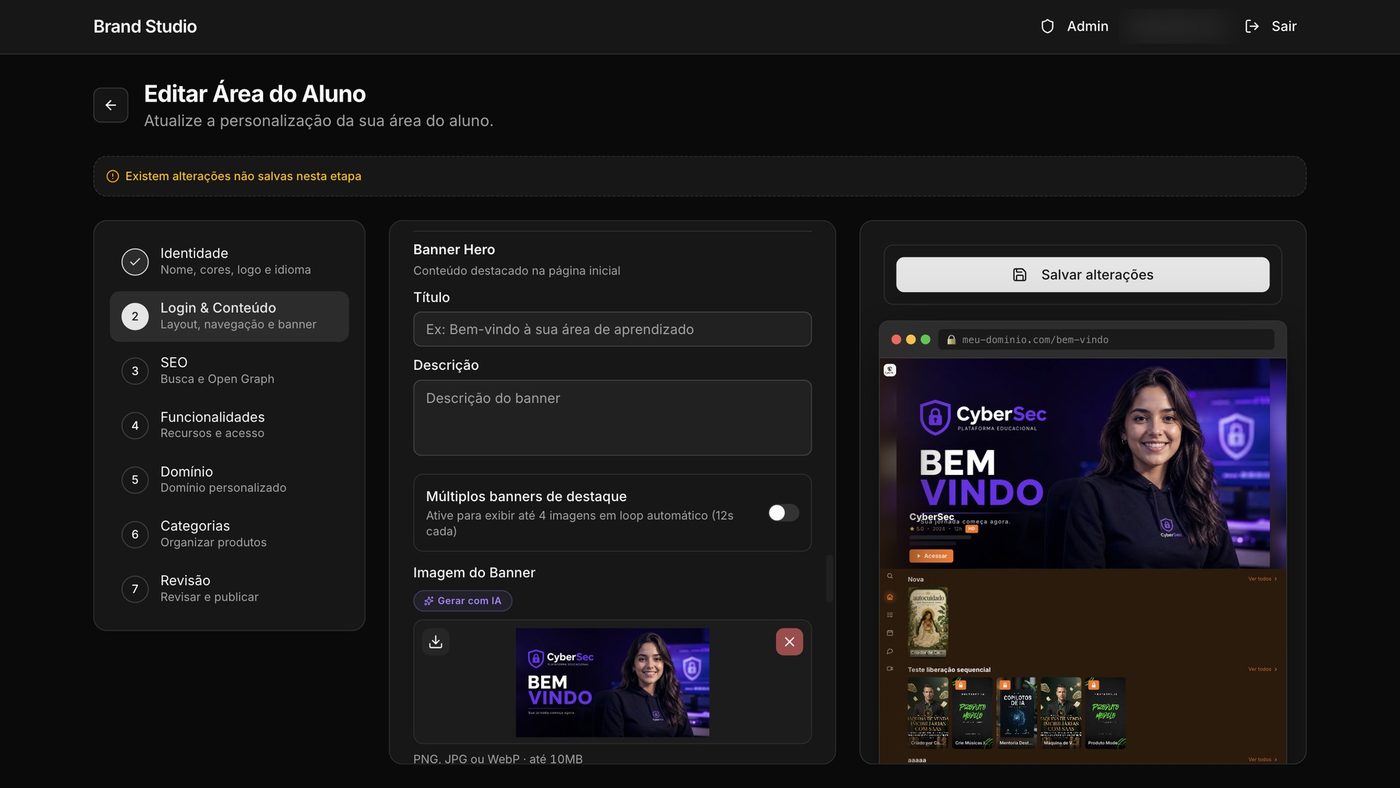
Click Salvar alterações (Save changes).
In a few minutes, students see the new area.
Good to know
Want several highlights at the top? Turn on Múltiplos banners de destaque (Multiple highlight banners): up to 4 images rotate on their own, 12 seconds each.
Saving changes what students see right away. Use the preview on the right to check first.
Reference
| Option | Choices |
|---|---|
| Modelo de Layout (login) | Centralizado (Centered), À esquerda (Left), À direita (Right), Banner Direito (Banner right), Banner Esquerdo (Banner left), Vídeo Direito (Video right) |
| Navegação da área do aluno | Barra no topo or Menu lateral |
| Imagem do Banner (Banner image) | PNG, JPG, or WebP |
Common questions
I don't see the change in the student area.
It can take a few minutes. If a notice says the Showcase didn't update, your changes are saved: try saving again in a few minutes.
Where do I change the colors and the logo?
In the Identidade (Identity) step. See Give the student area your brand.