Give the student area your brand
Brand Studio makes the student area look like your brand: colors, logo, and layout, no code needed. Use it when you set up the student area for the first time or want to refresh its look.
Step by step
In the menu, click Brand Studio.
It opens in a new tab and you're already logged in.
On the Área do Aluno (Student Area) card, click Editar (Edit).
On the right, the preview shows what your students will see.
In the Identidade (Identity) step, pick a ready-made palette.
For example, Pôr do Sol (Sunset). The preview changes right away.
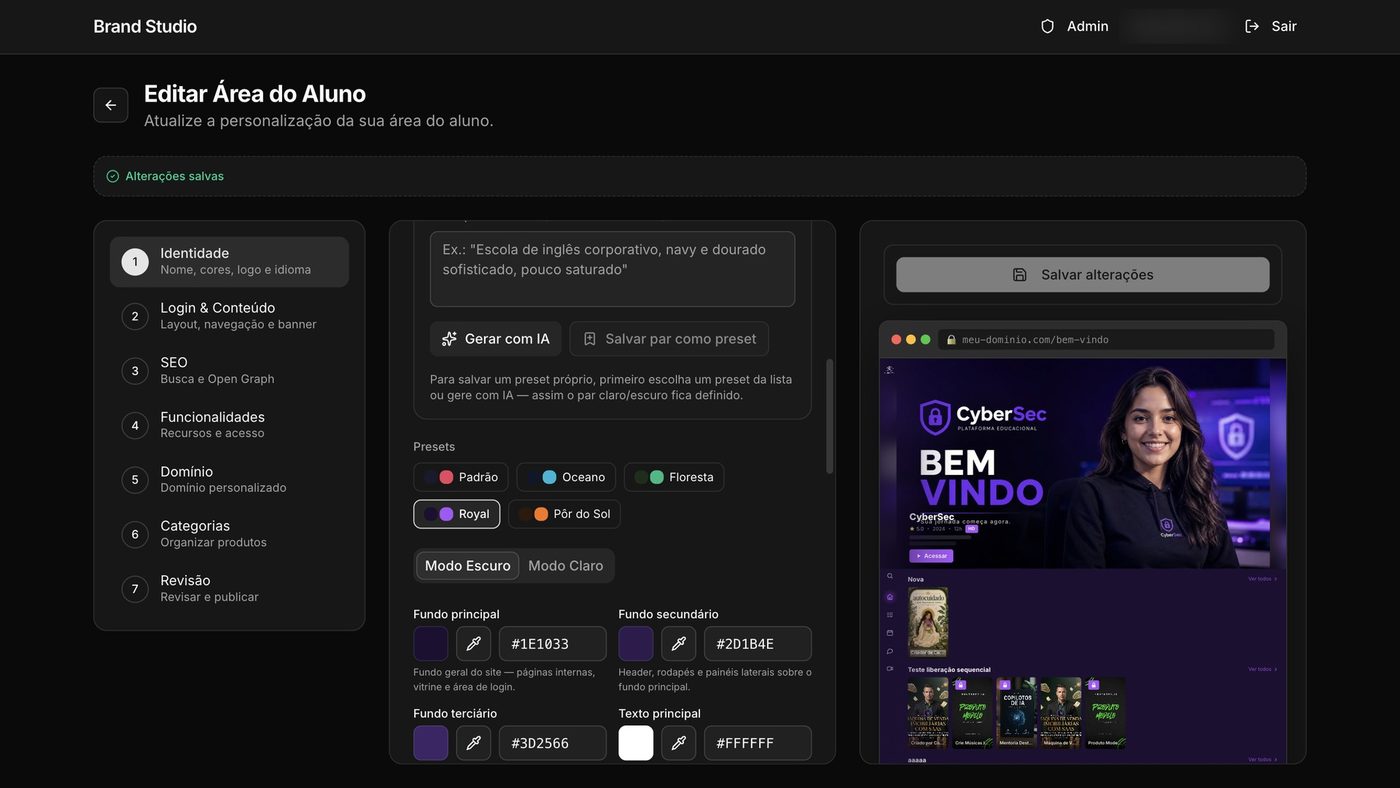
Under Logo, upload your file or click Gerar com IA (Generate with AI).
The AI already uses the palette's colors.
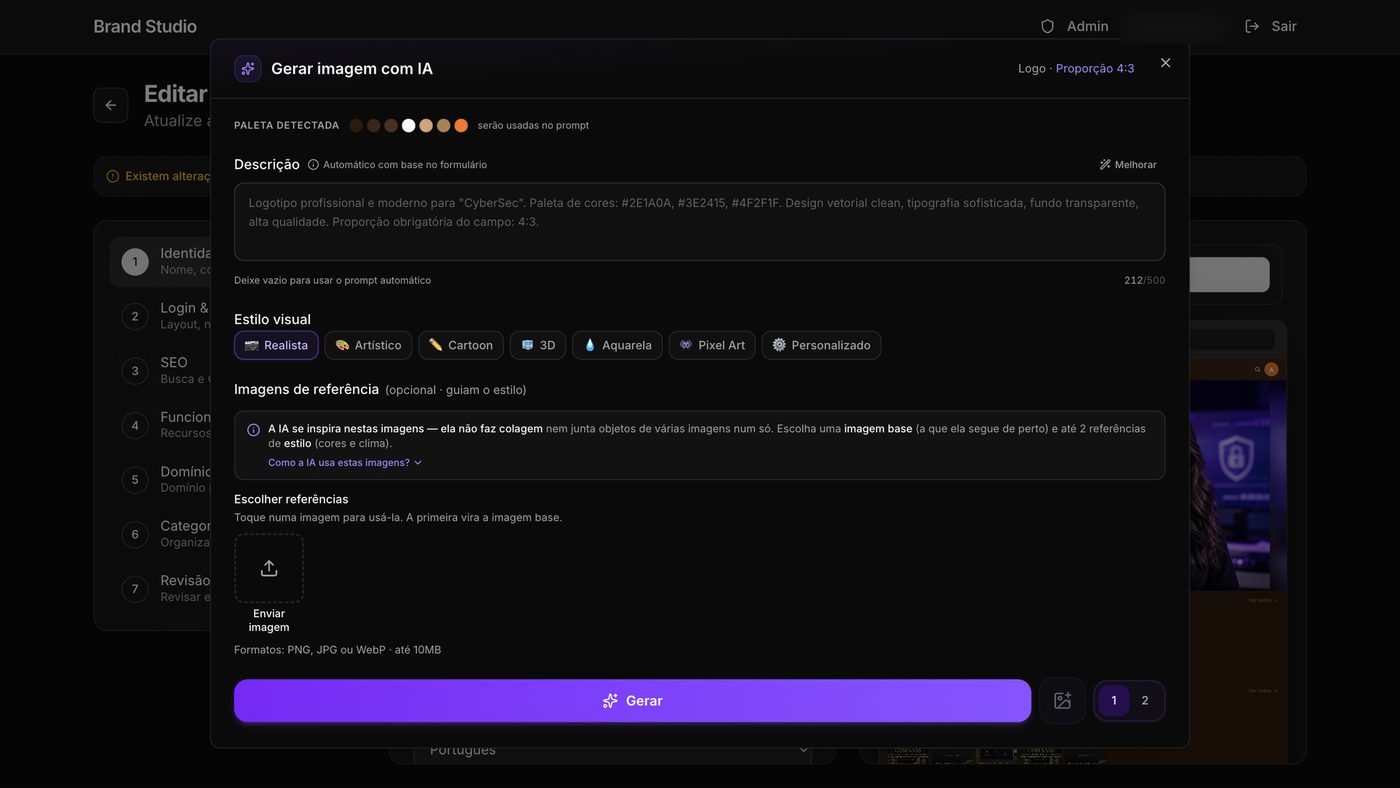
Click Gerar (Generate) and, when the logo is ready, Escolher esta imagem (Choose this image).
Open the Revisão (Review) step, check everything, and click Salvar Alterações (Save Changes).
In a few minutes, your students see the new brand.
Good to know
When you click Salvar Alterações, students start seeing the changes. Use the preview to check first. Colors and images can take a few minutes to show up.
Like a color combination? Use Salvar par como preset (Save pair as preset) to reuse it later. It's stored in this browser.
Reference
The 7 steps of the Área do Aluno editor:
| Step | What you set |
|---|---|
| Identidade (Identity) | Name, colors, logo, and language |
| Login & Conteúdo (Login & Content) | Login screen, menu, and banner |
| SEO | How the area shows up in searches and in shared links |
| Funcionalidades (Features) | Features and access |
| Domínio (Domain) | Custom domain |
| Categorias (Categories) | How products are organized |
| Revisão (Review) | Check everything and save |
Ready-made palettes: Padrão (Default), Oceano (Ocean), Floresta (Forest), Royal, and Pôr do Sol (Sunset). The logo accepts PNG, JPG, or WebP.
Common questions
I clicked Brand Studio and another tab opened. Is that right?
Yes. Brand Studio is a separate site, linked to your account. It opens in a new tab and logs you in automatically. To go back to the dashboard, go back to the previous tab.
I saved, but the student still sees the old colors.
Colors and images can take a few minutes to show up. Wait a bit and reload the student area page.
Can I have more than one student area?
No. Each account has only one Área do Aluno. You edit the same area whenever you want.
Someone on my team can't find Brand Studio.
That person needs permission to view Brand Studio. Without it, the dashboard sends them back to the home page. Adjust permissions in My team.