Create your course cover with AI
In AI Studio, you create your course cover in seconds, without needing a designer. The finished image becomes the product's cover or banner in one click.
Step by step
In the menu, open AI Studio, on the Generate Image tab.
In Describe the image, write the cover you want, in your own words.
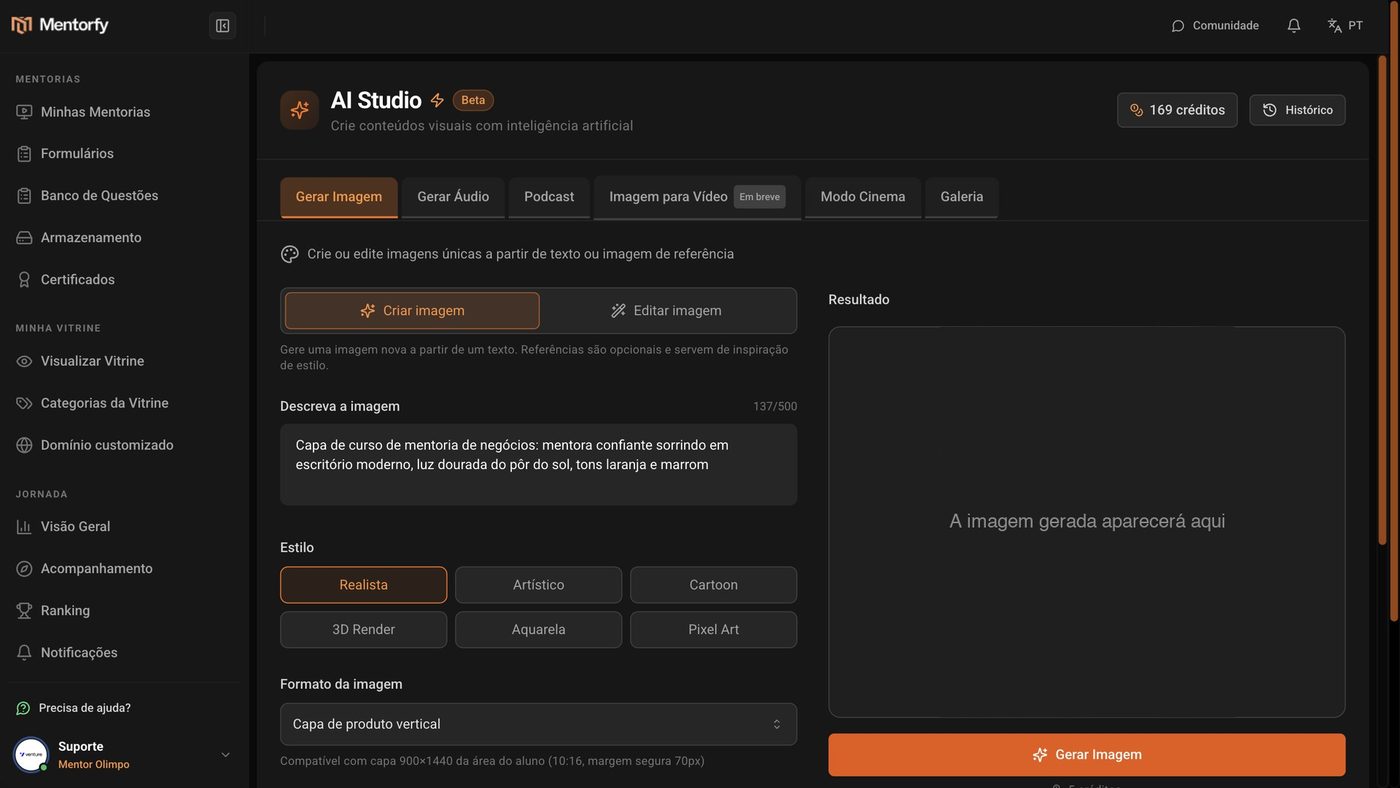
Pick the Style and the Image format.
Vertical product cover is already selected.
Click Generate Image.
In a few seconds, the cover is ready. It costs 5 credits.
In Use image in product, pick the product.
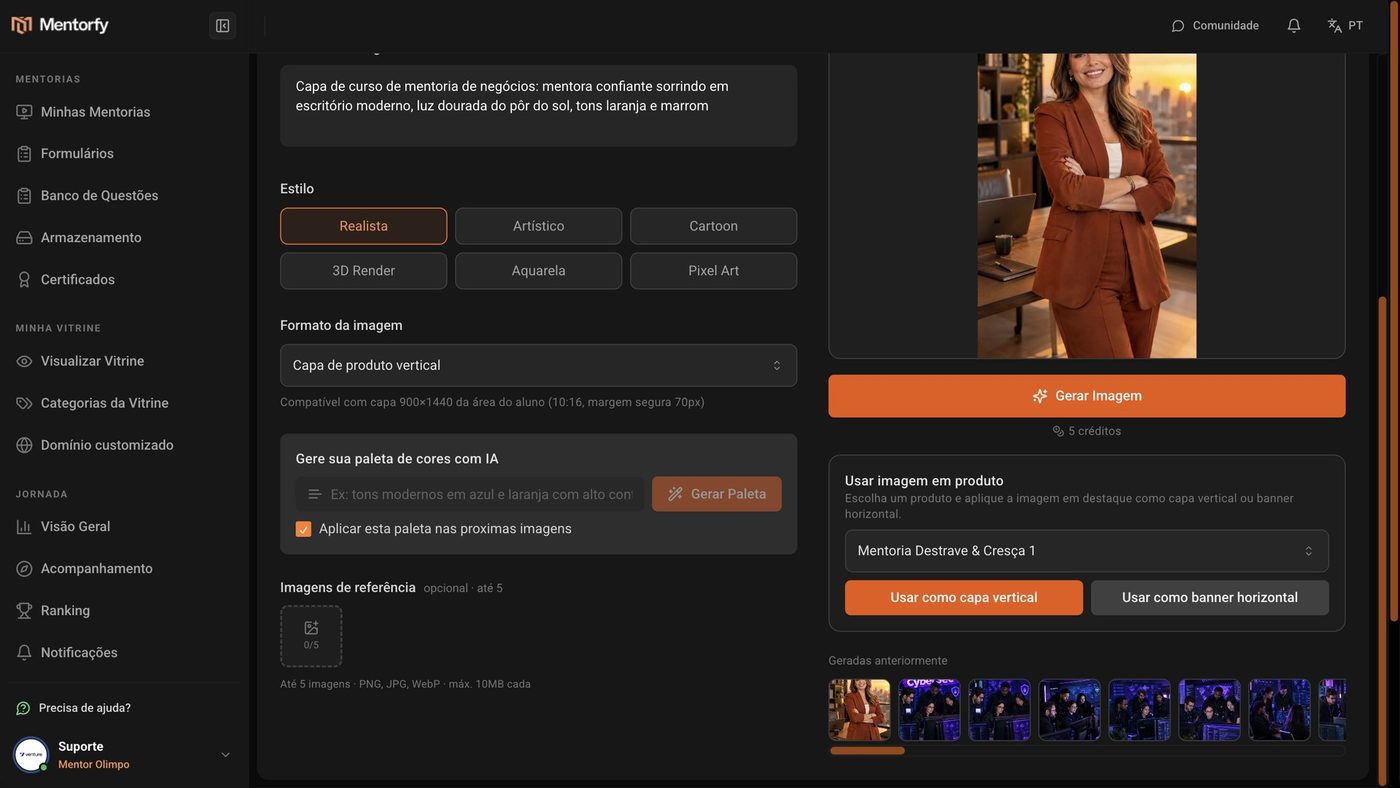
Click Use as vertical cover.
Done: the product already has its new cover.
Good to know
Be specific: setting, colors, light, and style. For example: "smiling mentor in a modern office, golden sunset light, orange and brown tones". Avoid generic descriptions, like "nice cover".
Want a look similar to another image? Upload a reference image (optional). The AI takes inspiration from it.
Reference
| Item | Details |
|---|---|
| Style | Realistic, Artistic, Cartoon, 3D Render, Watercolor, Pixel Art |
| Vertical product cover | 10:16 ratio, matching the 900×1440 cover in the student area |
| Horizontal product banner | 12:5 ratio, matching the 2160×900 banner in the student area |
| Reference image | Up to 5 images, PNG, JPG, or WebP, up to 10 MB each |
| Cost | 5 credits per image |
Common questions
It said "You are out of AI credits".
Each image costs 5 credits. Buy more in Add credits, at the top of AI Studio, or in My Account.
The generation failed. Did I lose my credits?
No. When the generation fails, the credits are refunded.
Where are the images I've already generated?
In the Gallery tab, along with your audio and videos. The most recent ones also show up below the result, in Previously generated.
Can I get back something I removed from the Gallery?
No. Removing from the Gallery deletes the material for good.